
The fastest way to get an event on your calendar is to type it in plain English. Not tap through a form. Not switch to a calendar app, find the day, fill in a title, set the time, save. Just type "Meet with Nicu at 14:00" and tap a single button.
That is now available in the Routines iOS app. Type a phrase in the Home screen composer, see the event parsed into a preview card instantly, and tap Add. Three seconds, one tap, done.
How text to calendar event works
When you type in the Home screen composer, Routines watches for event intent locally, with no AI round-trip and no network call. The moment it detects a pattern, such as a person's name alongside a time or a day reference, a preview card slides in showing:
- The parsed title ("Meet with Nicu")
- The resolved day and date
- The start time and end time
- A mini day-timeline placing the proposed event block alongside your existing events for that day
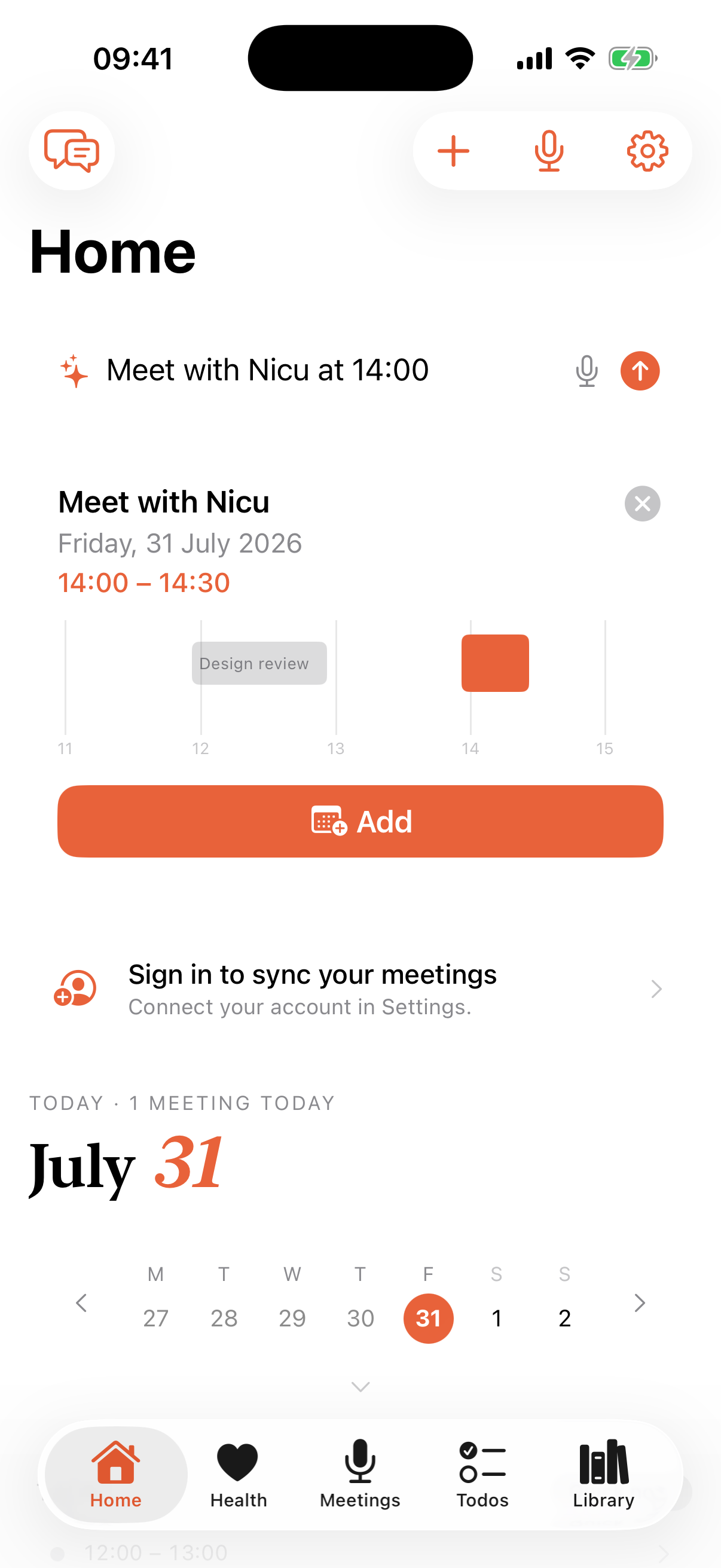
That last element is the one that saves you the most time. Before you tap Add, you can see whether the slot is clear or whether it collides with something already on your calendar. Edit the time in the composer and the preview updates instantly.
Tap Add and the event is created in your default calendar, the input clears, and a haptic confirms. One tap. No navigation.
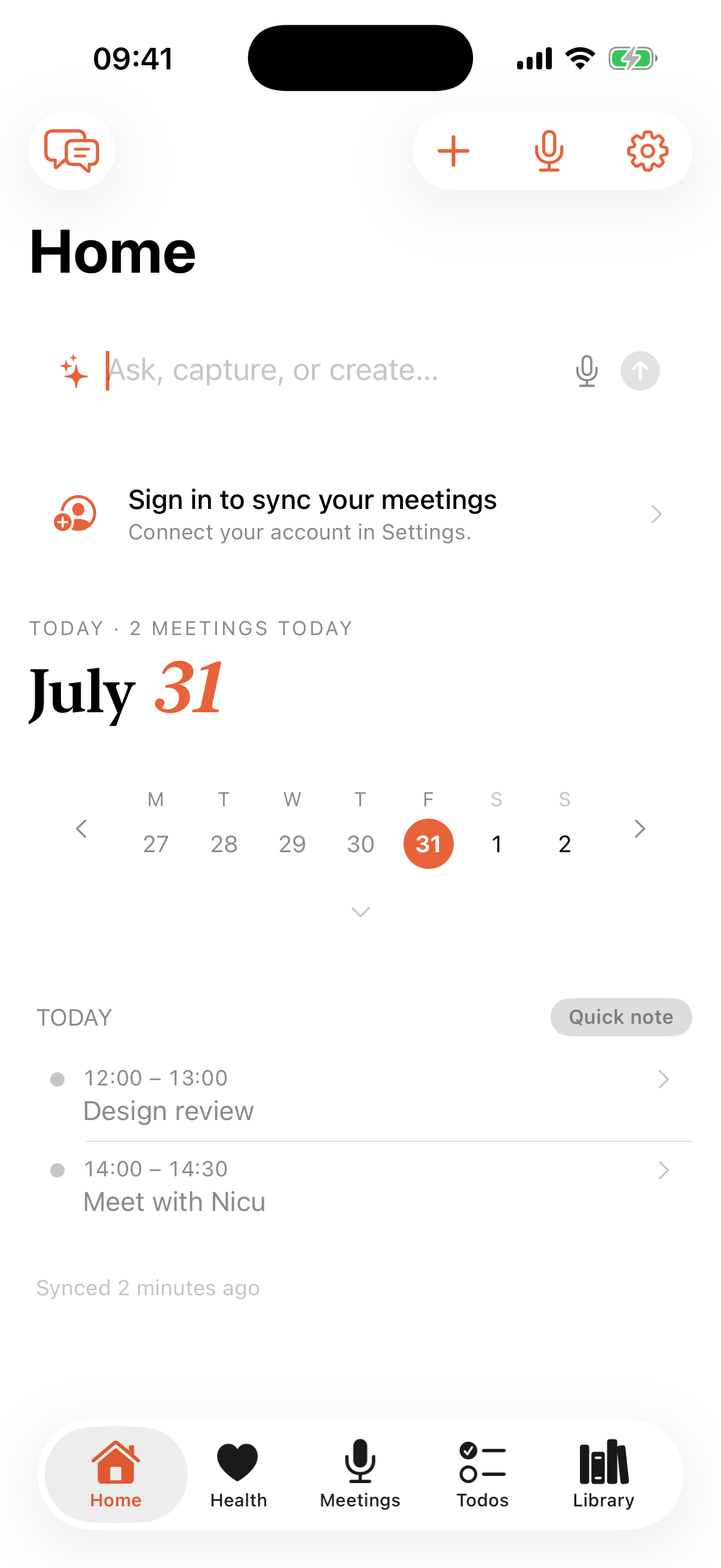
If what you type does not look like an event, it goes to the AI assistant as usual. The event preview never intercepts a chat message.
What you can type to create calendar events
The natural language calendar input understands a range of natural phrases for dates, times, and durations:
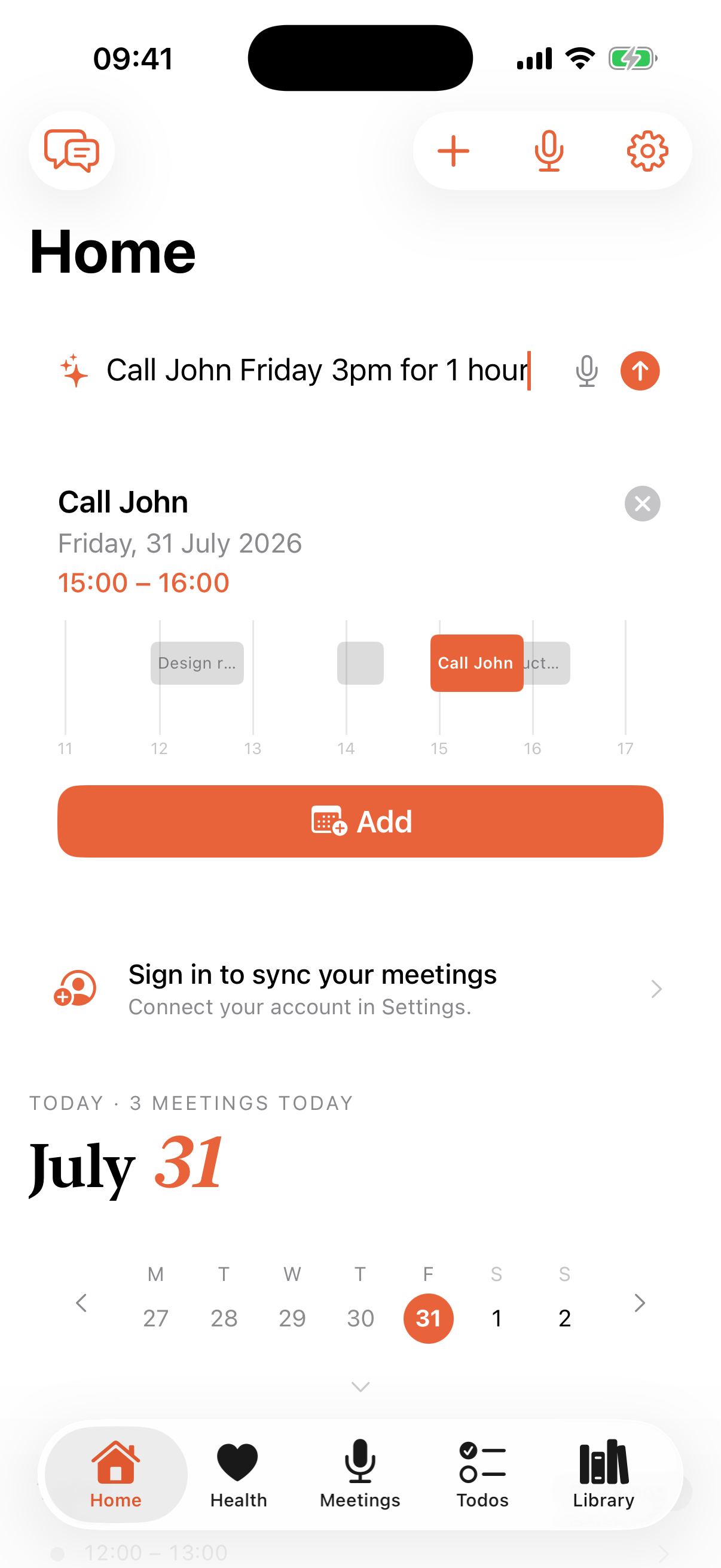
Meet with Nicu at 14:00Lunch with Ana tomorrow at 12Call John Friday 3pm for 1 hourDentist on July 30 at 10:00
When you do not specify a duration, the event defaults to 30 minutes.
The mini timeline in the preview is especially useful here. If Friday at 3pm is already full, you see the block overlap before committing, and you can adjust without leaving the composer.
Parsing happens on your device, not in the cloud
Every character you type in that input bar passes through a fast on-device heuristic before it ever reaches an AI model. Nothing you type leaves your device just to schedule a meeting.
This matters because you type a lot of names and times in a daily input bar: who you are meeting, where, what it is about. None of that should travel to a server to determine that "Lunch with Ana tomorrow" means a noon event.
It also means the feature works offline. Local parsing, instant preview, no dependency on your AI model's connection status.
Alongside the AI assistant, not replacing it
Routines is not a calendar app. It is an AI assistant that can now create events from the same bar you use to chat, manage tasks, and review your day. The two modes share one input bar and coexist cleanly.
Type something that looks like an event and you get the scheduling preview. Type a question and it goes to your AI assistant. The event preview appears below the input field and the send button stays in place.
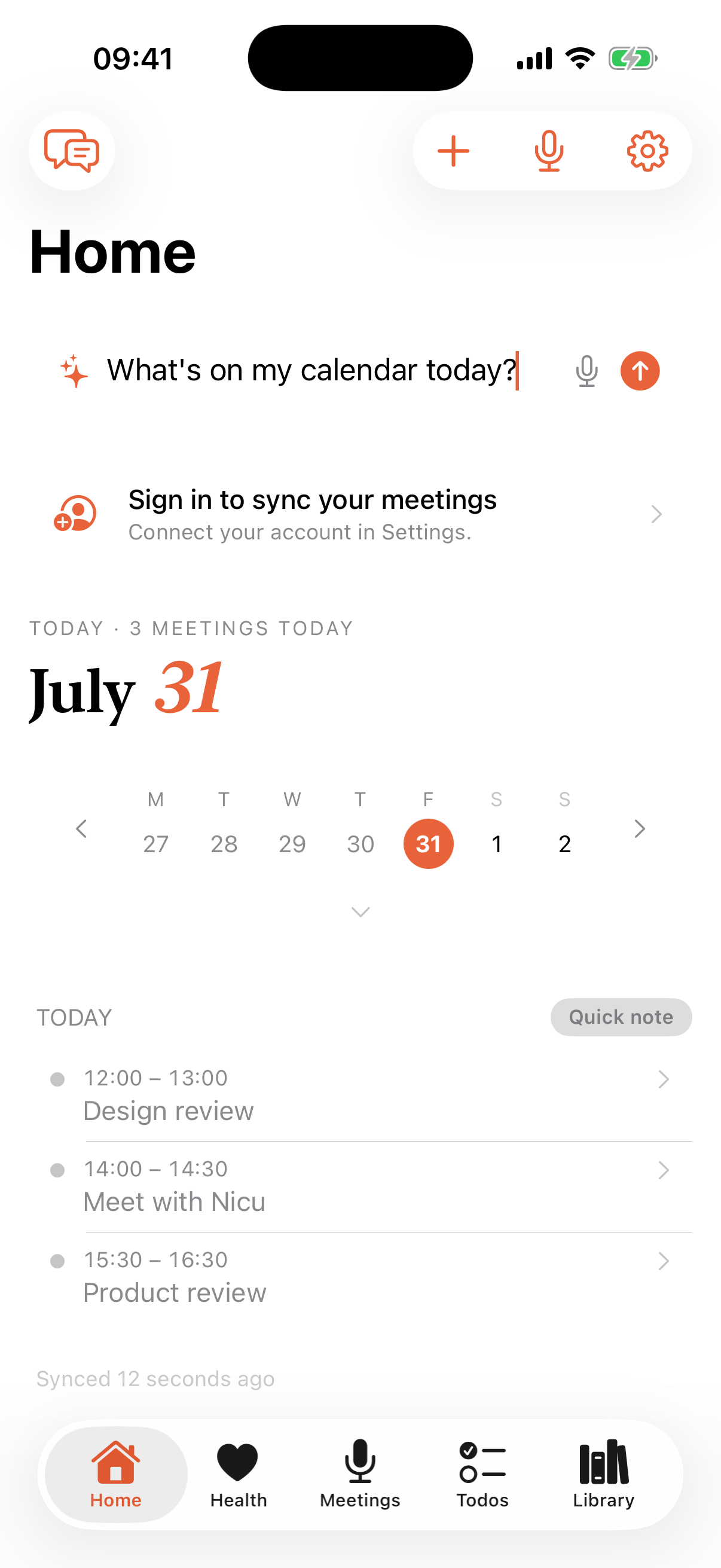
This is different from a dedicated calendar tool because you are not context-switching. You are already in the app where you track work, read meeting notes, and ask your AI questions. Scheduling slides into that existing flow.
For a full side-by-side of how the calendar experience in Routines compares to a dedicated calendar client, the Routines vs Fantastical page covers where each is the right pick. Fantastical is a better pure calendar client. Routines is a better AI assistant for the work around your calendar.
If you also want to automate pre-meeting prep, the Calendar Prep recipe runs each morning and summarizes your day before it starts. It pairs naturally with quick event creation: you add events fast during the day, and the routine briefs you on them before they happen.
Rolling out on TestFlight and the App Store
The natural language event creation feature is in the Routines iOS app now, rolling out via TestFlight first and the App Store shortly after. If you are already on TestFlight, update to the latest build to get it. App Store users will see it in the next release.
The Mac app handles calendar differently. The calendar connector lets you link Google Calendar accounts, join meetings from the menu-bar popover, RSVP, and run AI routines against your schedule. The quick event feature is iOS-specific, designed for the moments you are away from your Mac and need to capture something before it disappears.
FAQ
How do I create a calendar event by typing in Routines for iOS? Type your event in the Home screen composer, for example "Call John Friday at 3pm for 1 hour". Routines detects the event intent locally and shows a preview card with the parsed title, day, and time. Tap Add to save it to your default calendar.
Does natural language calendar input require an internet connection? No. The parsing is a fast on-device heuristic. Nothing you type leaves the device just to schedule a calendar event. The preview builds locally and the event is written directly to your default calendar.
What phrases does text to calendar event understand? Phrases like "Meet with Nicu at 14:00", "Lunch with Ana tomorrow at 12", "Call John Friday 3pm for 1 hour", and "Dentist on July 30 at 10:00" all work. When you do not specify a duration, the event defaults to 30 minutes.
Does the event feature replace AI chat in Routines? No. The suggestion is purely additive. If you type something that does not look like an event, it goes to the AI assistant as normal. The input bar handles both, and the event preview never hijacks a chat message.
Is this available on the Mac app? The natural language event creation feature is part of the Routines iOS app, rolling out via TestFlight and the App Store. The Mac app has its own calendar integration through the menu-bar popover and calendar connectors.
How does this compare to Fantastical natural language input? Fantastical is a dedicated calendar client with excellent natural language input. Routines is an AI assistant that adds event creation alongside AI chat, meeting notes, and scheduled routines. Parsing happens entirely on your device in Routines, and the same input bar schedules events and sends messages to your AI assistant.
Download Routines for iOS and try natural language event creation. Rolling out on TestFlight now, App Store shortly after.