
Routines Routines

06 / Clipboard

Everything you copied. Now you can talk to it.

Press ⌘⇧V for a floating palette of your last 500 text copies. Search as you type, paste any item back with Enter, or pick one and ask the AI to summarize, rewrite, or format it in a tap. It all stays on your Mac, and password copies are never captured. A clipboard manager is one of the first things we install, along with the rest of our favourite Mac apps.

Search clipboard…⌘⇧V
  • https://getroutines.ai/features/clipboardjust now
  • cargo build --release && ./target/release/routines4m ago
  • Action item: Eduard signs the build before Friday.18m ago
  • ana@team.co, mihai@team.co, you@team.co1h ago
  • The whole thing stays on your Mac, nothing synced.3h ago
Arrow keys to navigate Paste back

Stored only on your Mac · password copies never captured

New: Talk to your clipboard

One tap to reshape what you copied.

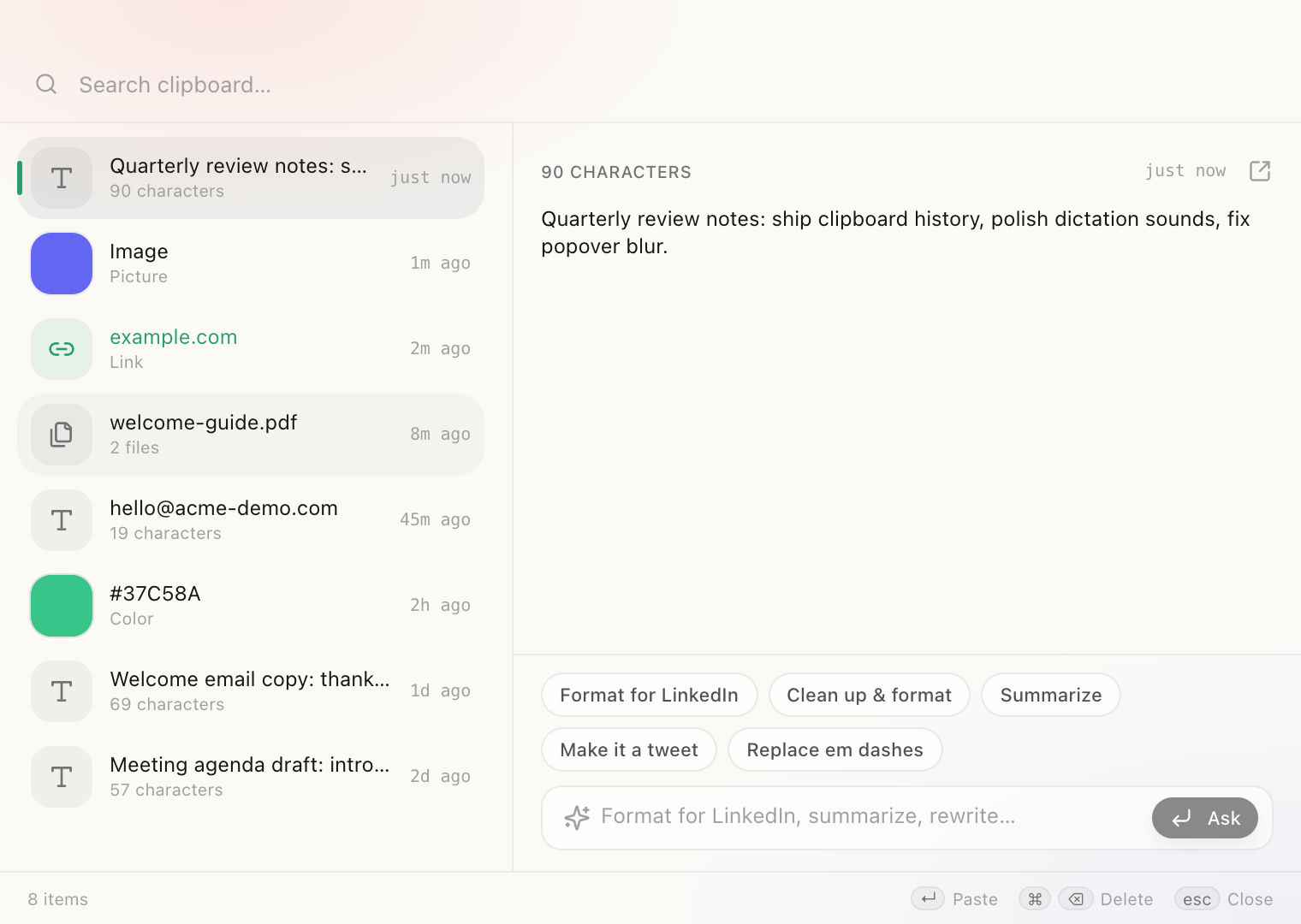
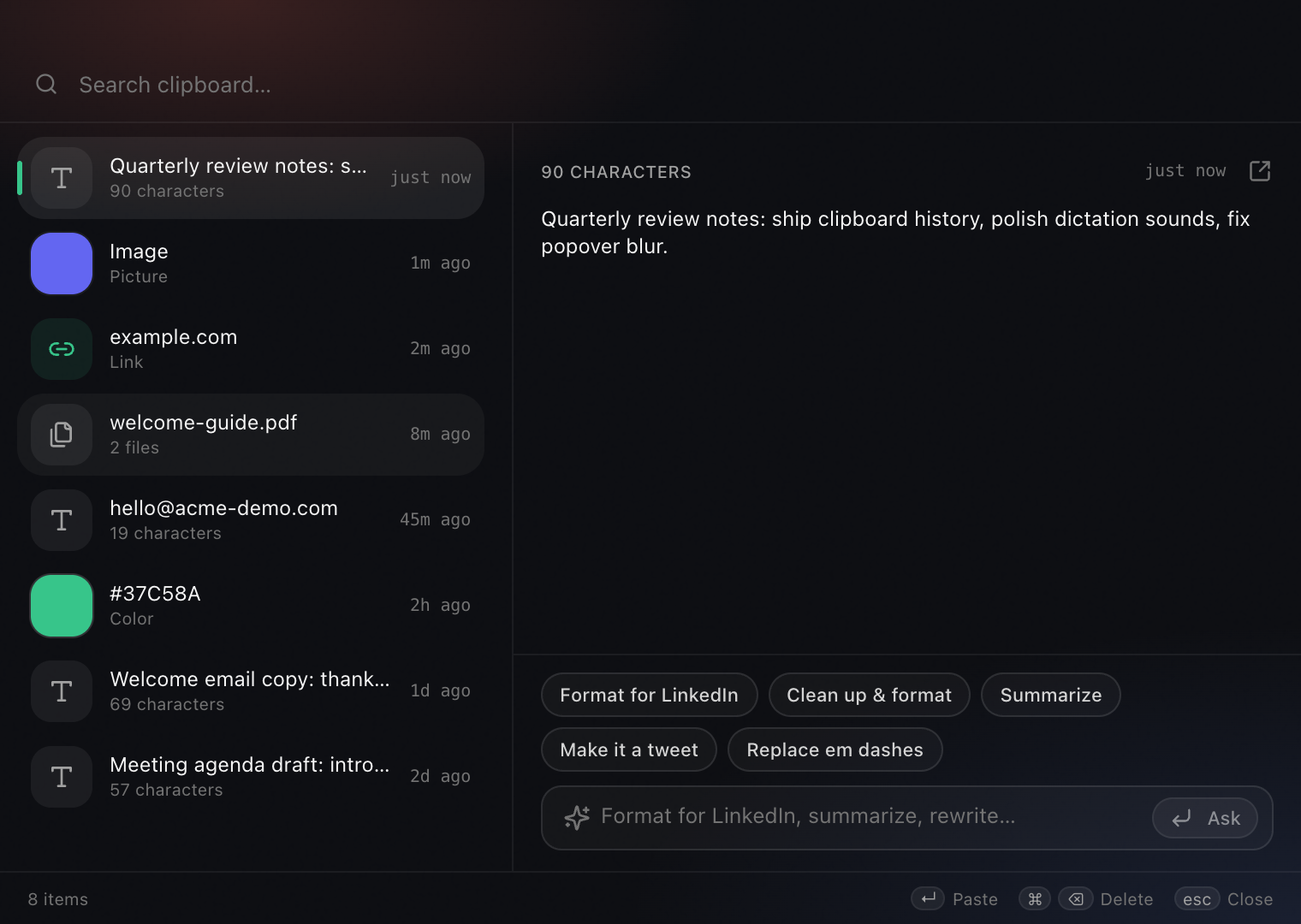
Pick any copy and a row of one-tap actions appears. Format a Markdown draft for LinkedIn, clean it up, summarize it, turn it into a tweet, or strip out em dashes. Each one runs instantly against the item you selected, no prompt to write. These five ship as defaults, and every one of them is yours to rewrite.

Routines clipboard history with the Ask AI panel open, showing one-tap quick actions: Format for LinkedIn, Clean up and format, Summarize, Make it a tweet, and Replace em dashes

One tap · instant · runs on your own Claude key

New: Bring your own prompts

These buttons are yours now. Add, edit, delete any of them.

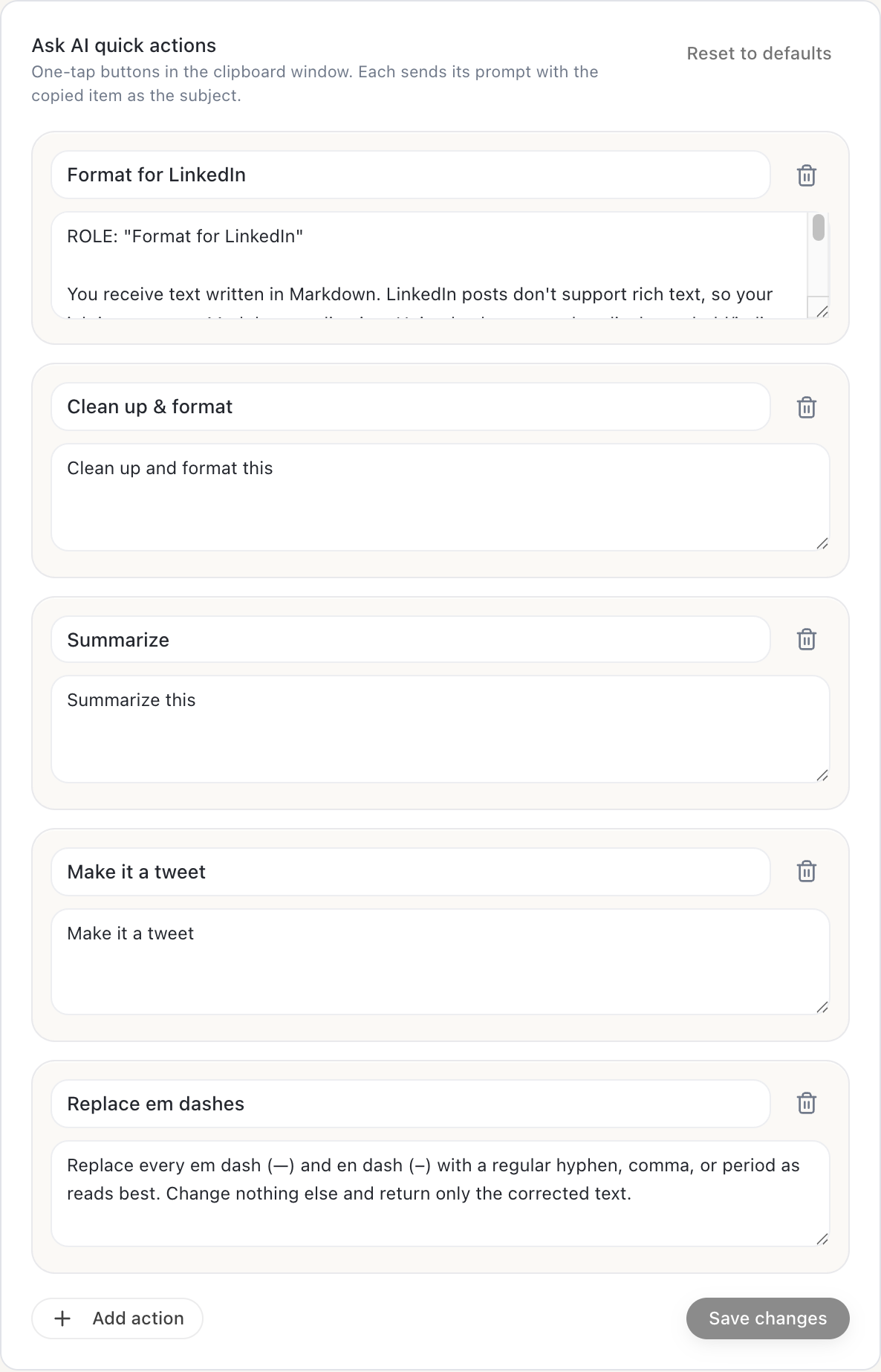
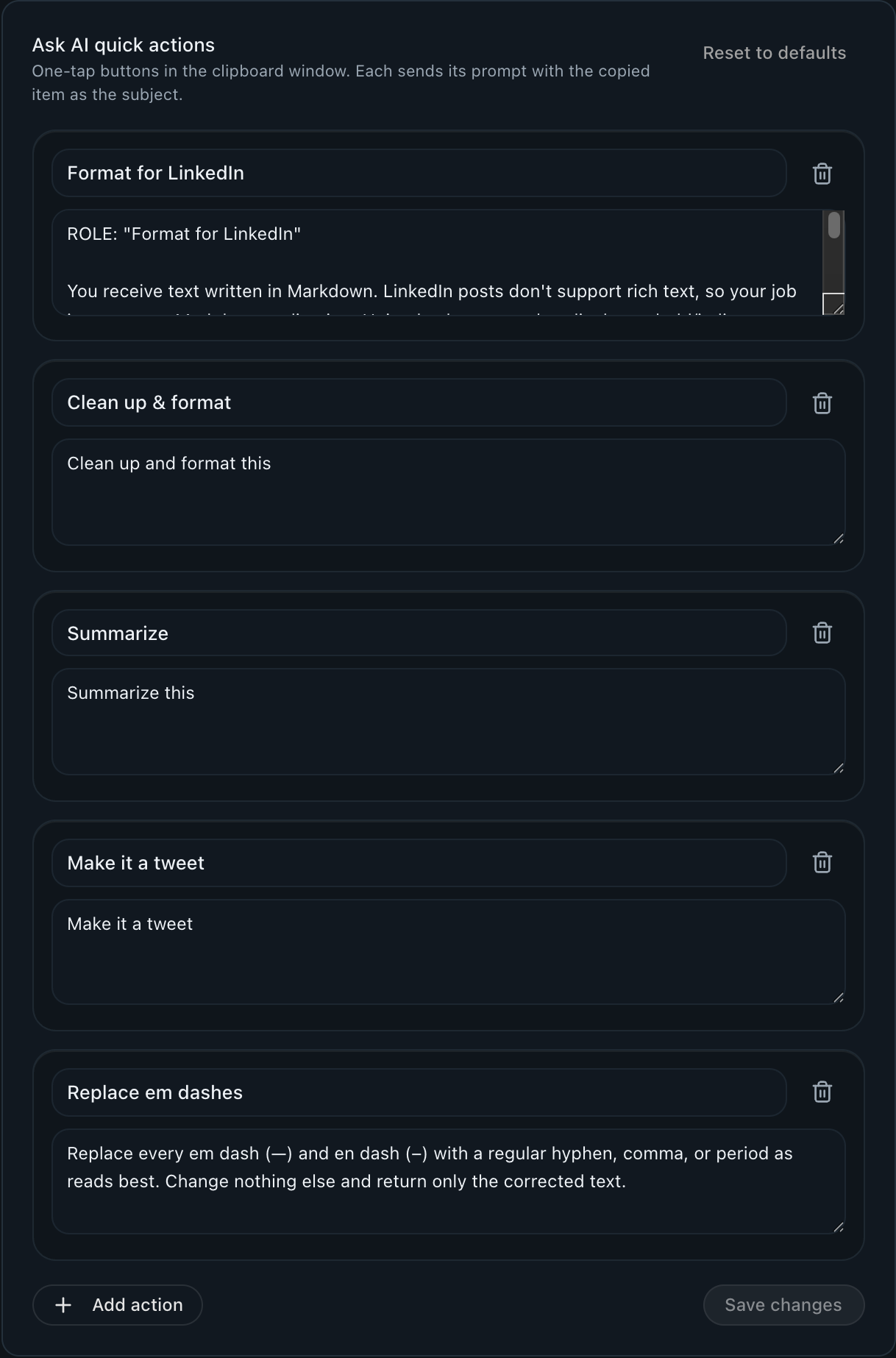
Every quick action is just a label and a prompt, and now you own both. In Settings → Clipboard, rename a button, rewrite the exact prompt it sends, delete the ones you never touch, or add your own. Turn any repetitive text task into a one-tap button, and your clipboard becomes a launcher for your own AI shortcuts.

Routines Settings, Clipboard, Ask AI quick actions editor: each action has an editable label and prompt with a delete button, plus Reset to defaults, Add action, and Save changes controls

Edit here

Write the prompt once

Give the action a name and paste the exact instruction you want sent. Routines passes your copied text in as the subject, so the prompt stays reusable across everything you paste into it.

Use it everywhere

It shows up as a chip

Save, and your new button appears in the Ask AI panel above, one tap from any copy. Changed your mind? Reset to defaults brings the original five back instantly.

Still yours

Your prompts stay on your Mac

The actions you write are saved locally, no account and no sync, and they run on your own Claude key. Your shortcuts are your business, and they never leave the machine.

Add · edit · delete · reset · all in Settings → Clipboard

Ask anything

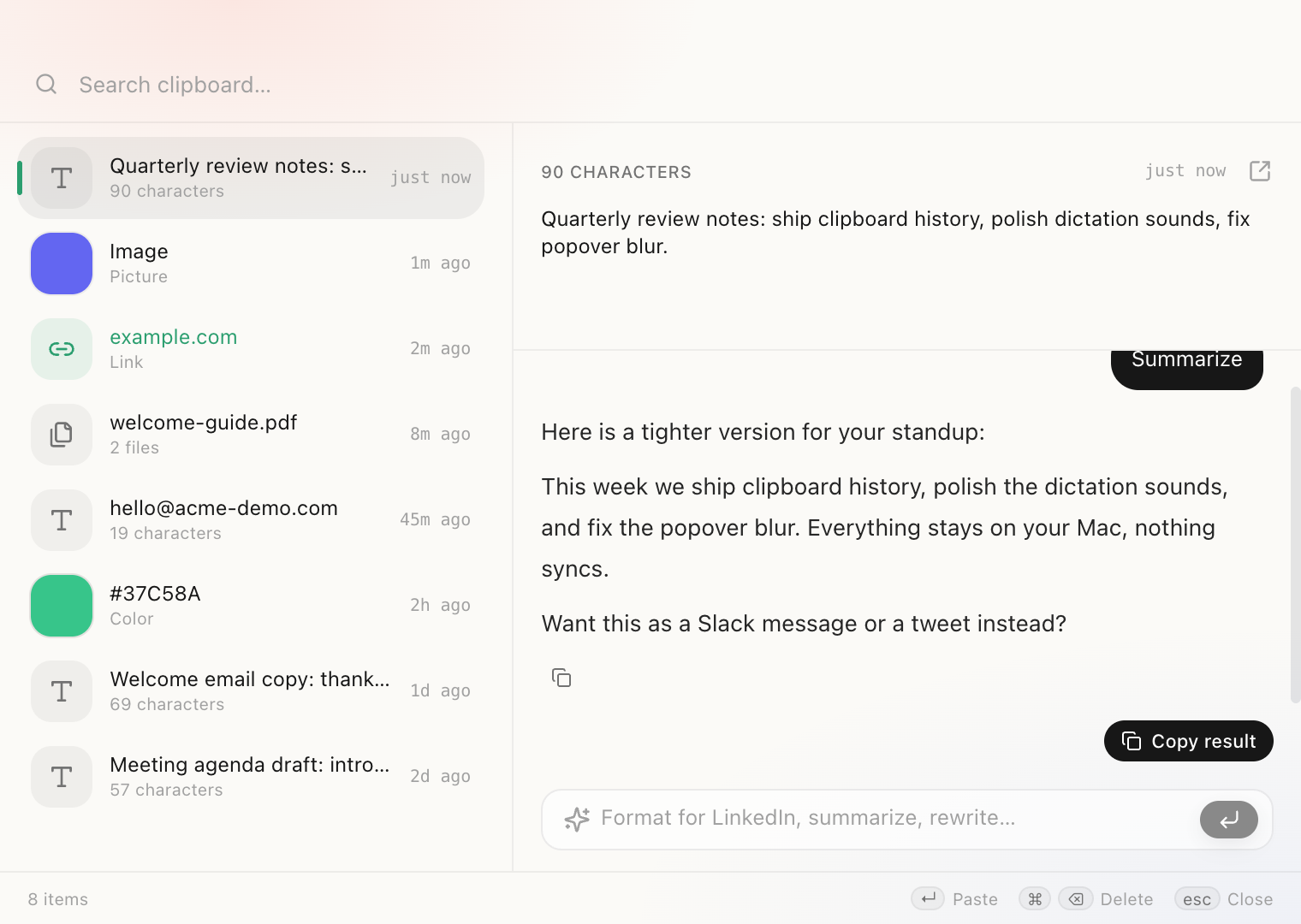
Ask about it. Copy the answer back.

Type a question and Claude answers right under the copy, using only the text or image you selected. Pull the action items out of a wall of notes, rewrite a paragraph, or draft a reply, then click Copy result and paste it wherever you were going. Works on text and images alike.

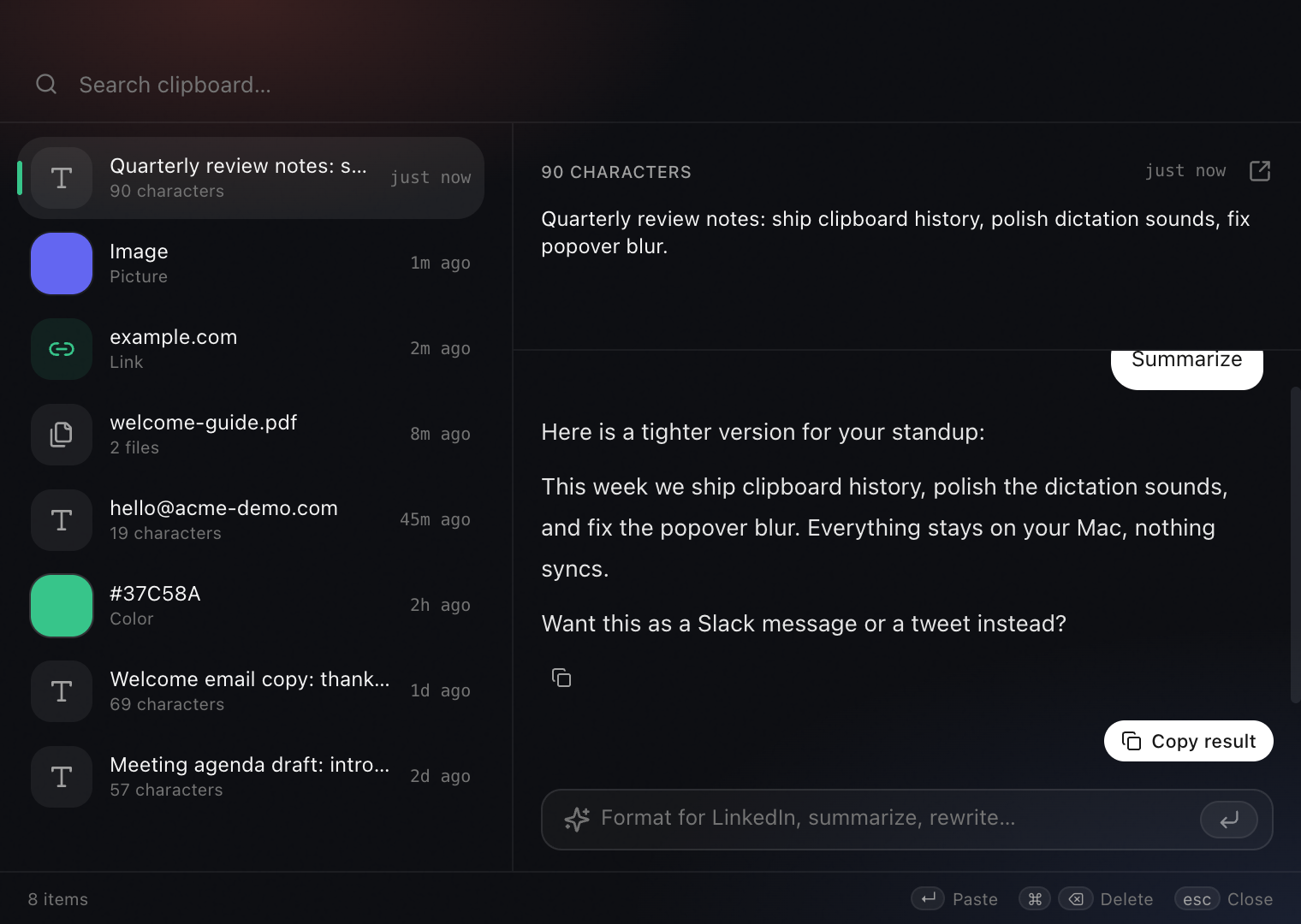
Routines clipboard history showing an Ask AI answer that summarizes a copied note, with a Copy result button to paste it back

Ask · get the answer inline · copy it back in one click

Settings → Clipboard

Your shortcut. Your call.

Clipboard

Save clipboard history

Keep your last 500 text copies on this Mac.

Open history

Click to record a new shortcut.

V

Change the shortcut or turn capture off in Settings → Clipboard.

01

Talk to anything you copied

Pick any item in the history and an Ask AI panel opens right under it. Ask Claude to summarize it, rewrite it, pull the action items, or answer a question about it, and the result lands inline with one click to copy it back. It runs on the Claude connection you already have.

02

Your last 500 copies, one keystroke away

Press ⌘⇧V from any app for a floating, non-activating palette that holds your last 500 text copies. The window appears over whatever you are doing without stealing focus, so your cursor stays exactly where it was.

03

Live search, arrow keys, paste back

Type to filter the list as you go, use the arrow keys to move through results, and press Enter to copy a past item back and paste it where your cursor sits. No mouse, no menu digging.

04

Links and colors, read at a glance

Copied a URL? The row shows the hostname and opens the link in a click. Copied a hex color? You get a live swatch next to the code. The history reads what you copied instead of just storing a blob of text.

05

Plain text only, by design

Routines keeps plain text and drops formatting. Anything over 200,000 characters is skipped too, so the history stays fast, clean, and predictable.

06

Password-manager copies never captured

Copies marked concealed, transient, or auto-generated by your password manager are respected and never stored. Your secrets stay out of the history entirely.

07

Local SQLite, no cloud, no account

Every item lives in a local SQLite table on your machine. There is no sync, no cloud, and no account. The Ask AI panel uses your own Claude key, so even that stays between your Mac and the model you chose. Turn capture off and it stops the moment you flip the switch.

Copy it. Then talk to it.

One keystroke pulls up everything you copied, searchable and ready to paste back, and ready for the AI to summarize, rewrite, or format in a tap. Stored on your Mac, with no sync and no account.

Download