
01
Your vault, on every Mac
Turn Cloud Sync on in Settings and your markdown memory follows you to your other Macs. It syncs automatically every few minutes, right after you edit, and on launch, so the machine you pick up is always current.
14 / Cloud Sync
Flip one switch and your markdown memory follows you to every Mac. Pulls only ever add or update, so the cloud can never delete a local file. And when the same note changed in two places, you get a side by side diff, not a silent overwrite.
Settings → Cloud Sync
synced 4m ago1 file needs your attention
This note changed on this Mac and in the cloud. Pick which version to keep.
04_projects/acme-demo/product-sync.md
Cloud edited 2m agoSide by side diff · you choose · no silent overwrite
Settings → Cloud Sync
Turn on Sync memory to cloud, sign in with Google, and you are done. When a note changed in two places, the same panel shows you exactly what differs and hands you the decision, line by line, so nothing is ever lost behind your back.
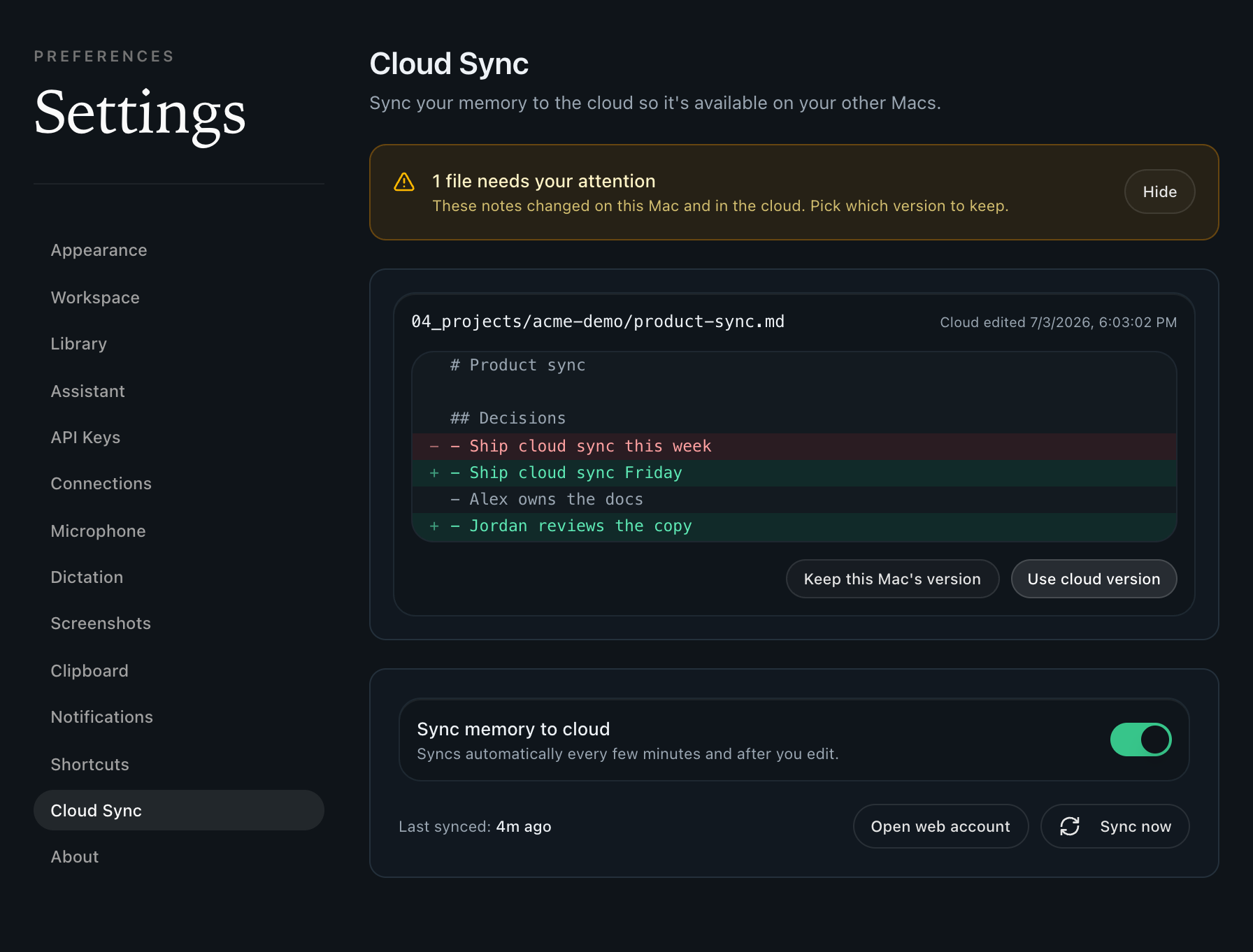
Real app · sign in with Google · your vault, your call
01
Turn Cloud Sync on in Settings and your markdown memory follows you to your other Macs. It syncs automatically every few minutes, right after you edit, and on launch, so the machine you pick up is always current.
02
This is the headline safety rule. A pull from the cloud only ever adds or updates a note on your Mac. It never deletes one. If you remove a file on one Mac, that stays your choice, and your other Macs keep their copies.
03
Edit the same note on two Macs and Routines never silently overwrites a word. It flags the conflict in Settings with a side by side line diff and lets you keep this Mac’s version or take the cloud version, one file at a time.
04
You sign in with Google, and the vault stays yours. Your notes still live as real markdown files on your disk. The cloud is a mirror for multi device access, not the place your second brain lives.
05
There is no bucket to configure, no folder to mount, no sync client to babysit. Flip one toggle, sign in once, and the first sync runs. Turn it off and it stops instantly, with nothing left running.
06
Cloud Sync is also what puts your memory within reach of Claude and any MCP client. Once your vault is in the cloud, you can mint scoped MCP connections from the web dashboard and read your real context anywhere.
Settings → Main Mac
Sign in on both, switch Cloud Sync and Backup on, then open Settings and pick a Main Mac. Scheduled routines, catch up runs, flows, email and calendar triggers and the app, file and wake watchers fire there and nowhere else. The other Mac stays a normal install you can work in all day.
01
The Main Mac card lists every Mac signed in to your account and when each was last seen. When you have not picked one yet, the button reads Use this Mac as the Main Mac, and it hands the automations to the one you are sitting at. Your other Macs pick that choice up within a minute or so.
02
Telegram polling and the Slack socket run on the Main Mac. The other Mac drops into standby instead, so one message does not come back with two replies.
03
Runs you start yourself, hotkeys, the CLI, webhooks and chat are never gated. Meetings are exempt too, so a meeting ended trigger fires on whichever Mac recorded the meeting.
04
When a Mac pulls a synced MCP server connector it already has, matched on name and endpoint, it keeps the row it has instead of adding a second one. Disconnecting a connector that arrived from your other Mac removes it here and leaves the working one there alone.
Main Mac needs Cloud Sync and Backup on, both Macs signed in, and Routines 0.80.0 or newer on each. Leave the choice unset, which is the default, and every Mac keeps firing every automation the way it always has.
No. Your notes still live as markdown files on your Mac. Cloud Sync keeps a mirror in your account so the same vault is available on your other Macs and, if you choose, to your MCP connections. The files on disk are always the source of truth.
Never. A pull from the cloud only adds or updates a file. It cannot delete one. Deleting a note is always a choice you make on a specific Mac, and it does not force that deletion onto your other Macs.
Routines detects the conflict and does not overwrite anything. It shows the two versions in Settings as a side by side line diff, and you choose per file whether to keep this Mac’s version or use the cloud version.
Automatically every few minutes, right after you edit a note, and when the app launches. You can also hit Sync now in Settings whenever you want an immediate push and pull.
You sign in with Google to enable Cloud Sync. It is your account and your vault. Turning the toggle off stops syncing instantly, and your local markdown files stay exactly where they are.
With no Main Mac chosen it does, because each Mac runs its own schedule. Switch Cloud Sync and Backup on, sign in on both, then pick a Main Mac in Settings. From then on cron schedules, catch up runs for missed schedules, flows, email and calendar triggers and the app, file and wake watchers fire only on that Mac, and only it polls Telegram and holds the Slack socket. An install older than 0.80.0 ignores the choice and keeps firing, so update both Macs first.
Cloud Sync and Backup is off by default. Turn it on and your vault, your meeting transcripts and your notes are copied to your Routines account so your devices share them. The Main Mac choice travels through that same sync, which is why your other Mac picks it up within a minute or so rather than the instant you click.
Keep exploring
One switch to sync, a diff when it matters, and a cloud that can never delete your work.
Download for Mac