Is Routines a good CleanShot X alternative?
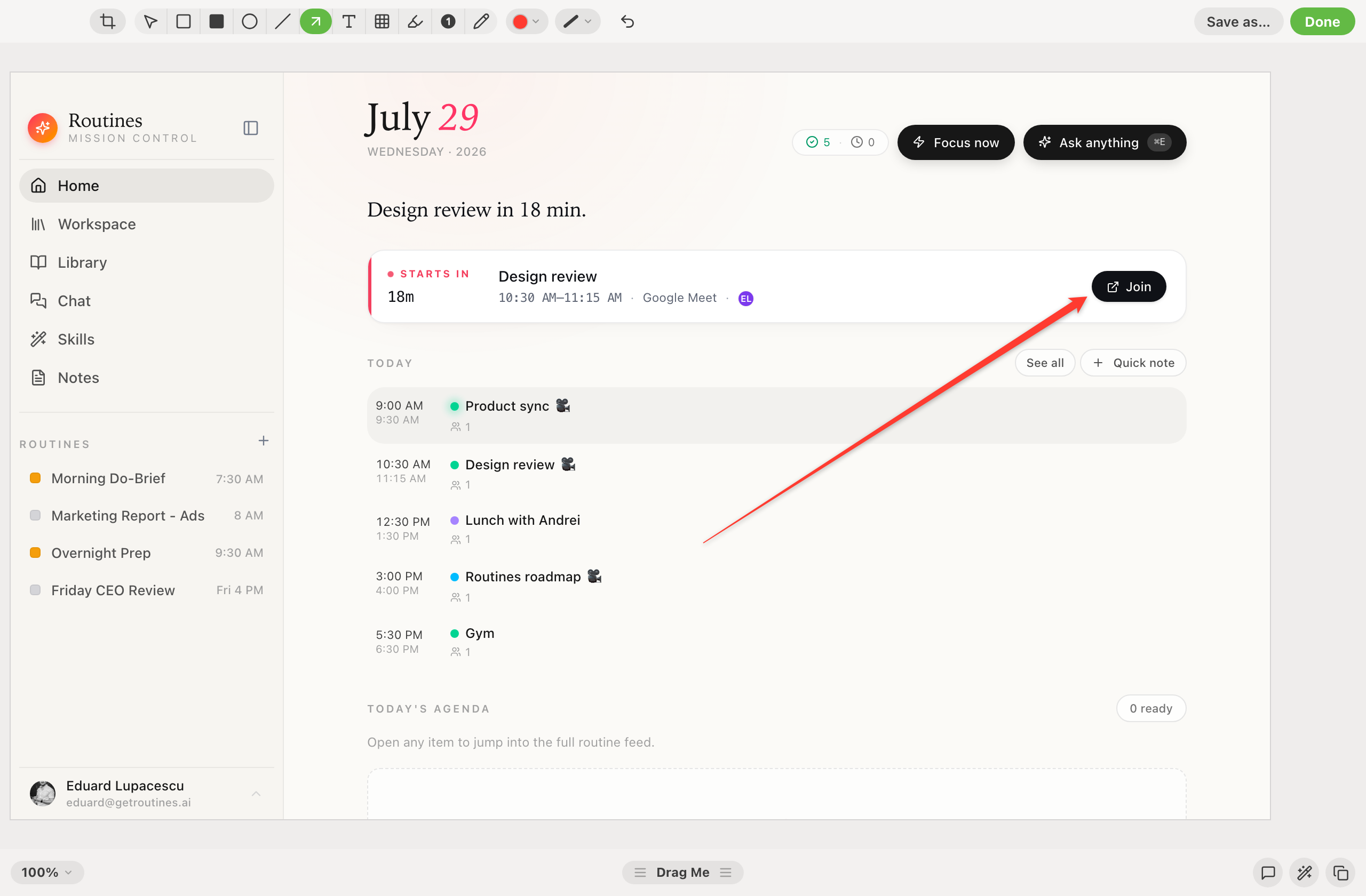
For region capture and annotation, yes. Routines has the same shape of editor: drag a region, mark it up with 11 tools in 8 colors, crop, undo, then copy or save. For scrolling capture, screen recording, and Cloud share links, no. CleanShot X has those and Routines does not, so the honest answer depends on which half of the job you do more often.
Can Routines annotate screenshots like CleanShot X?
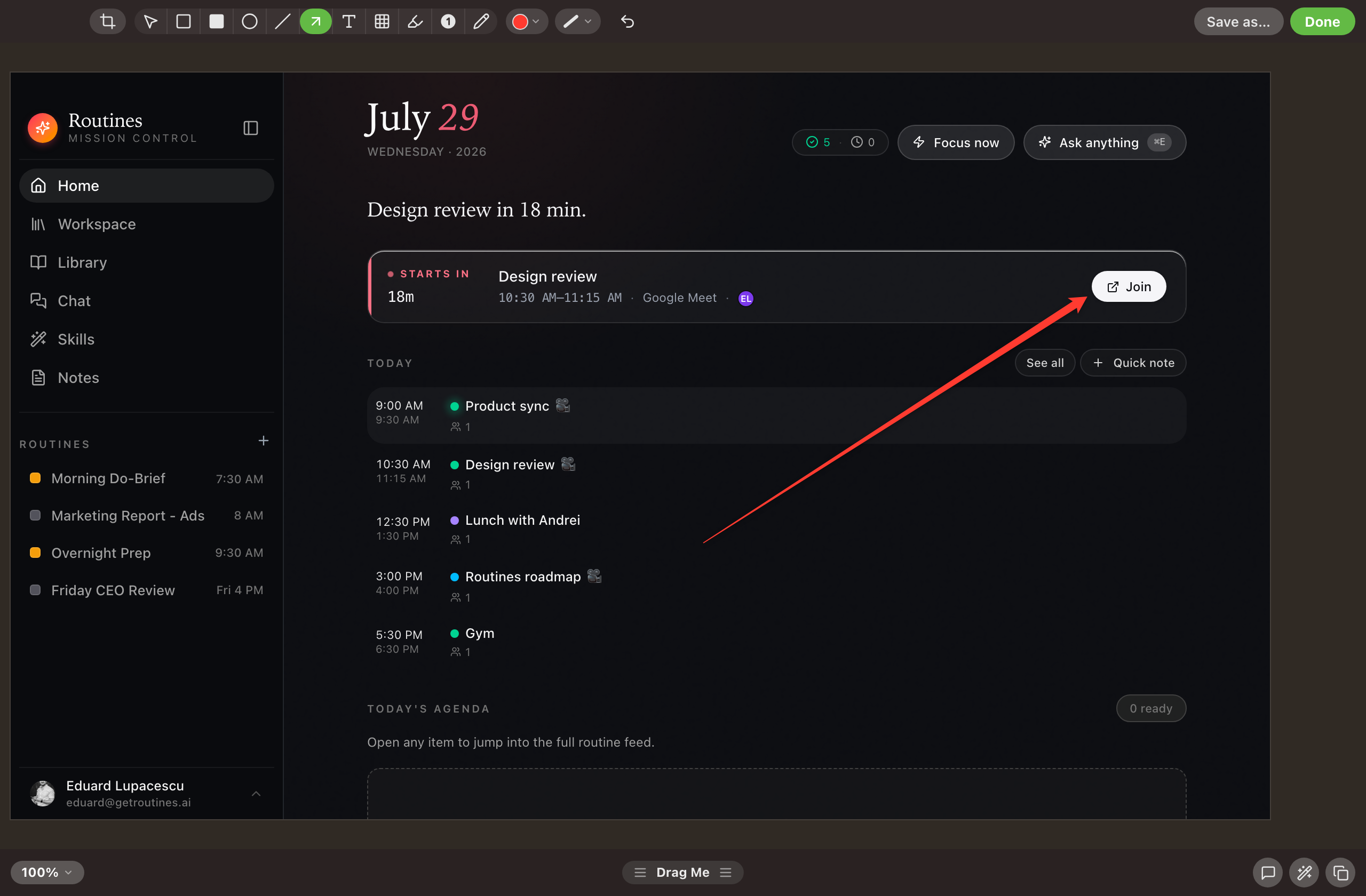
Yes. The editor has rectangle, filled rectangle, ellipse, line, arrow, text, pixelate, highlight, step counter, and pencil, plus a select tool and crop. Eight colors, three stroke widths, single-key tool switching, undo with Command Z, Save as with Command S, and copy and close with Command Return.
What can Routines do with a screenshot that CleanShot X cannot?
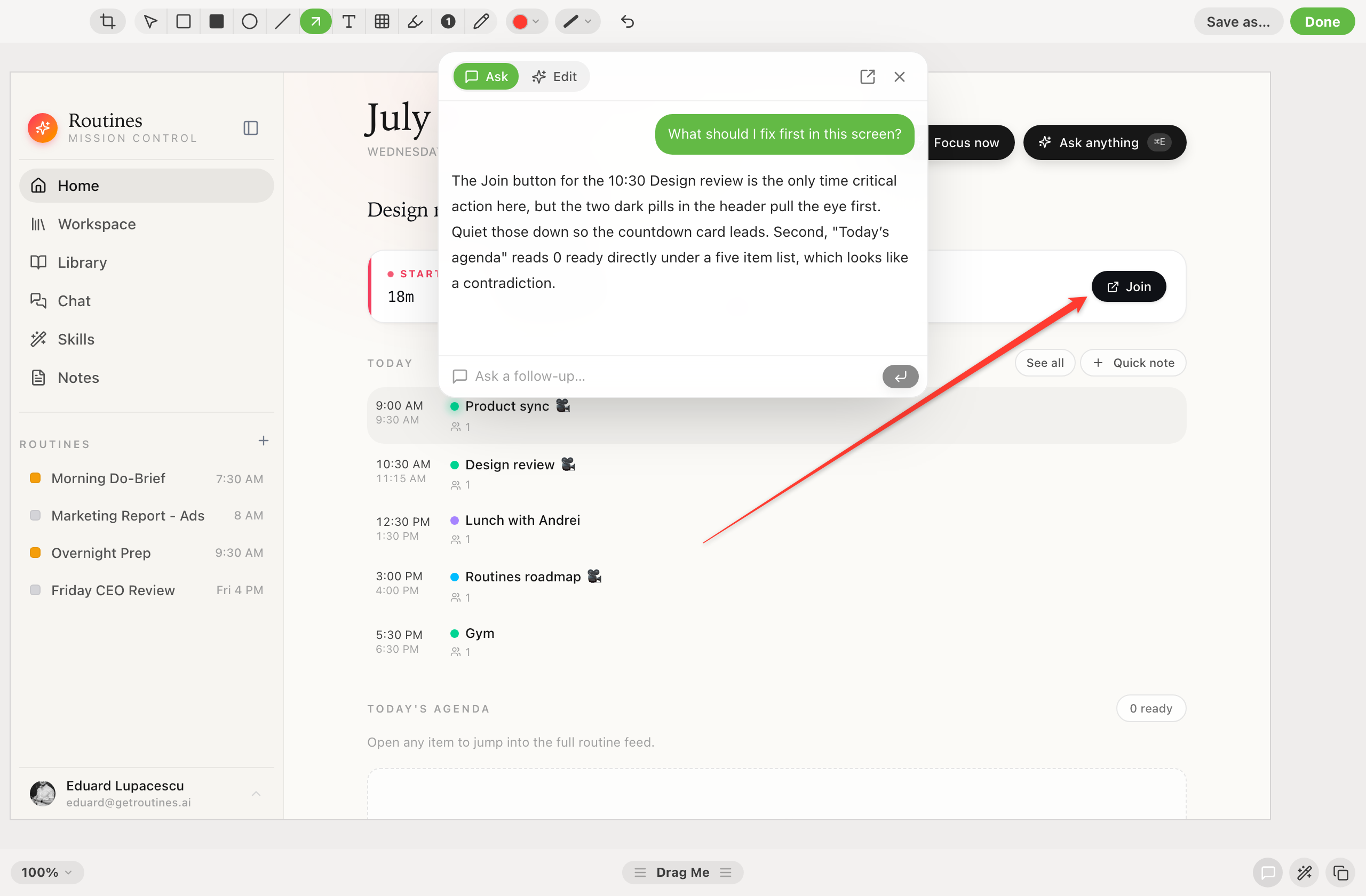
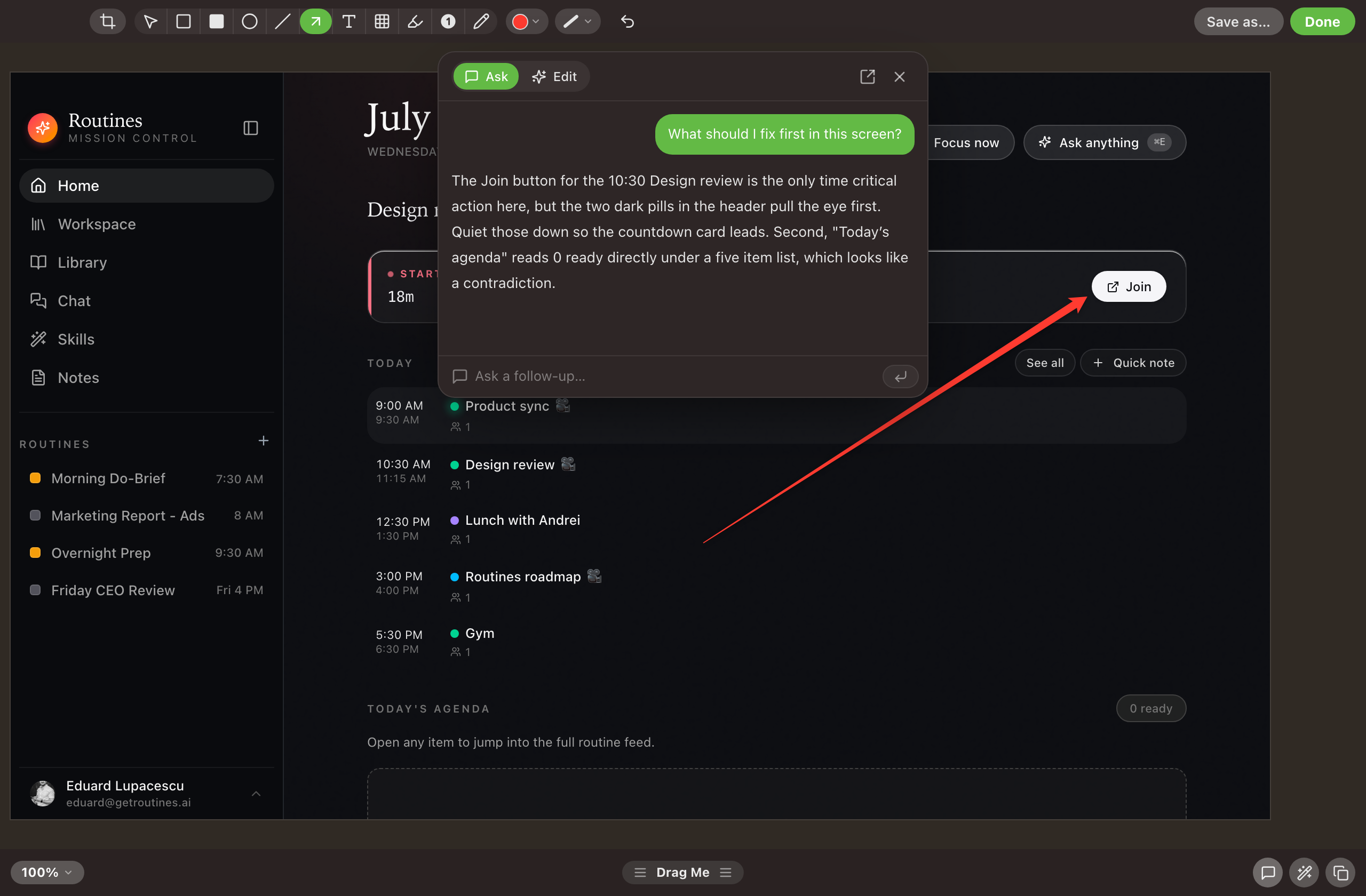
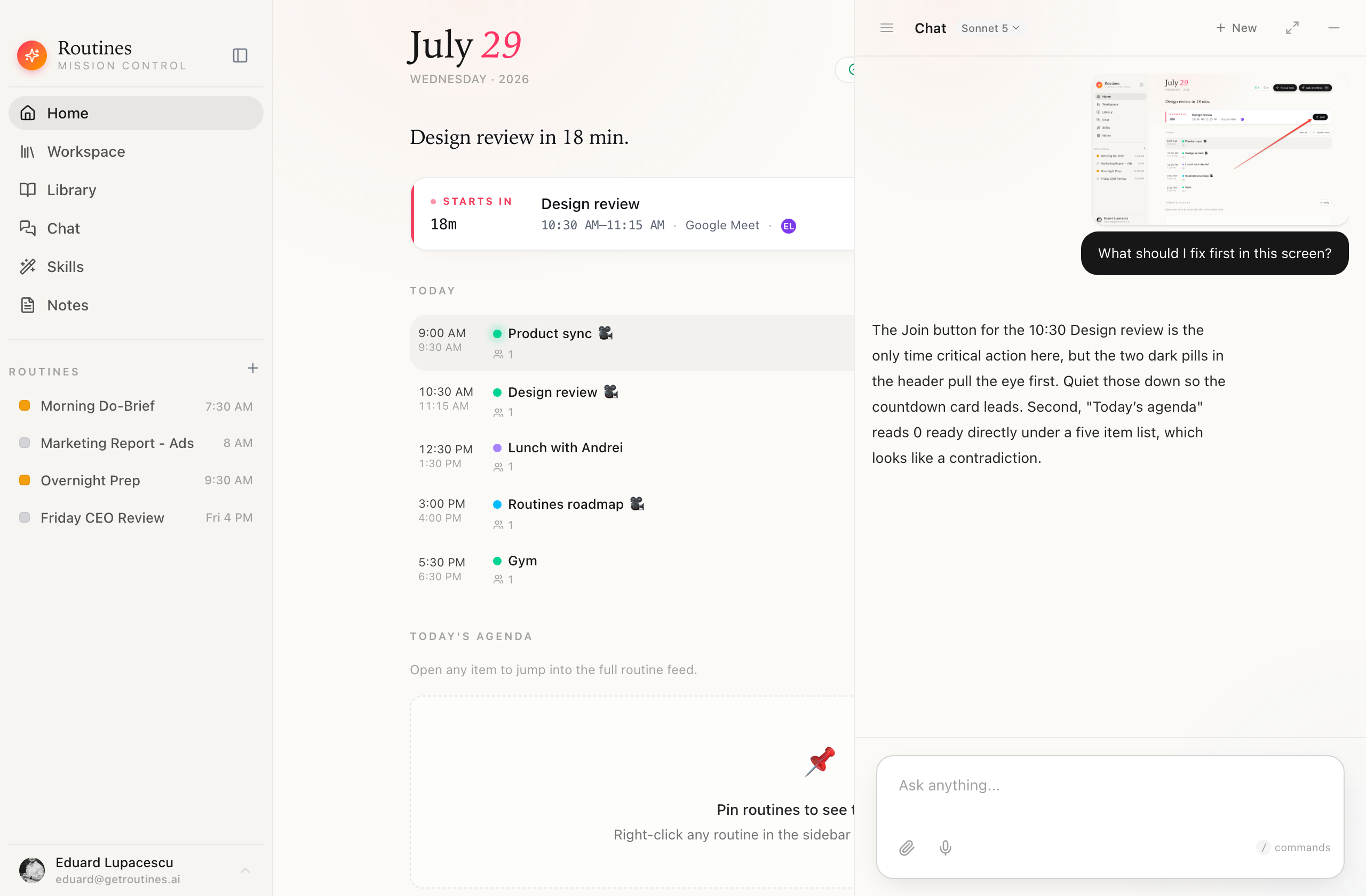
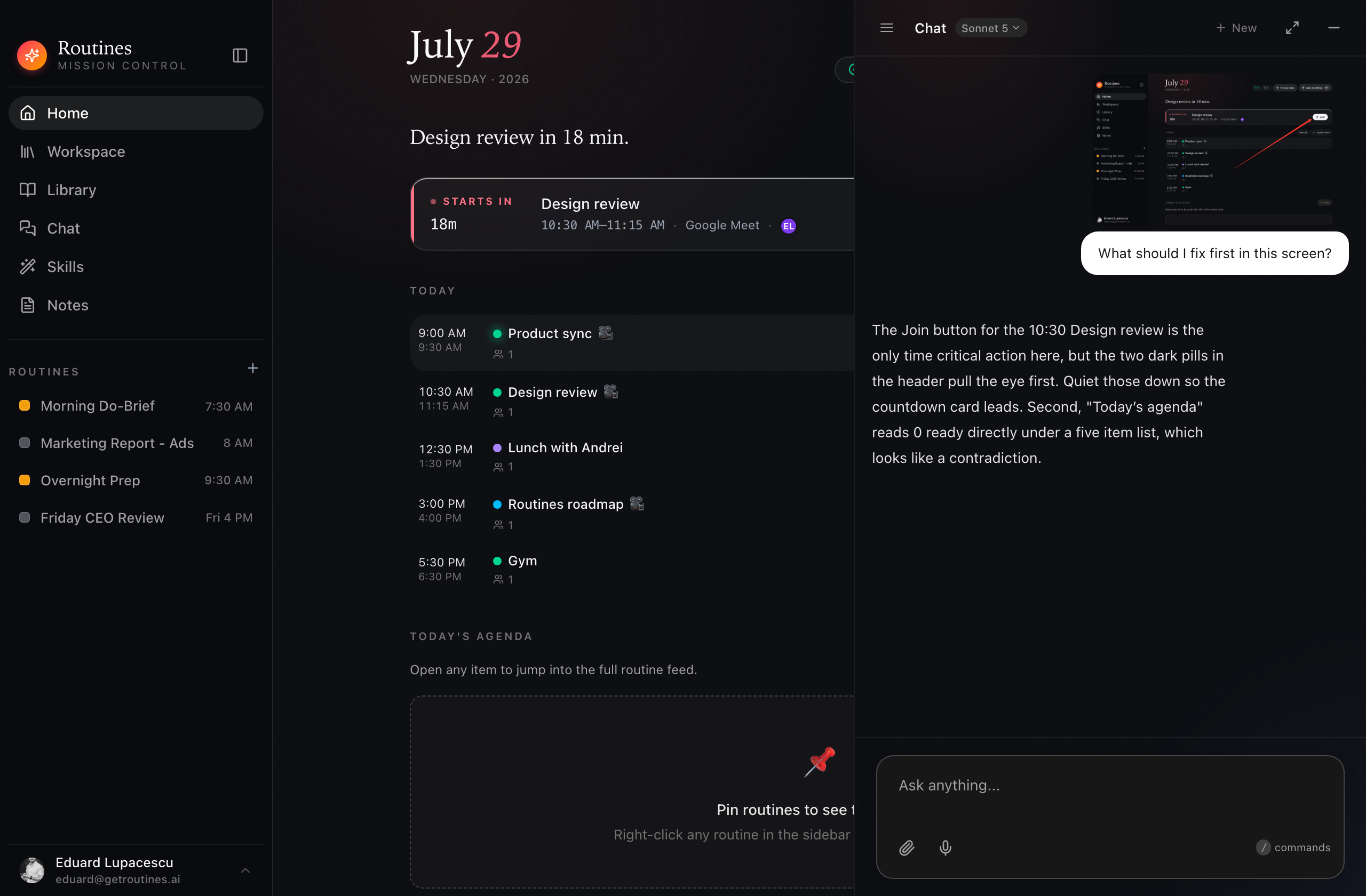
Ask a question about it without leaving the editor. The flattened, annotated image is attached to your message, so the model reads the pixels you just marked up instead of a description of them. From there you can move the thread into the main chat window and keep going, or switch to Edit mode and have the capture rewritten from a typed instruction.
Where do my screenshots go?
Captures stay on your Mac, in the app folder Routines owns, and the temporary file is removed once you copy, save, or cancel. Nothing is uploaded unless you press Share link, which puts that one image on getroutines.ai behind a public link. When you ask a question about a capture, that image goes to the model: through Routines AI, which passes it on and stores nothing, or straight to your provider when you run on your own key. Edit mode sends it to OpenAI on your own OpenAI key. Nothing else routes through a Routines server, and a capture is stored on one only when you share it by link.
Does Routines record my screen or capture scrolling pages?
No to both. There is no video recorder, no GIF export, and no scrolling capture. Routines records meetings as audio and transcribes them, which is a different job. If you need a long page in one shot or a short screen recording, CleanShot X is the right tool for that.
What is CleanShot X?
CleanShot X is a Mac screenshot and screen recording app, sold as a one-time purchase with an optional Cloud subscription. It is mature and well built, with scrolling capture, annotation, OCR, pinned overlays, a self-timer, and video or GIF recording. It is the reference point most Mac users compare against, which is why this page exists.
How do I crop a screenshot on a Mac?
Take the shot, then crop it in the editor that opens with it. Routines puts crop, arrows, text, highlight, and a pixelate tool in the same window as the capture, so you never round-trip through Preview to trim an edge. The cropped image lands on your clipboard ready to paste.
How do I edit a screenshot on a Mac without opening another app?
macOS gives you a thumbnail and leaves the editing to you. Routines opens an annotation editor straight after the capture, with text, arrows, an ellipse, a highlighter, numbered counters, crop, and pixelate. You mark it up and it is on the clipboard when you are done.
How do I blur or hide private information in a screenshot?
Use the pixelate tool in the annotation editor and drag it over anything you do not want to share, such as an email address, an account number, or a message thread. It is applied to the image itself before you copy or save, so the hidden pixels are not recoverable from the file you send.
Can I get the text out of a screenshot?
Yes, by asking. Send the capture into chat and ask what it says, and the model reads the image and gives you the text back. Routines does not run optical character recognition on your Mac, so this needs a model connection, and in exchange it also answers the follow-up question instead of only transcribing. You can ask it to summarize an error message or explain a chart in the same breath.
How do I paste a screenshot after taking it?
Every capture goes to the clipboard automatically, so Command V works straight away. Anything you captured earlier is still in clipboard history, searchable with one keystroke, so a screenshot from an hour ago is one shortcut away rather than lost.