
Morning
From 5 AM until 11 AM, or until your first timed meeting if it comes earlier.
17 / Dashboard
Your next meeting, your open to-dos, this morning’s briefing and the time, on one screen in the order you read them. Home in Routines is a personal dashboard you customize: add cells, pick a size, drag them where you want, and give the morning, the workday, the evening and the weekend a layout each. It sits on top of the scheduled AI routines you already run.
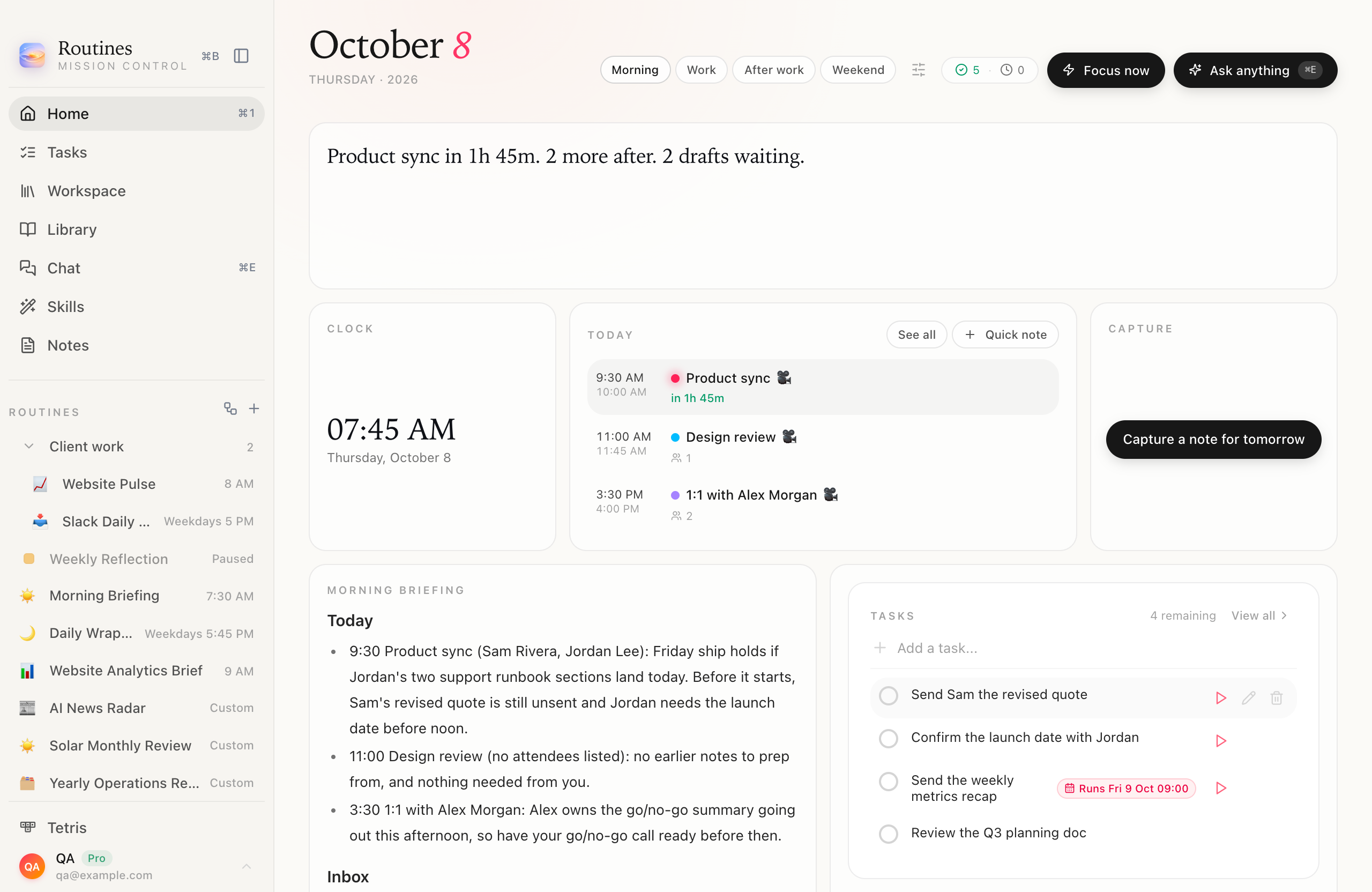
Real app · Morning layout · demo data
Customize
The sliders icon next to the date opens Customize. Home turns into a 12 column grid where every cell has a drag handle, size buttons and a remove button, and the header shows the four time-of-day layouts. Every change saves the moment you make it. Until you open it, Home stays exactly as it was.
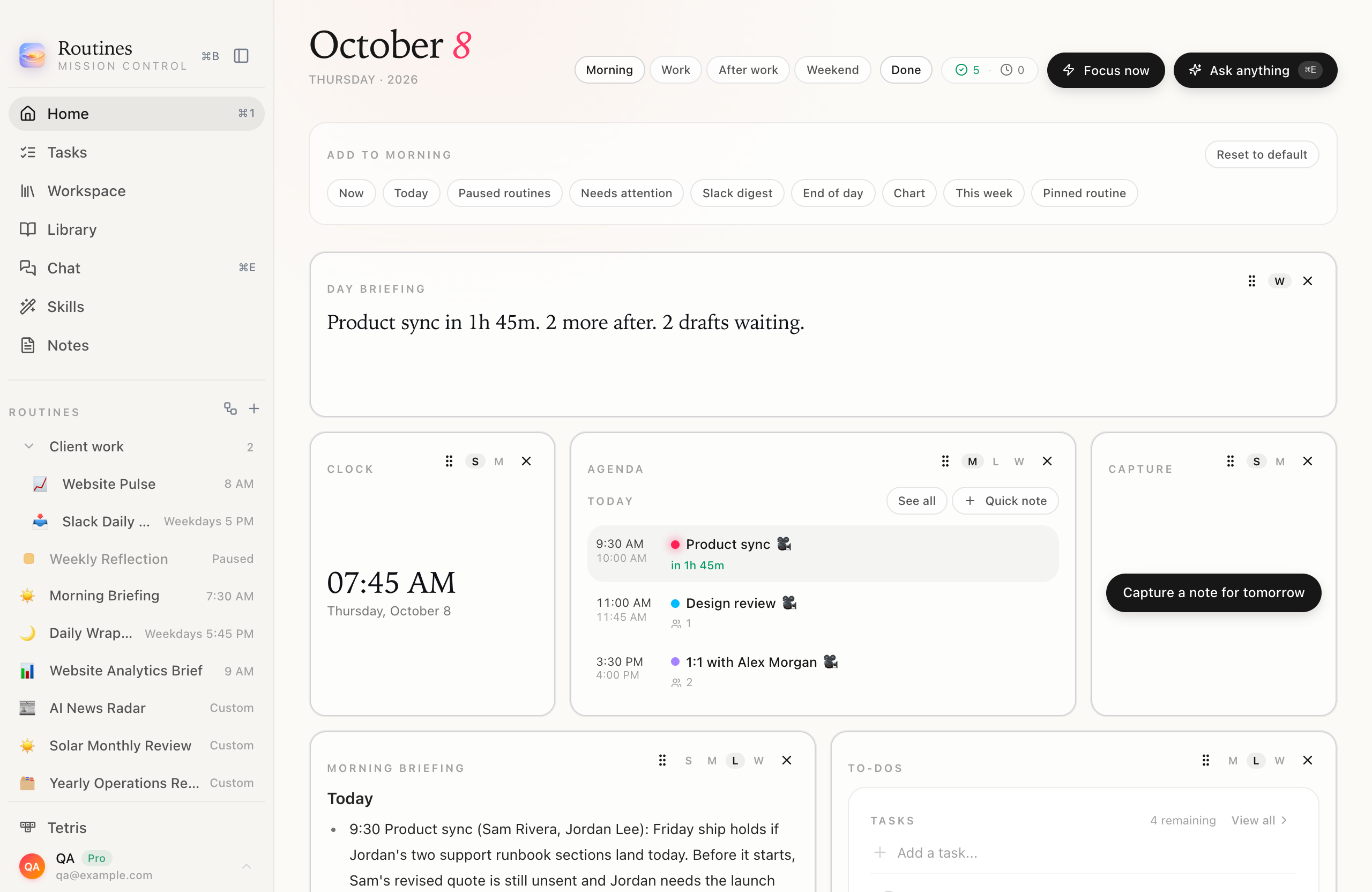
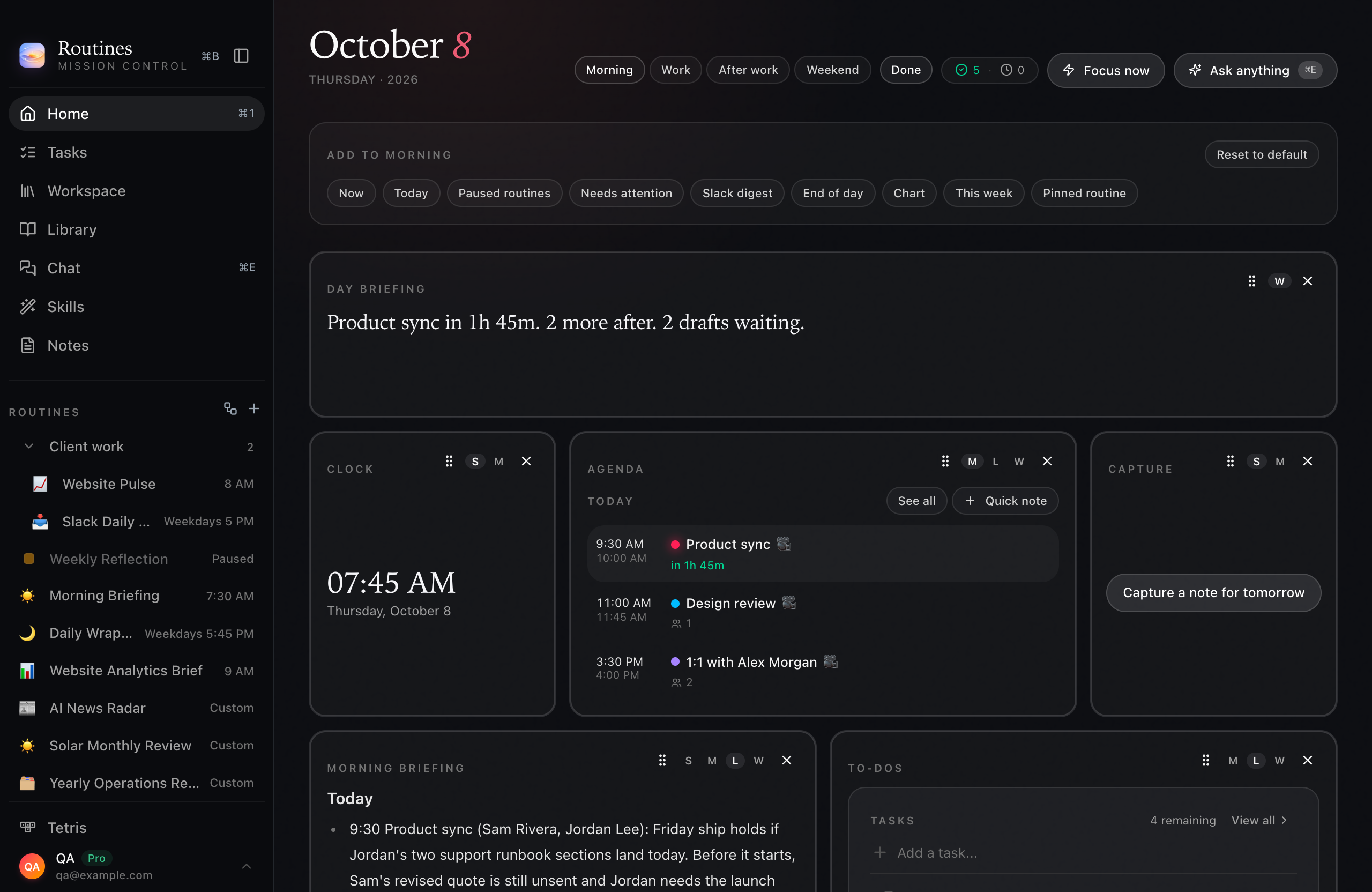
Drag handle · size buttons · remove · Done
The cell drawer
Day briefing, Now, Today, Agenda, To-dos, Clock, This week, Capture, End of day, Slack digest, Needs attention and Paused routines. Pinned routine puts any of your routines on Home as a cell that shows the output of its newest run that did not fail. The drawer only offers what the layout does not hold yet, so each cell appears once.
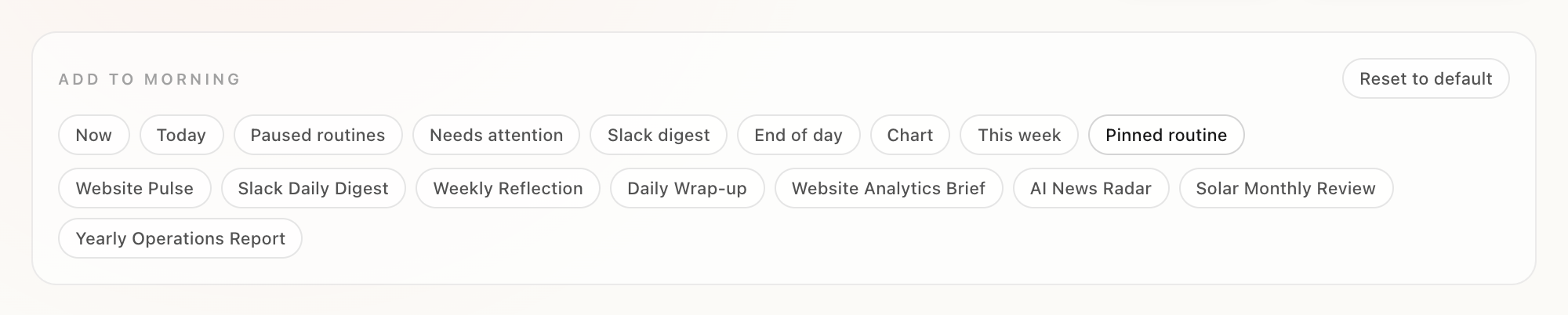
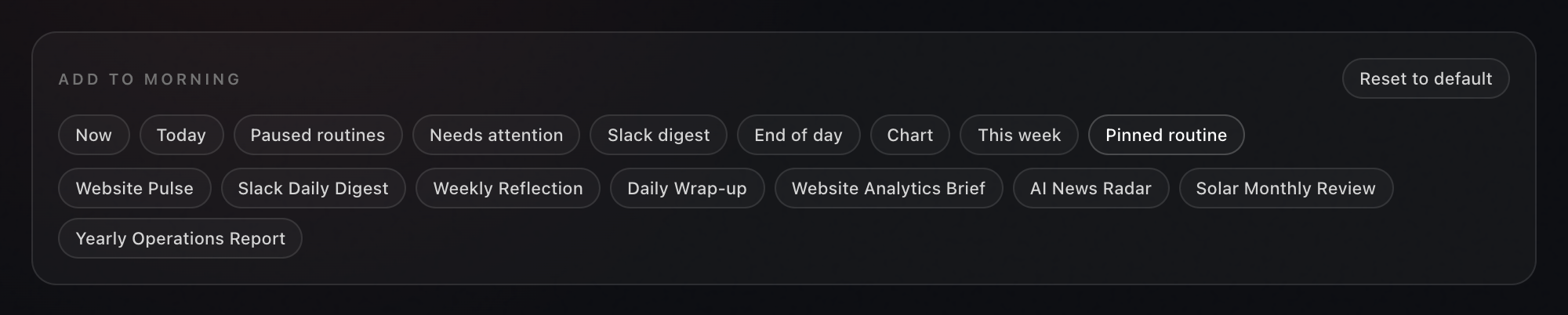
Each cell once · any routine as a cell · Reset to default
Sizes
S, M, L, W and Hero span 3, 6, 6, 12 and 8 columns, and each cell offers only the sizes that suit it. For anything in between, hover a cell and drag the grip on its end edge, bottom edge or corner: a dashed outline shows the span it will snap to, and the grid reflows live. Escape cancels. Shift with an arrow key resizes from the keyboard. Below 1,100 pixels wide only the bottom grip shows, and the keyboard changes height only.
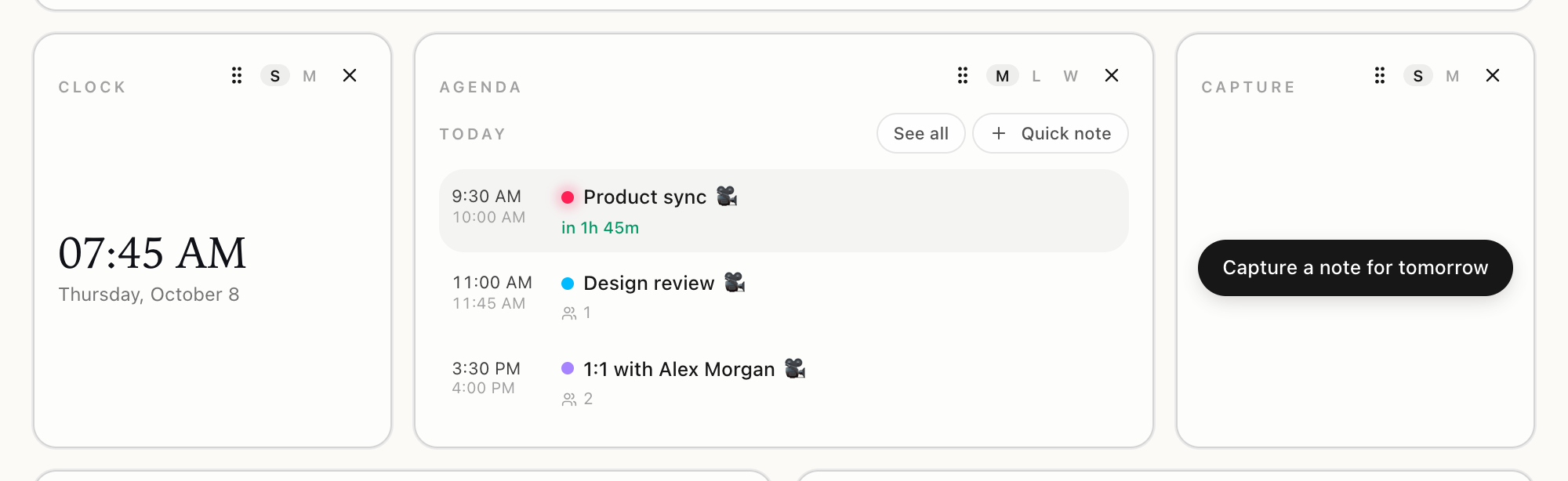
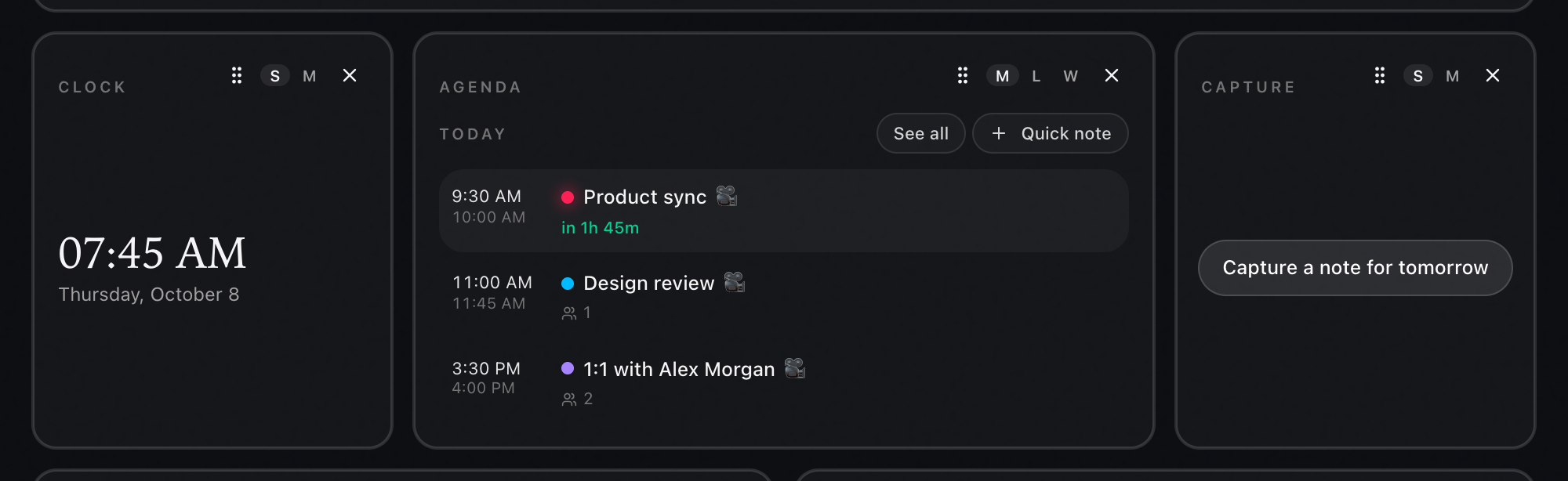
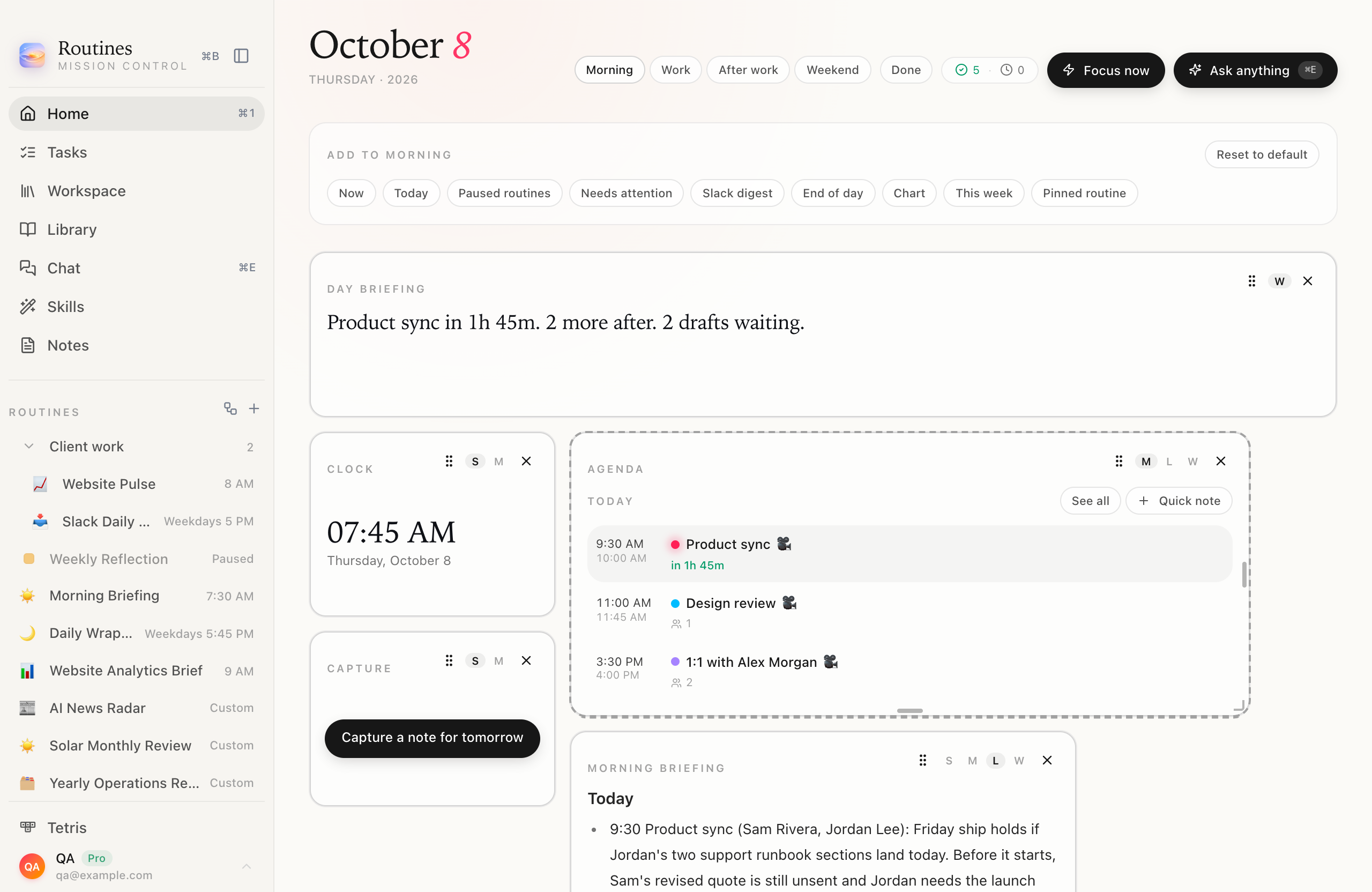
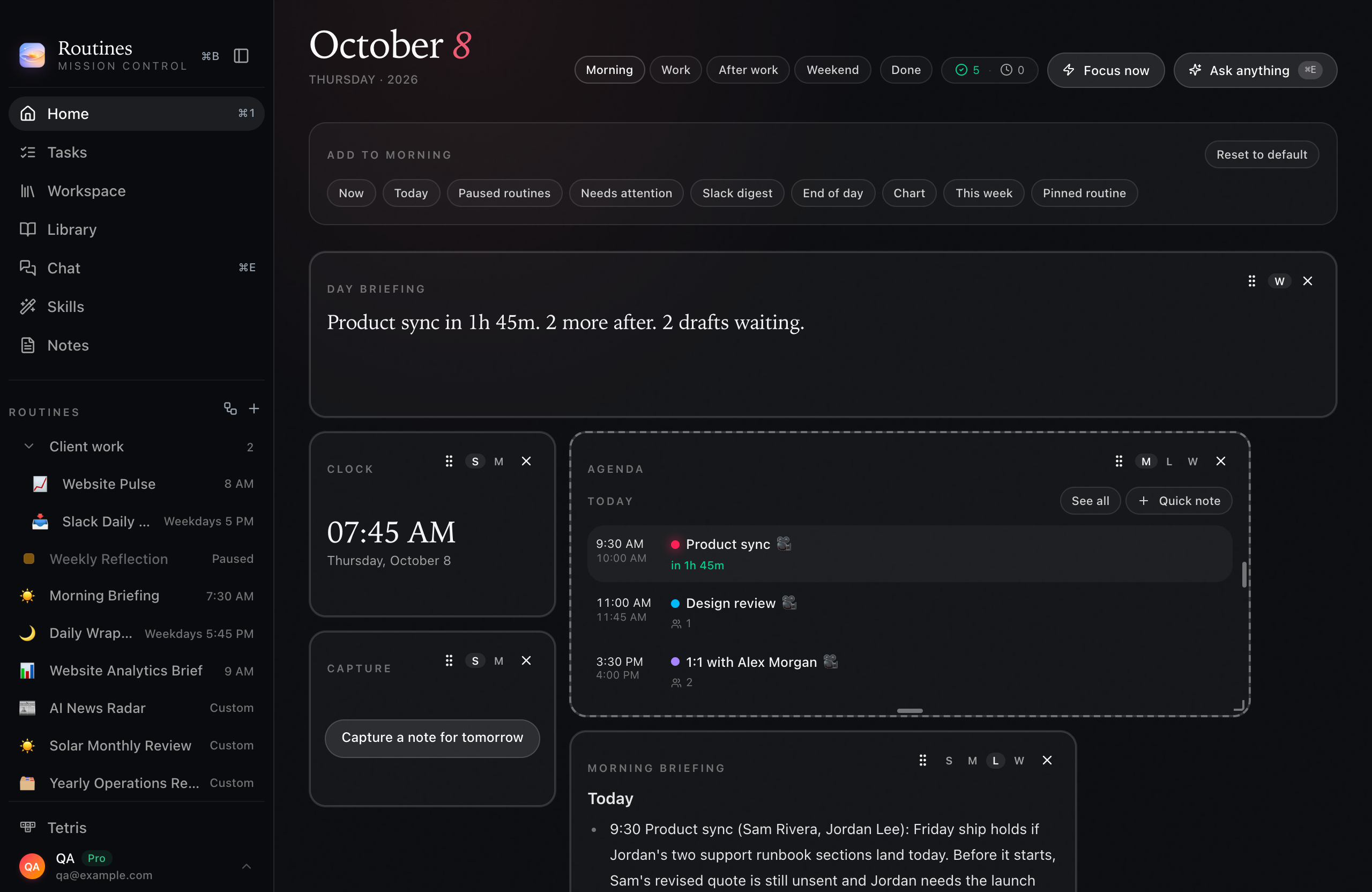
S · M · L · W · Hero · or any span up to 12 by 12
Drag to resize arrives with the next update after Routines 1.11.0. The size buttons are in 1.11.0 today.
Time of day
Morning, Work, After work and Weekend each keep their own cells. Outside Customize mode, Home switches between them on its own. Click a layout in the header to look at it until the next switch, and all-day events never change which one you get.
Morning
From 5 AM until 11 AM, or until your first timed meeting if it comes earlier.
Work
On weekdays, whenever it is not Morning or After work.
After work
From 4 PM, once no timed meetings are left today. Work cells you left out that still have something open get one quiet line saying when they are back.
Weekend
Saturday and Sunday, all day.
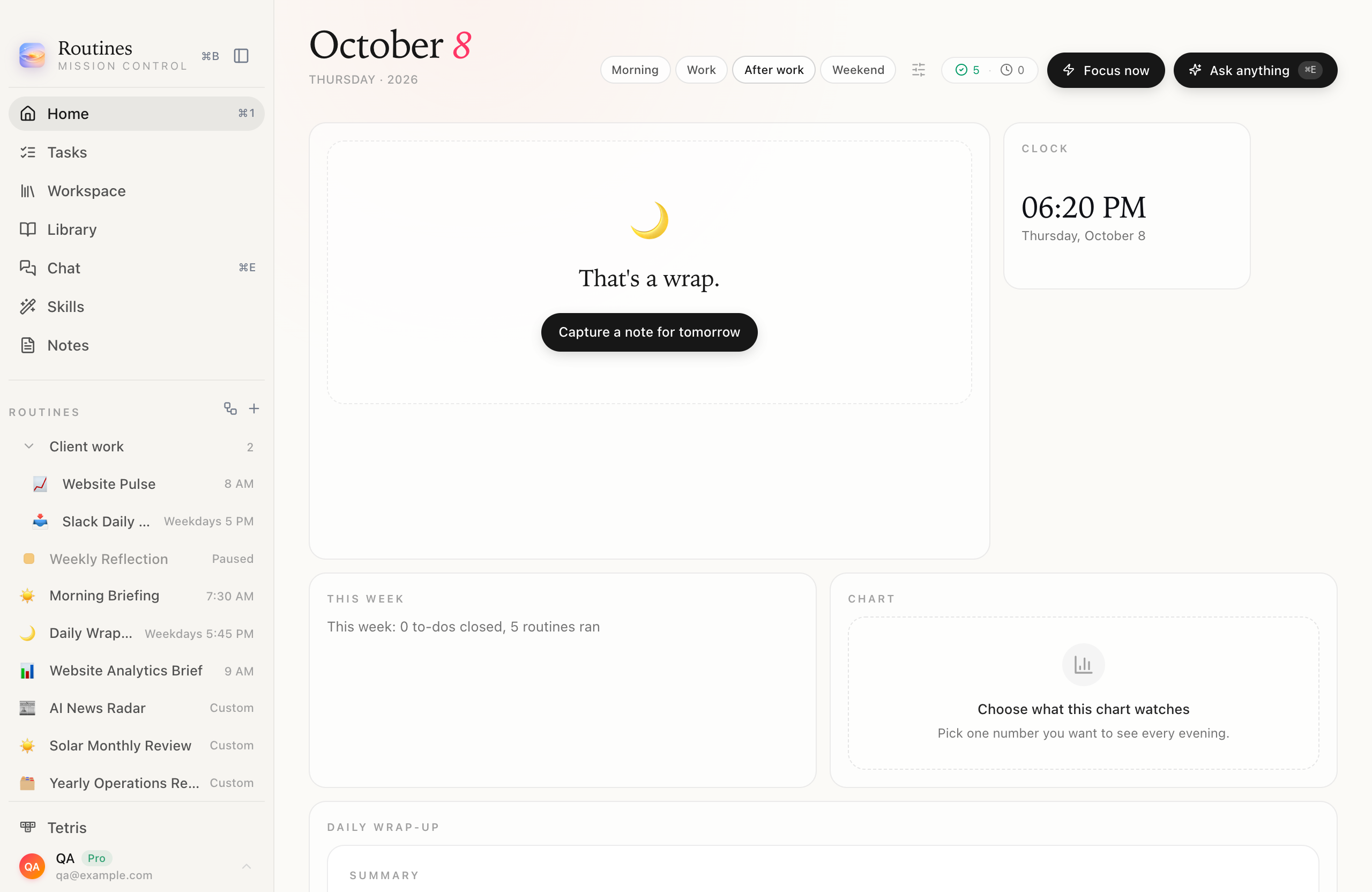
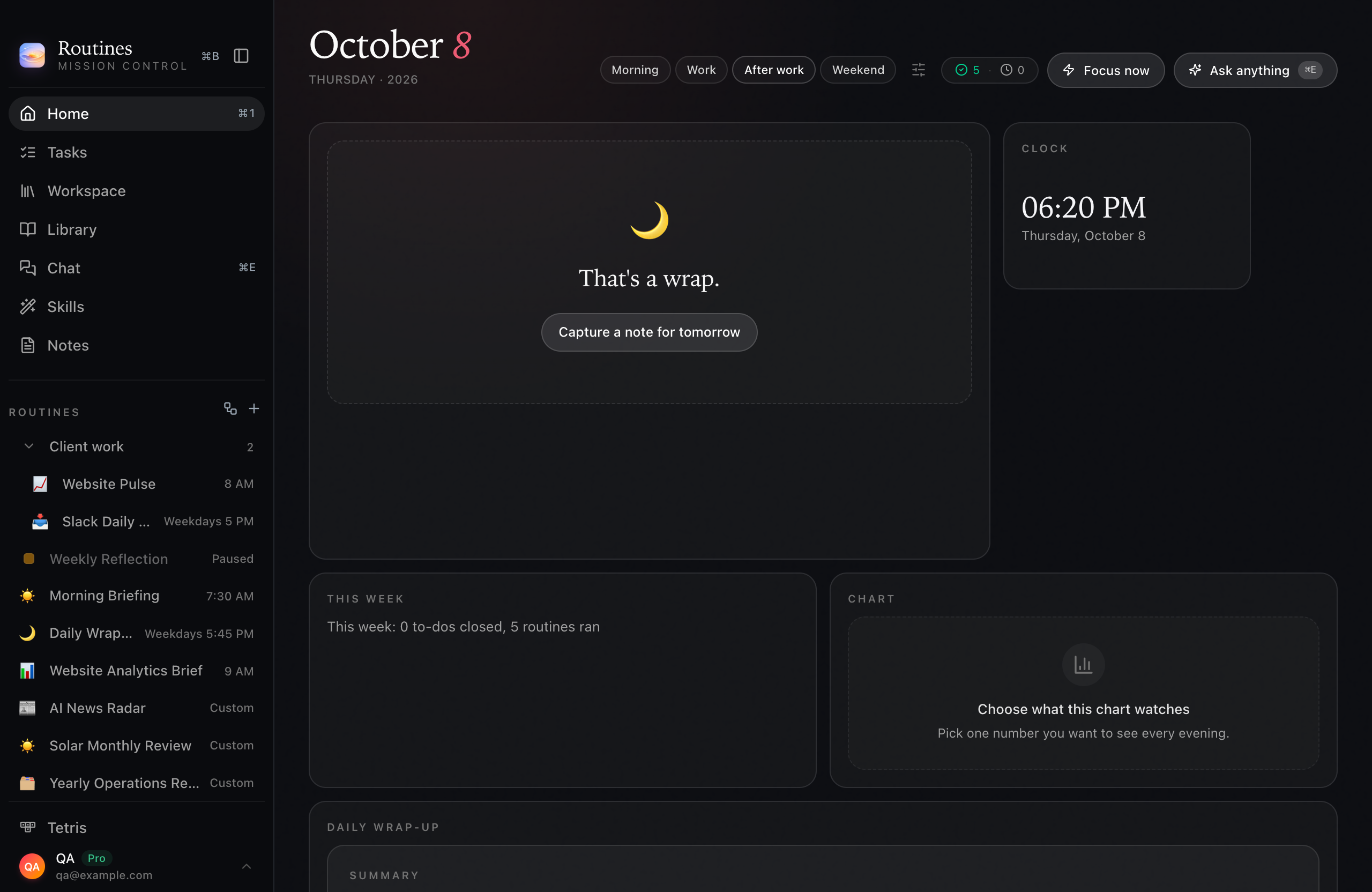
After work · End of day as the Hero cell
Chart cell
The Chart cell is in the drawer today and holds its place on the grid, but it is a placeholder: it shows “Choose what this chart watches”, and picking the number it tracks comes in a later update. Cells that run a prompt of their own are planned too, and they are not available yet.
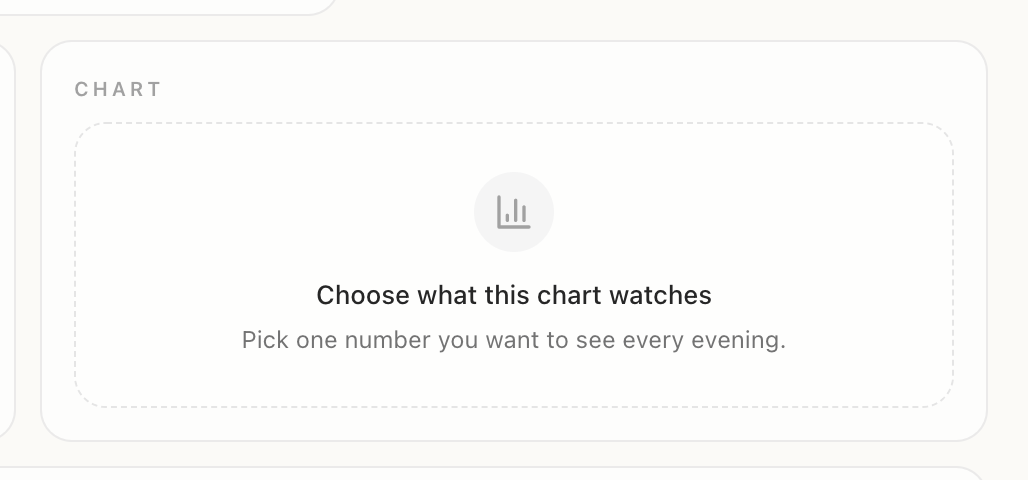
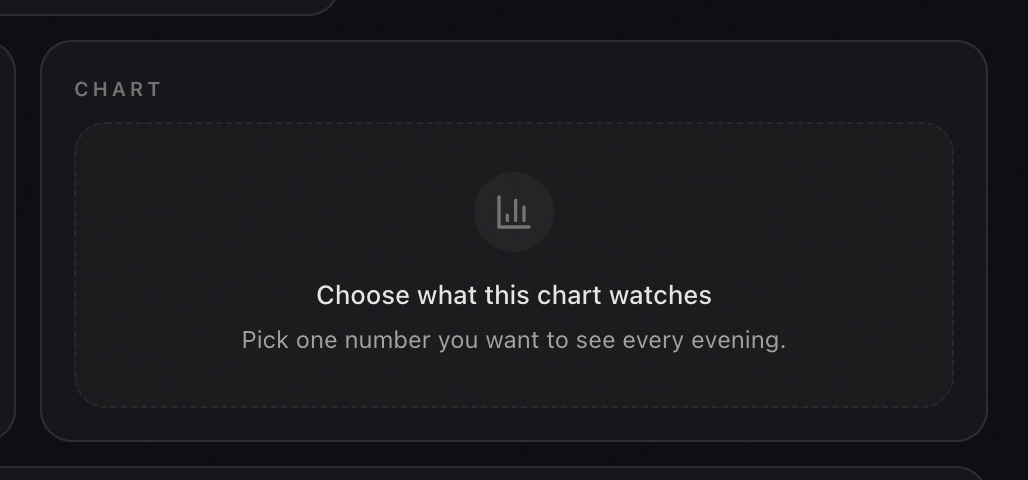
Placeholder today · picking the number comes later
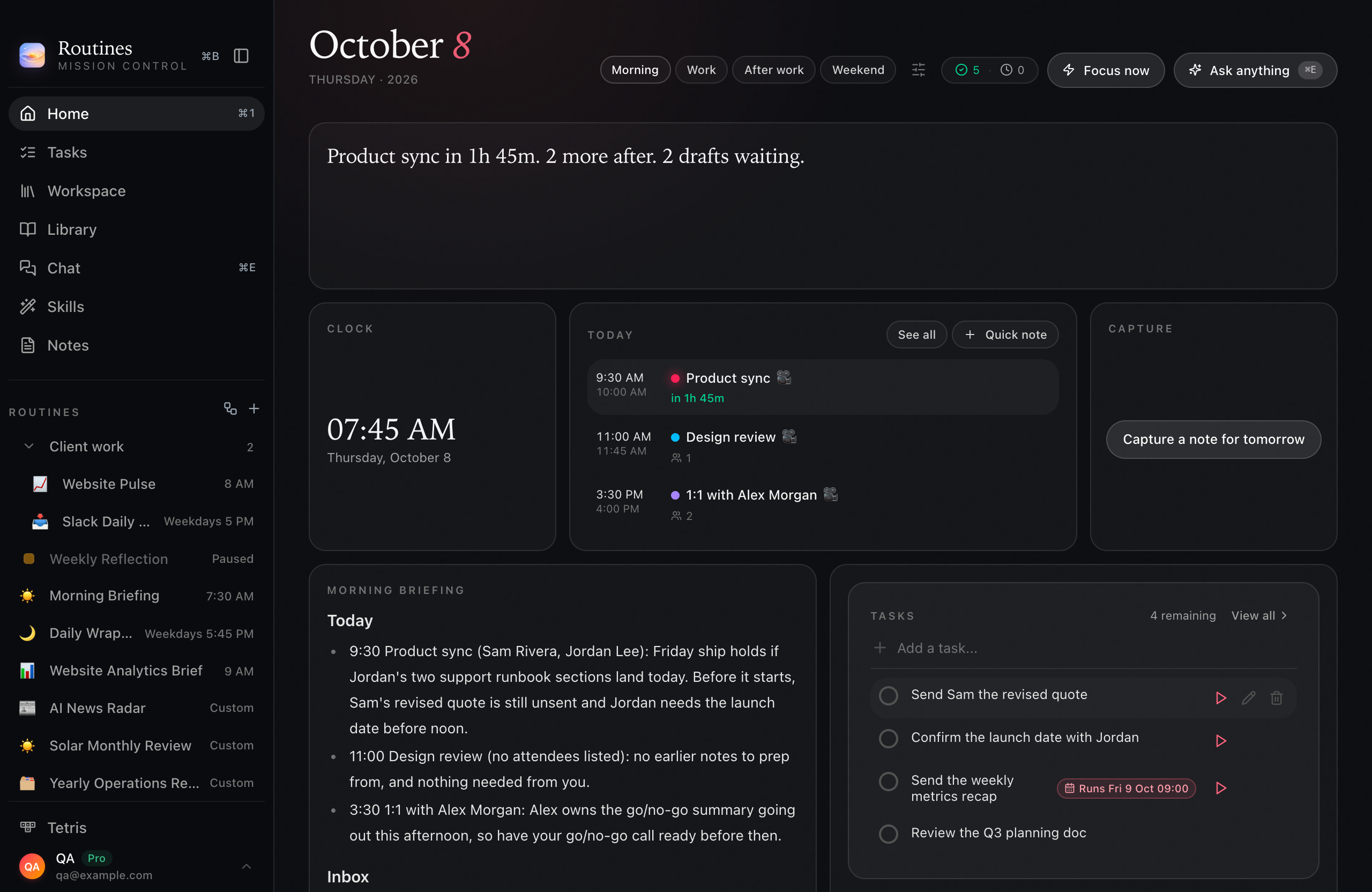
Dark mode
The dashboard follows the appearance you set for Routines, like every other screen. This is the Work layout in dark mode: agenda and tasks side by side, a clock, the week in one line and a capture button, then the Website Pulse routine across the full width.
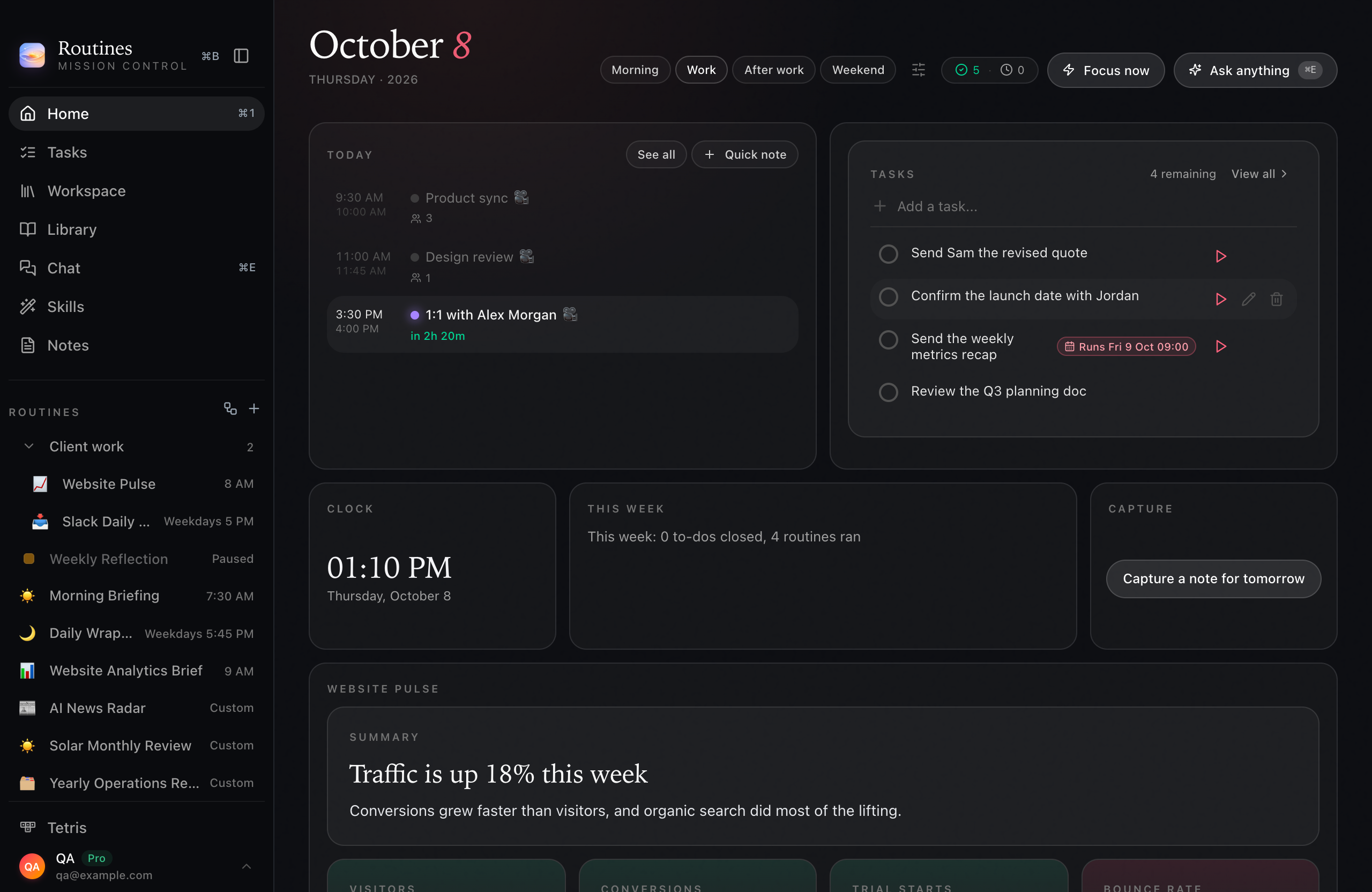
Work layout · dark mode
01
Every layout starts as the Home you know, and an untouched layout renders exactly as before. Nothing moves until you customize it.
02
Add, remove, resize or reorder and it is saved on the spot. Reset to default puts one time of day back to the standard Home.
03
A size sets the minimum. A long routine output makes its row taller instead of being cut off or scrolling inside its frame.
04
A Pinned routine cell shows the output of that routine’s newest run that did not fail, and when it was updated. Schedule the routine, and the cell is current when you open Home.
05
Layouts are saved on the Mac where you made them and do not sync to your other Macs, so the laptop and the desk Mac can each keep their own.
06
Building and arranging the dashboard runs no model and sends nothing anywhere. The cells show data the app already has.
07
Below 1,100 pixels wide the grid drops to 6 columns, and below 720 it stacks into one. The Customize icon shows once the window is at least 960 pixels wide.
A personal dashboard puts what you check every day on one screen: your next meeting, your open to-dos, the latest result of the reports you run, and the time. In Routines that screen is Home, and you choose which cells it shows, how big they are and in what order.
Yes, since Routines 1.11.0. Click the sliders icon next to the date to open Customize, add cells from the drawer, pick a size for each, drag them into order and click Done. Until you do, Home looks exactly as it did before.
Click one of the size buttons in the cell’s corner: S, M, L, W or Hero, whichever that cell offers. Dragging the grip on a cell’s edge or corner to any span up to 12 by 12 arrives with the next update after 1.11.0.
Yes. There is a layout for Morning, Work, After work and Weekend, and Home picks one from the clock and your timed meetings. Click a layout in the header to look at another one until the next switch.
No. Layouts are saved on the Mac where you made them and are not part of sync, so each Mac keeps its own dashboard.
It is a personal dashboard for the AI work you already do. Pinned routine cells show what your scheduled routines produced on their last run, while arranging the layout itself never calls a model.
Not yet. Cells that run a prompt of their own are planned and are not available in the app today. A Pinned routine cell shows the output of a routine you already have.
Not yet. The Chart cell can be added today and holds its place, but it shows a placeholder until choosing the number it tracks ships in a later update.
Keep exploring
The routines a Pinned routine cell shows. Write one in plain English, give it a time, and it runs on your Mac.
Chain the routines you already run into one graph with its own daily schedule.
Build your own AI dashboard in seven steps, with three layouts to copy.
Open Home, click Customize, and give your morning, your workday and your evening a screen each. Layouts stay on the Mac where you make them.
Download for Mac