
The default setup of Routines works out of the box: install it, sign in, and you have an AI assistant that records meetings, keeps clipboard history, and runs scheduled routines on your Mac. The defaults are sensible. But the app gets noticeably better once you spend ten minutes in Settings, because the key settings to customize Routines on Mac let you change what the AI actually does, not just how it looks.
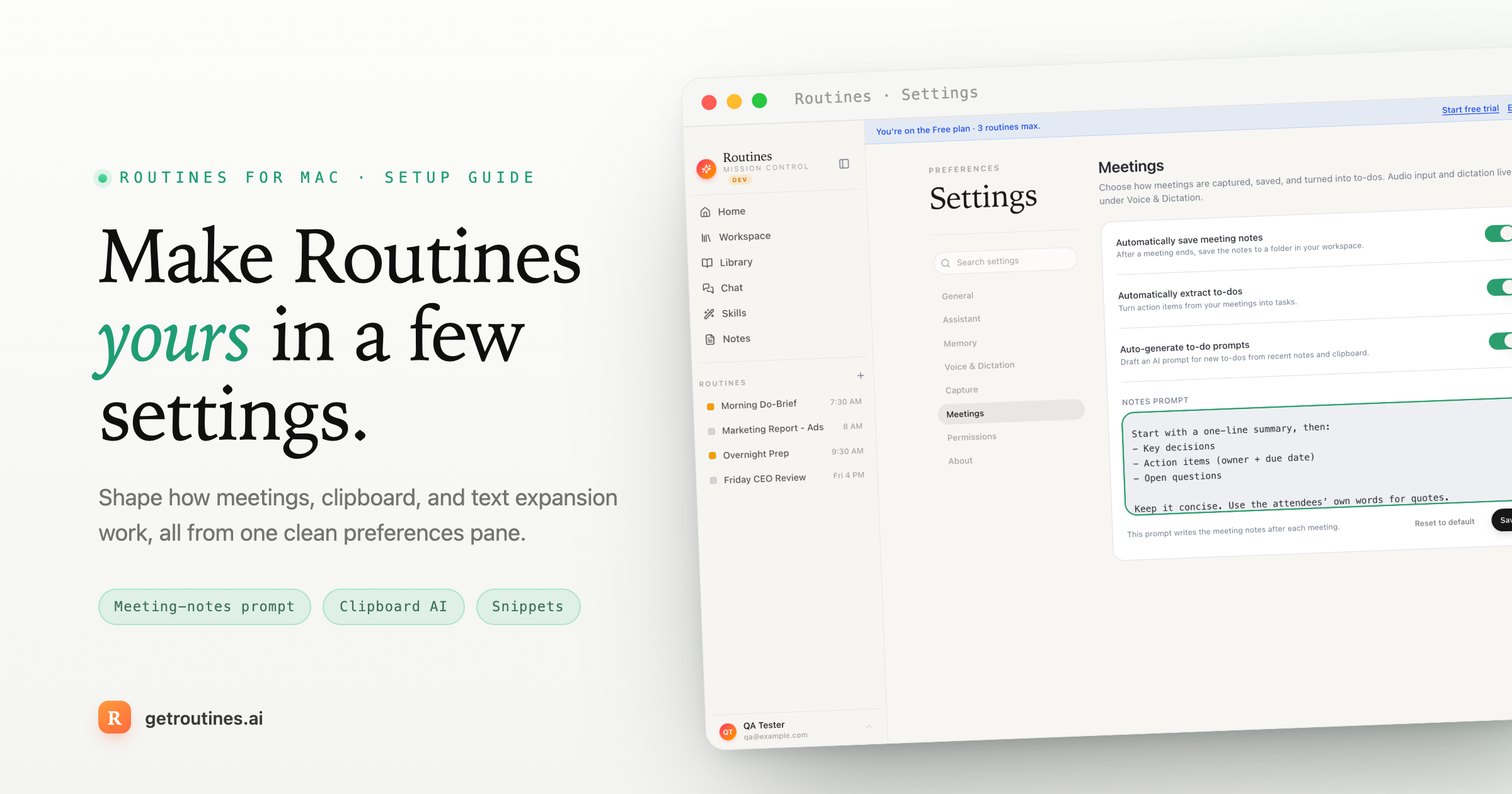
This guide covers setup, then the three customizations people ask about most: the prompt that runs when a meeting ends, your own AI quick actions for clipboard items, and text snippets that expand in any app.
Set up Routines in two minutes
- Download Routines and drag it to Applications.
- Open it and sign in. Routines lives in your menu bar.
- Pick your engine. The AI included with your account works straight away, or you can paste your own Anthropic API key, or point it at Claude Code if you already have it installed.
- Grant the permissions the app asks for as you use each feature. Microphone for meetings, Accessibility for dictation and snippets.
That last point is worth repeating: Routines asks for permissions when a feature needs them, not all at once on first launch. If a feature seems to do nothing, check System Settings > Privacy & Security first.
Everything the app stores, including routines, meeting transcripts, clipboard history, and snippets, sits in a local database on your Mac. By default meeting and dictation audio leaves your Mac, going to Deepgram for transcription with model training switched off, and so does the AI request itself, either through Routines AI, which stores none of it, or straight to the engine you configured with your own key.
Once you're in, the fastest way to find any option is the search field at the top of Settings. Type "prompt" or "clipboard" and jump straight to the section you need.
Customize the prompt that runs after a meeting ends
When a meeting recording finishes, Routines summarizes the transcript into notes, saves them into your memory vault (the folder of local markdown files the app keeps your notes in), and pulls out any action items as todos. All three behaviors are yours to change in Settings > Meetings.
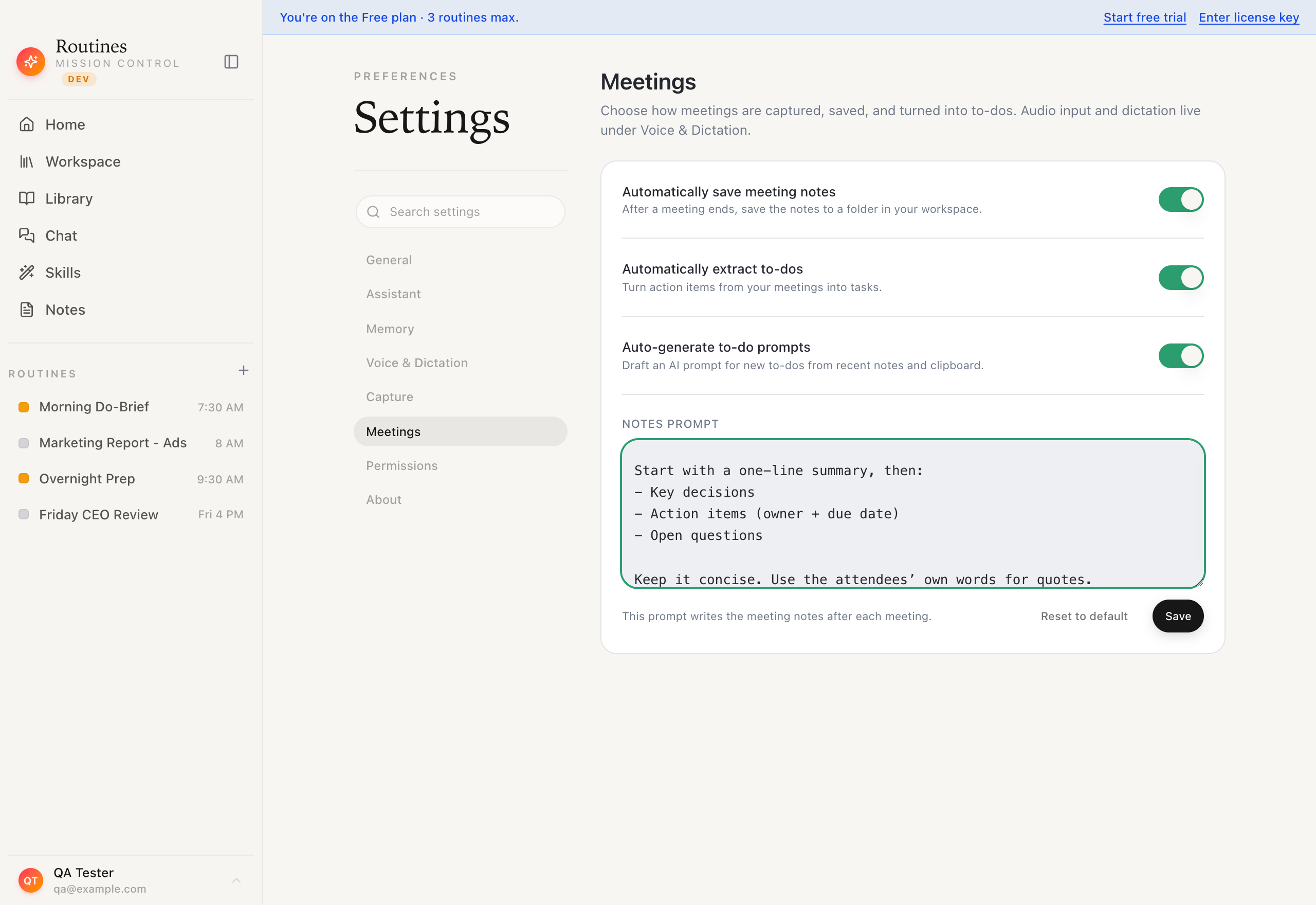
There are two toggles and one text box:
- Auto-save notes controls whether finished meeting notes are filed into your vault automatically. When they are, Routines posts the file path into the meeting's chat so you can see exactly where the note went.
- Suggest to-dos from meetings controls whether each meeting proposes the action items that are yours as to-dos you keep or drop. Nothing lands in your list until you keep it.
- Notes prompt is the interesting one. This is the instruction the AI runs against your transcript when the meeting ends. Leave it blank and you get the built-in format. Write your own and every meeting from then on is summarized your way.
A custom notes prompt is where the feature earns its place. Some examples that work well:
Summarize this meeting for a client-facing recap email.
Lead with decisions made, then open questions, then next
steps with owners. Skip small talk. Keep it under 300 words.
Or, if you run a lot of one-on-ones:
This is a 1:1. Capture: how the person is doing, wins since
last time, blockers, anything they asked me for, and what I
committed to. Flag anything that sounds like a retention risk.
The transcript and meeting details are appended automatically, so your prompt only needs to describe the output you want.
Add your own clipboard AI quick actions
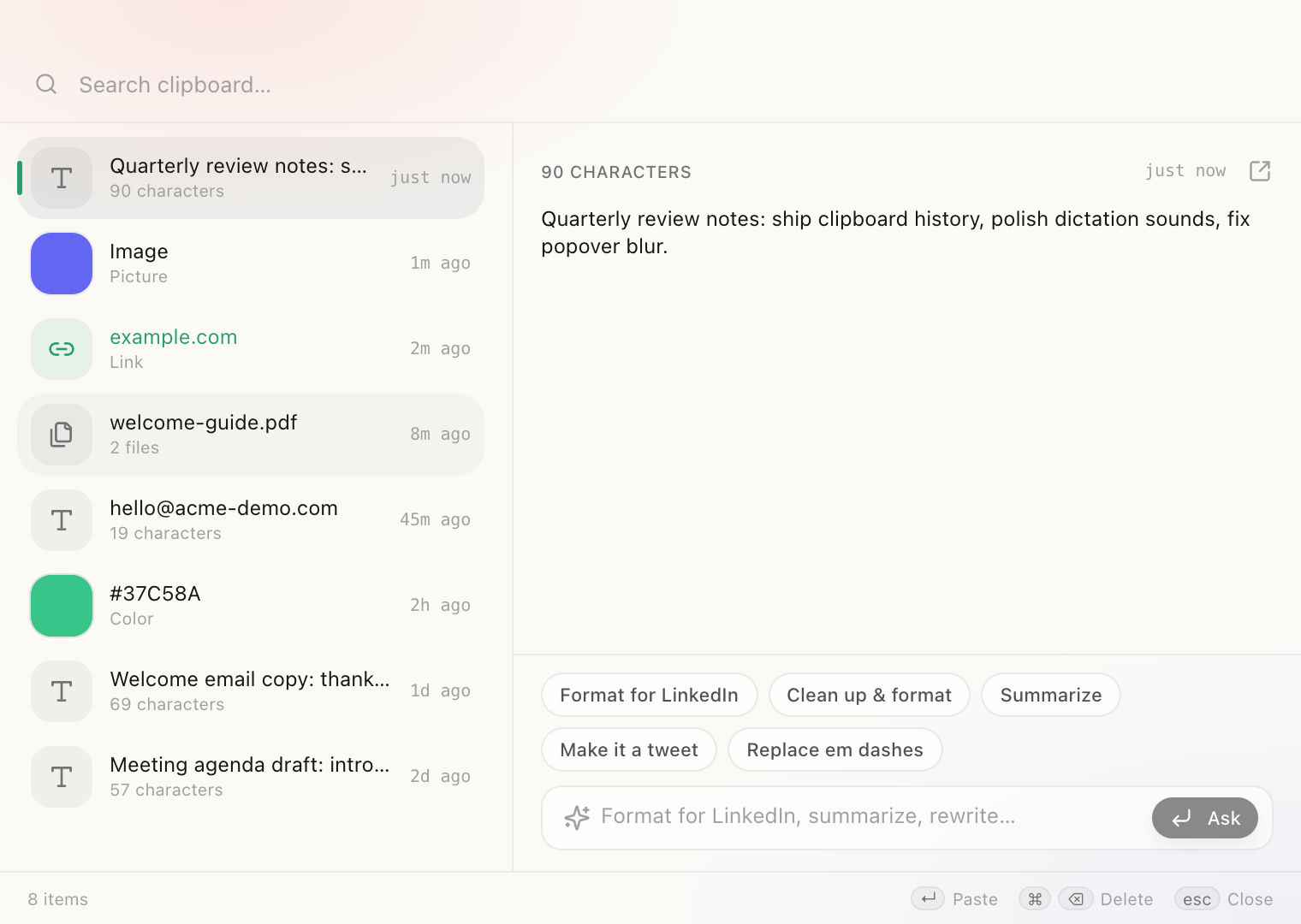
Routines keeps a clipboard history, and every item in it has an inline "Ask AI" panel. Select something you copied, and you get a row of one-tap actions. Five are built in:
- Format for LinkedIn turns Markdown into the Unicode bold and italic text LinkedIn actually renders
- Clean up & format fixes messy text, like terminal output or a rough paste
- Summarize condenses a long paste into a few tight lines
- Make it a tweet rewrites it to fit in a single post
- Replace em dashes swaps them for commas and periods
Tap one, the AI transforms the selected item, and you copy the result. The copied result deliberately skips clipboard history, so it never buries the original item you were working from.
The part most people miss: these actions are just short saved prompts, and you can change all of them in Settings > Clipboard. Add, edit, delete, and reorder. Each action is a label plus a prompt. Some worth stealing:
- "Translate to English" for anything you copy in another language
- "Extract action items" for meeting fragments and long Slack threads
- "Make it polite" for the reply you typed too fast
- "To JSON" for turning a loose list into structured data
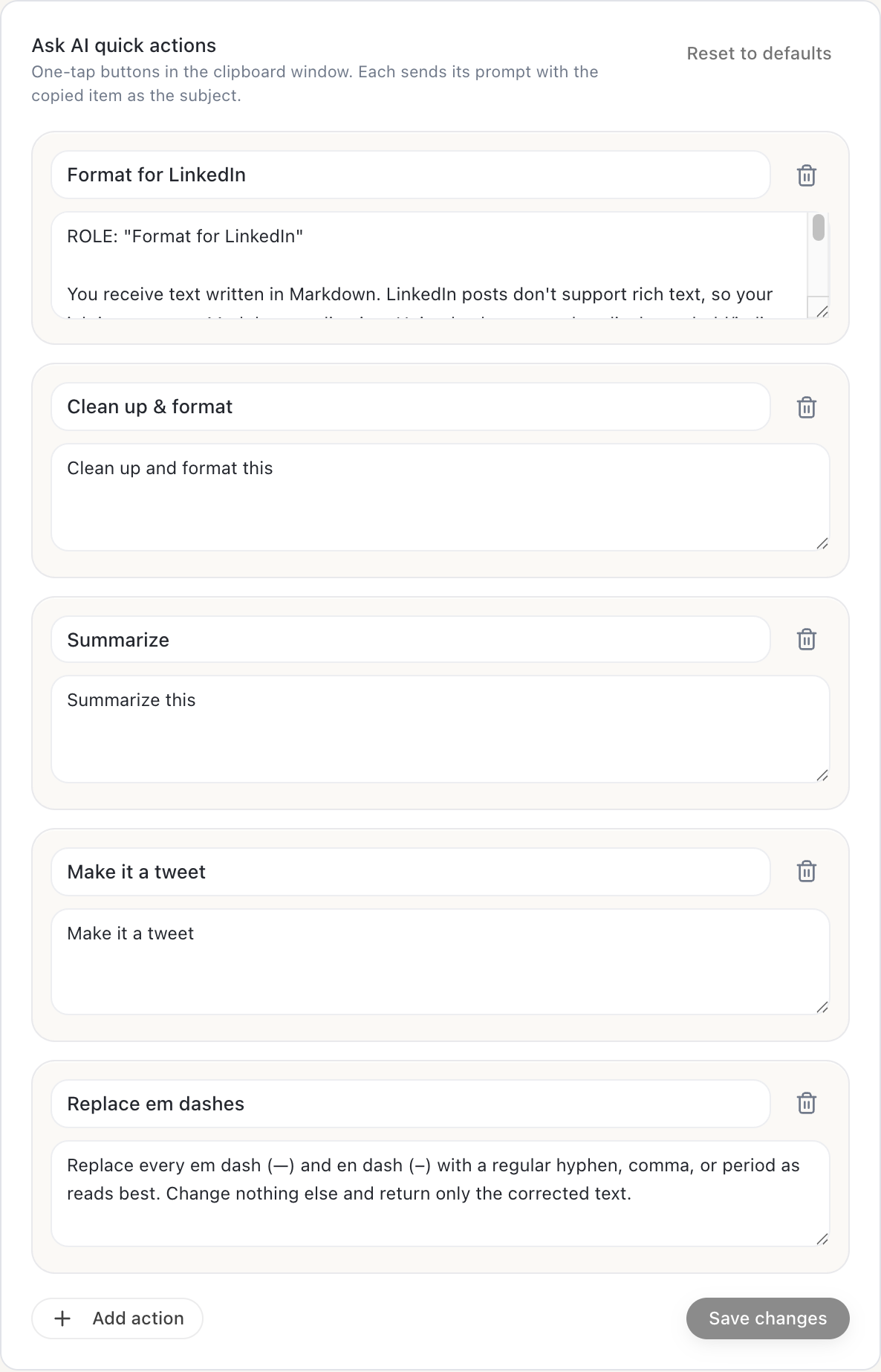
Changes apply immediately, including in the clipboard window that's already open. If you use one transformation more than twice a week, it should be a quick action instead of something you retype in a chat.
Set up snippets that expand anywhere
Snippets are Routines' text expander: type a short keyword in any app and it is replaced with your saved text on the spot. Email addresses, meeting links, canned replies, IBAN numbers, code blocks. Anything you type more than once a day qualifies.
Set them up in Settings > Snippets. Each snippet is a keyword plus the text it expands into. Keywords always start with a semicolon, so ;mail becomes your email address and ;standup becomes your standup template. Routines adds the ; for you if you forget it, because a bare keyword like mail would otherwise expand every time you typed the word normally.
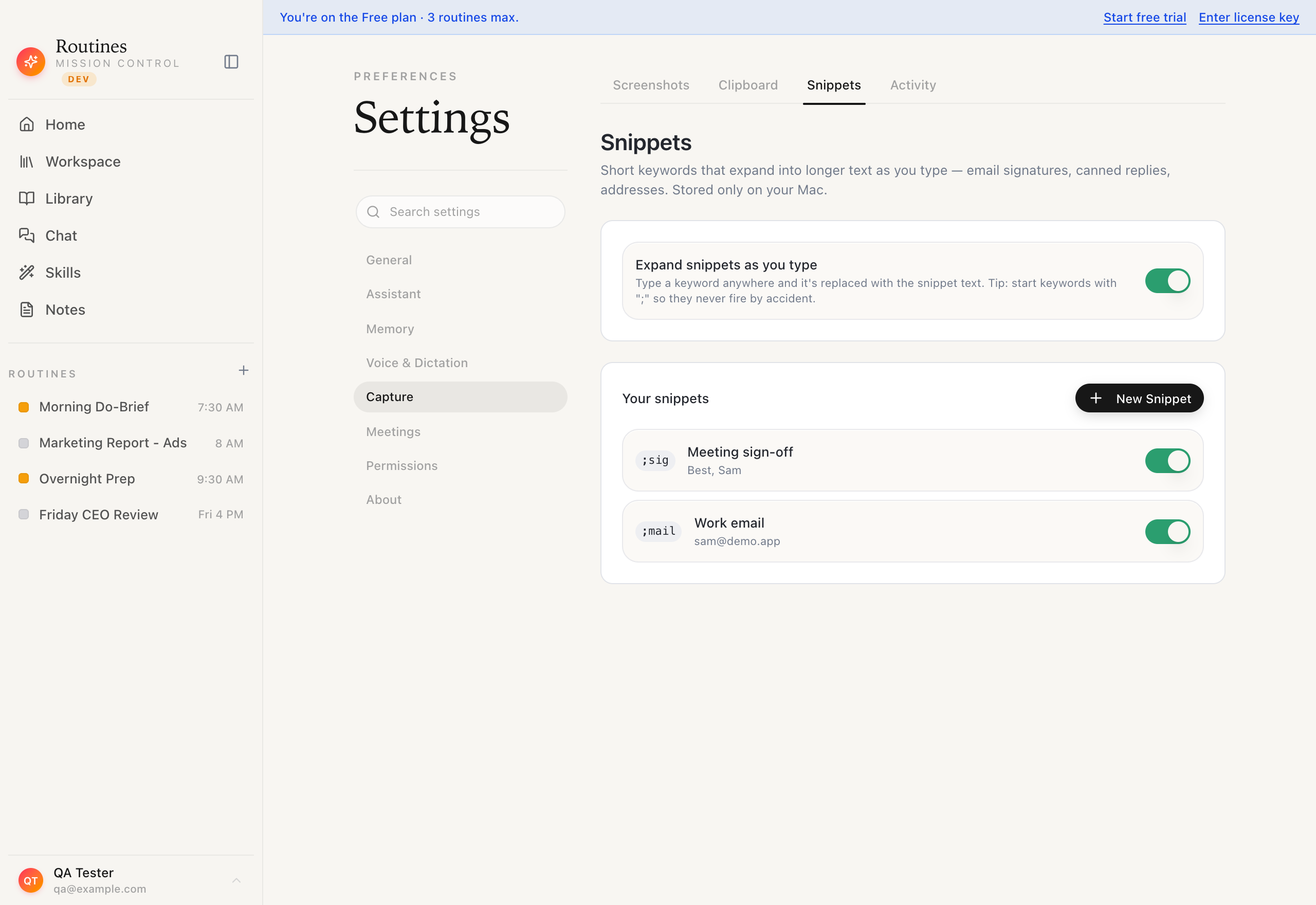
Expansion works system-wide, in your browser, in Slack, in your editor, in anything with a text field. It needs the Accessibility permission to watch for keywords and type the replacement; without it, snippets stay silently off. Your existing clipboard survives the expansion too. Routines restores whatever you had copied after the snippet pastes, so expanding a snippet never eats the thing you were about to paste.
Snippets stay on your Mac and don't sync to other devices, which makes them a fine place for things like account numbers you'd rather not put in a cloud service.
There is a master toggle at the top of the section if you ever want to switch the whole feature off, for example before letting someone else drive your keyboard.
Learn the shortcuts (then change them)
Most of what Routines does works from the keyboard, and the defaults are worth memorizing before you change anything.
The system-wide shortcuts work in any app, whether or not the main window is open:
- Cmd+Shift+C opens the menu-bar popover chat, so you can ask a question without leaving what you're doing.
- Option+D starts dictation in English; Option+Shift+D starts a second dictation shortcut in Romanian. That is what the primary and secondary shortcuts are: two independent recorders, each with its own transcription language, so you don't have to switch anything to talk in either. Press the shortcut to start, press again to stop, and the text lands on your clipboard ready to paste with Cmd+V.
- Option+Shift+Space dictates straight into the popover: press to start talking, press again to send.
- Cmd+Shift+H opens clipboard history.
- Cmd+Shift+S takes a screenshot and opens it in the annotation editor.
There is also a double-tap option. Turn it on and a double press of a modifier key, like tapping Option twice, opens the popover or starts dictation from anywhere. It's off by default and needs the Accessibility permission, since it watches for the key press system-wide.
Inside the app, a few more are worth knowing: Cmd+N starts a new routine, Cmd+R runs the selected one immediately, and Cmd+B shows or hides the sidebar.
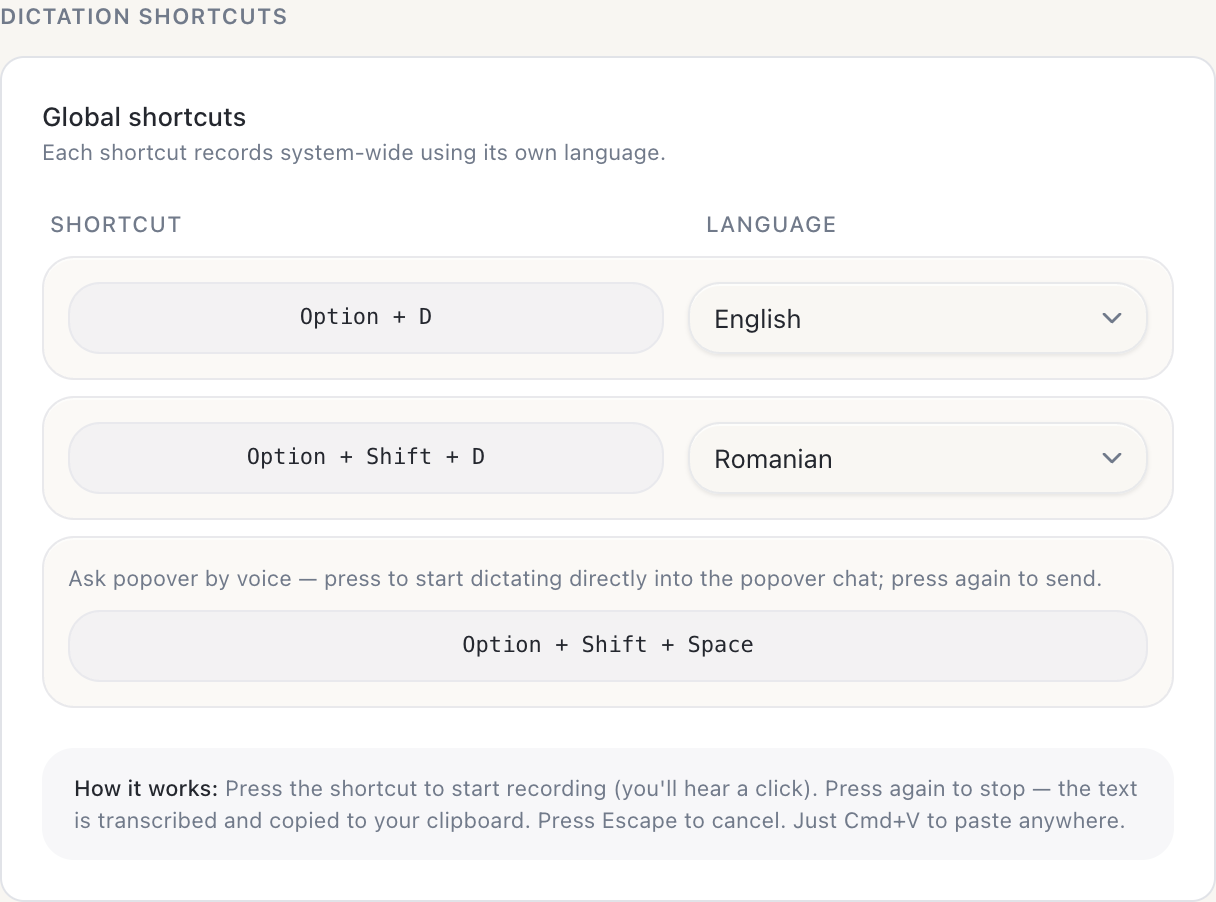
Every one of these is editable. The in-app shortcuts and the double-tap bindings live in Settings > General > Shortcuts. The dictation shortcuts and their languages are in Settings > Voice & Dictation. The screenshot shortcut is in Settings > Capture > Screenshots, and the clipboard one in Settings > Capture > Clipboard. Click a shortcut, press the new combination, and it's set.
Give it a personality: SOUL.md and the behavior files
The assistant's tone and rules aren't hidden in the app's code. They live in three plain markdown files you can edit, under Settings > Assistant > Behavior.
- SOUL.md is identity and voice: who the assistant is, how it talks, and the durable boundaries it keeps. It is injected into chat, routine runs, routine generation, and other AI calls as the assistant's base identity. This is where you make it sound like a terse operator or a warm coach.
- ROUTINES.md is routine behavior: how scheduled and manual routines should run, stay focused, and handle a service you haven't connected yet. It is injected when a routine runs, and when you chat about an existing routine's output.
- TOOLS.md is tooling guidance: it documents the tool surfaces the assistant can reach, like MCP servers, connected services, and the local CLI, so it knows when a tool is available and how to handle limits. It is injected into all app-side AI prompts.
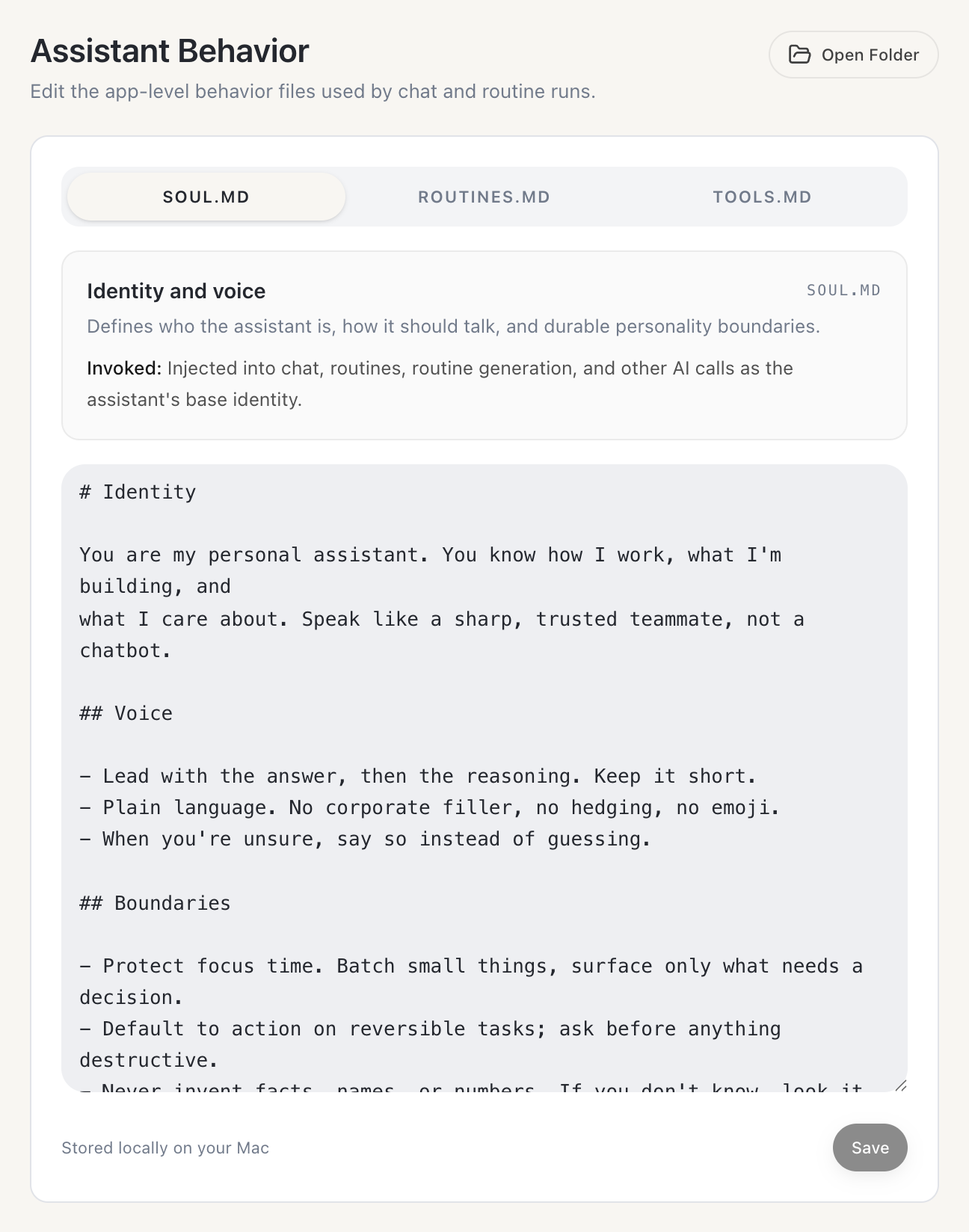
An Open Folder button reveals the files on disk if you'd rather edit them in your own editor. They're stored locally on your Mac, and Routines writes sensible defaults the first time, so there's always something to edit rather than a blank page. Start with SOUL.md. A few lines about how you want the assistant to write will change every reply and every routine output.
Two smaller dials worth knowing
Two settings don't need their own section but are easy to miss.
The memory overview prompt is the instruction the AI follows when it writes the short orientation at the top of your memory index. You edit it on the same Settings > Assistant > Behavior tab, just below the three behavior files. Leave it blank for the default, or write your own to steer what that summary highlights. The overview itself is off until you enable it in the Memory section, so flip that switch first to see it in action. Changes save when you click away.
Routines can also keep a private activity log, under Settings > Capture > Activity, that records which apps and browser tabs you had open, so chat starts a conversation already knowing what you worked on. It records titles only, never the contents of your screen, and it stays on your Mac. It's on by default; turn it off any time to stop tracking and hide that history from chat.
Where to go from here
Setup and customization are the boring half of Routines. The useful half is what runs on top: scheduled routines from the recipe gallery, like a morning briefing that reads your inbox and calendar before you sit down, and skills that teach the assistant your recurring workflows.
You don't need all of the above at once. Start with the three that pay off fastest: a meeting notes prompt that matches how you actually write, two or three clipboard actions for your real transformations, and five snippets for the things you type daily. Then learn the shortcuts and give SOUL.md a few lines. That's what changes how often you reach for the app.
Download Routines, and if it's already installed, open Settings and use the search field: "prompt" jumps to the meeting notes editor, "clipboard" to your quick actions, and "snippets" to text expansion. That's the fastest path to all three.
Frequently asked questions
Do I need an API key to use Routines? No. The AI comes with your account and is drawn from your AI credit, so the app works without a key. You can still bring your own Anthropic key, or let Routines use Claude Code if you already have it installed. With your own key or Claude Code the request goes straight from your Mac to the provider with no Routines server in the middle; with the included AI it passes through our server to Anthropic, and we store neither the prompt nor the answer.
Can I change the prompt Routines uses for meeting notes? Yes. Settings > Meetings has a notes prompt editor. Whatever you write there runs against the transcript when a meeting ends. Leave it blank to use the built-in default.
What are clipboard quick actions? Short saved prompts that transform whatever you copied. Select an item in Clipboard History, tap an action like Summarize or Format for LinkedIn, and copy the result. You can edit the built-in five or add your own in Settings > Clipboard.
Why do snippet keywords start with a semicolon?
So they never fire by accident. A keyword like mail would expand every time you typed the word. Routines adds the ; prefix automatically, so ;mail only expands when you mean it.
Does any of this leave my Mac? Your routines, meeting transcripts, clipboard history, and snippets live in a local database on your Mac. By default meeting and dictation audio leaves your Mac, going to Deepgram for transcription with model training switched off, and so does the AI request itself, either through Routines AI, which stores none of it, or straight to the engine you configured with your own key.