
Your to-dos on iPhone now open as a stack of cards. Swipe right and a to-do is done, swipe left and it waits for later, swipe up and it is deleted, and the next card takes its place. When the answer is none of those, Schedule moves the to-do to tomorrow morning, next week or a date you pick. One decision per card, until nothing is left.
Open any to-do as a card
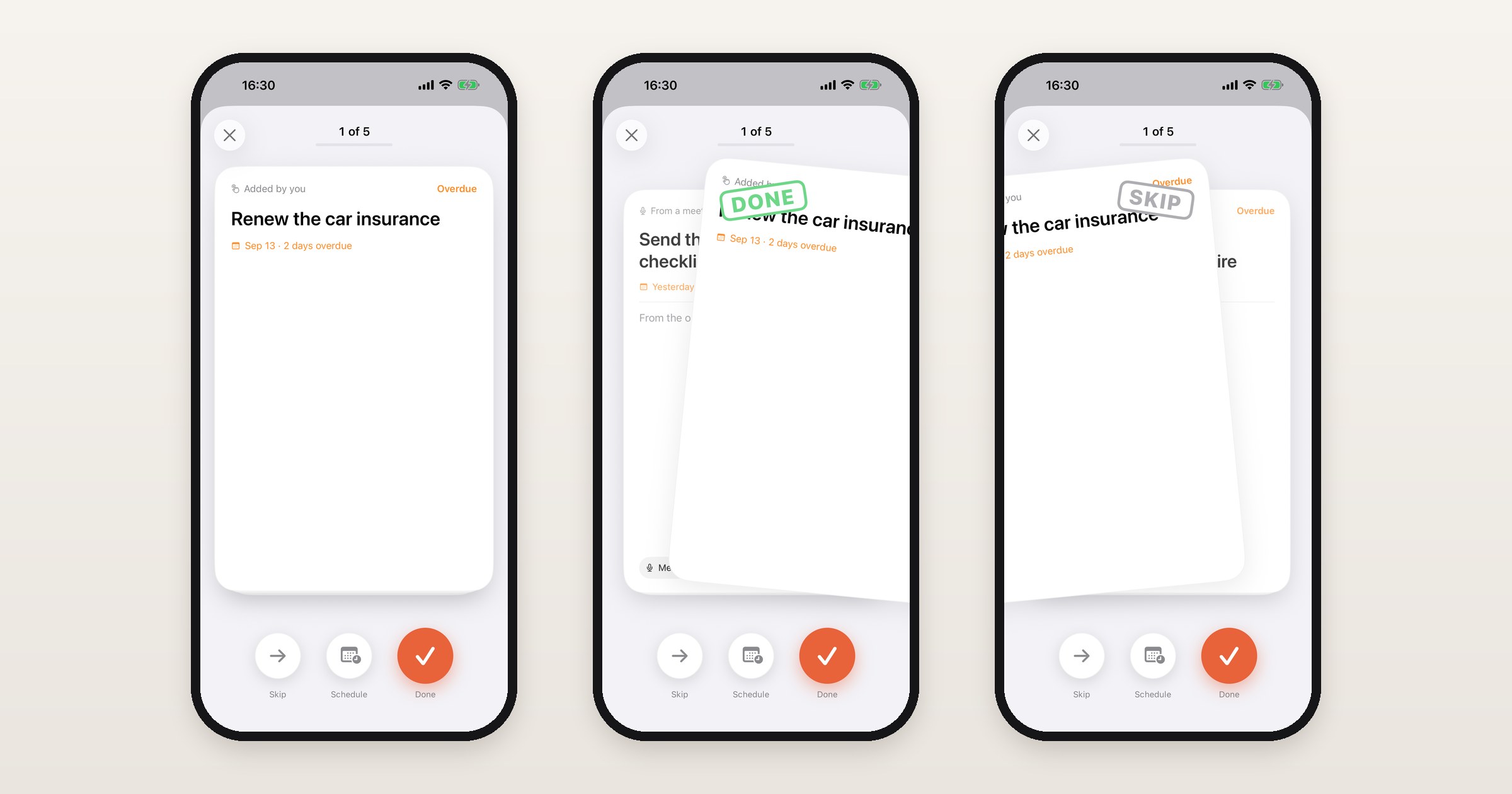
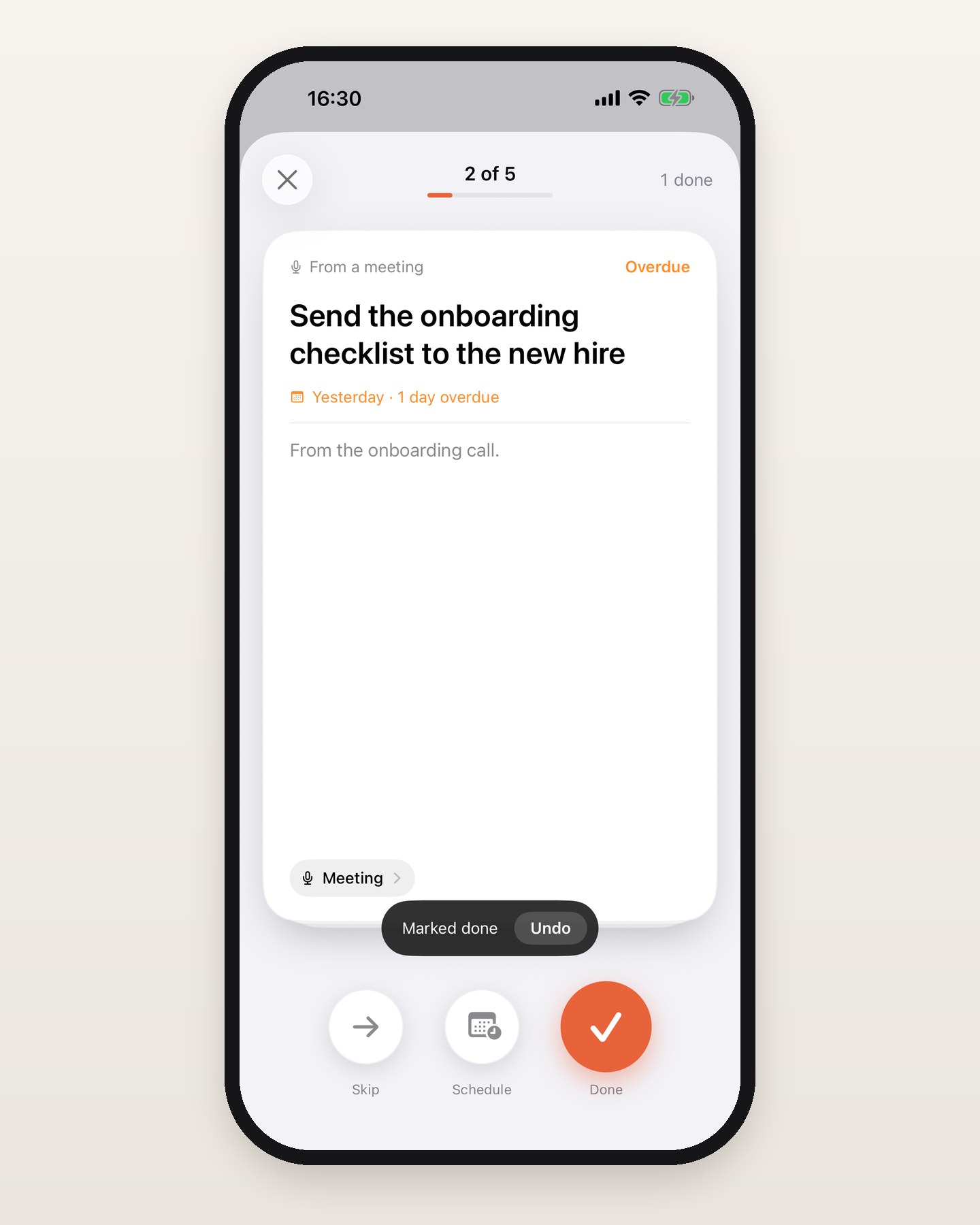
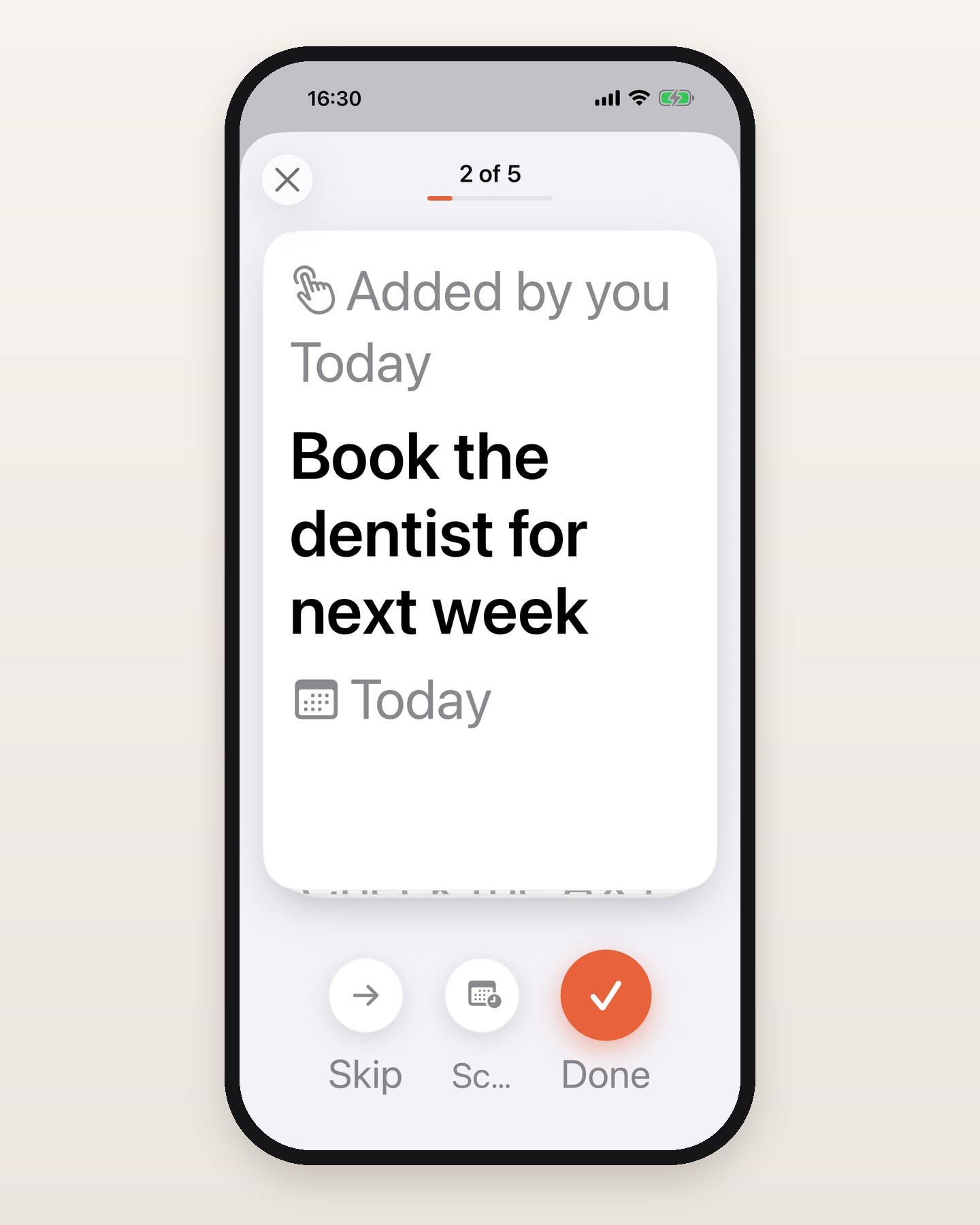
Tap an open to-do in the Todos tab, or in the to-do glance on Home, and it opens as a card. The card says where the to-do came from, such as Added by you or From a meeting, when it is due, and whether it is overdue. The review starts on the one you tapped and carries on through the rest of that group: everything in Now and No date, or everything in Scheduled.
Right for done, left for later
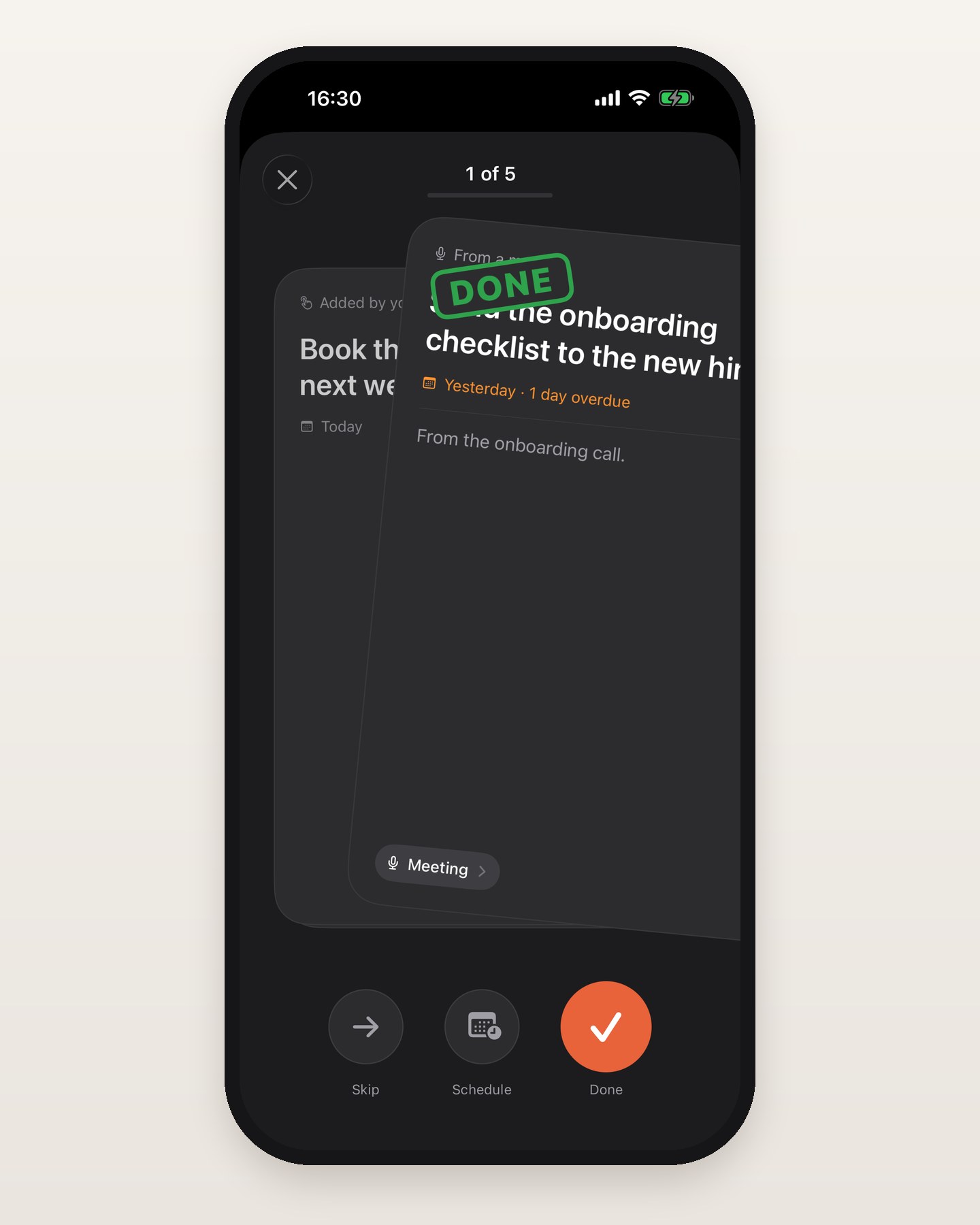
Drag the card to the right and a green DONE stamp fades in as it moves. Pull it far enough, let go, and the to-do is marked done. Drag left and a grey SKIP stamp appears instead. A skip changes nothing about the to-do: the card goes to the back of this review and comes around again later.
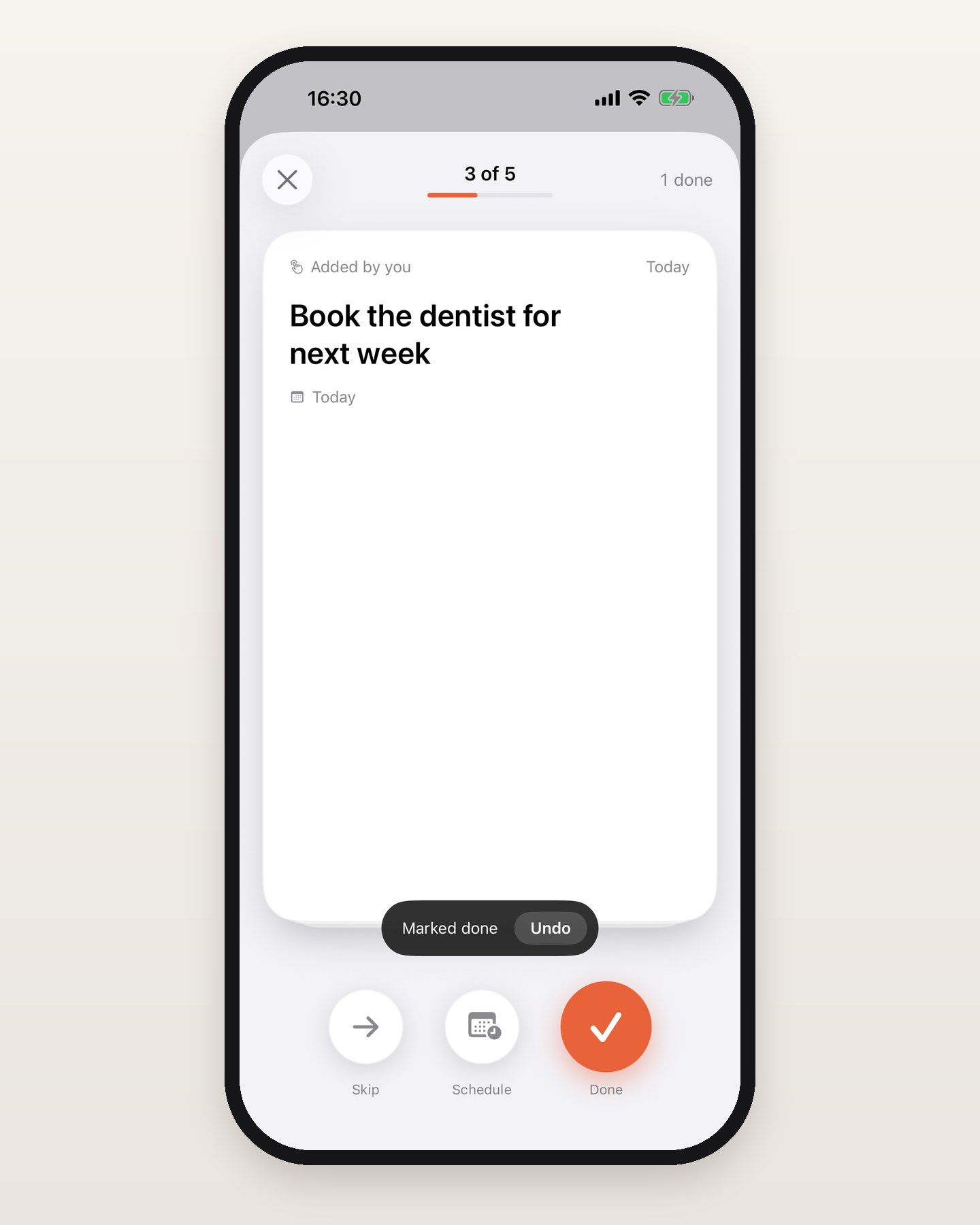
After every swipe the next card slides in. The counter at the top reads "3 of 5" over a thin progress bar, with "1 done" beside it, so you can see how much of the list is left.
Swipe up to delete
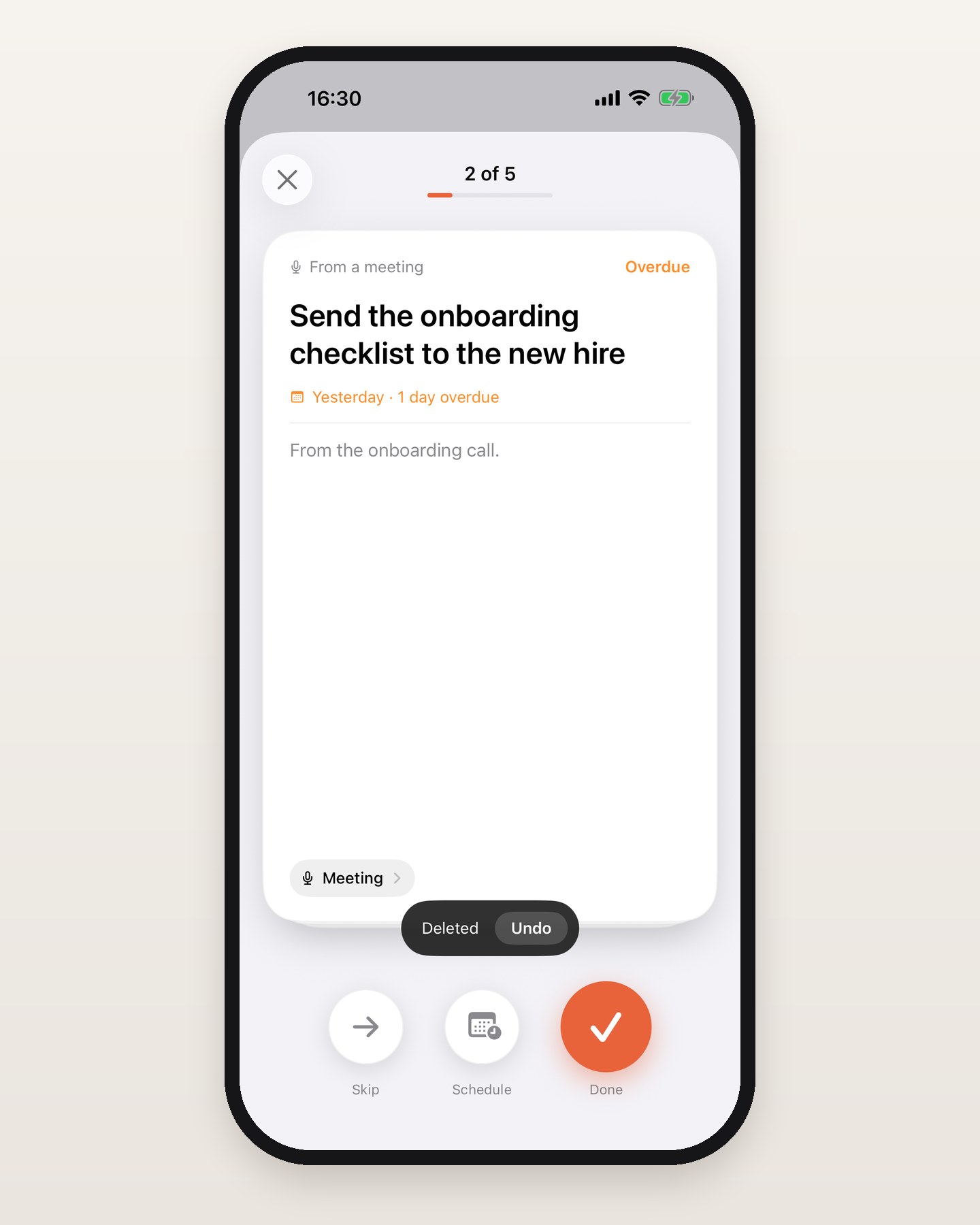
Drag a card up and a red DELETE stamp fades in, while the counter and close button at the top fade away. Pull it far enough, let go, and the card flies off the top, the next one slides in, and "Deleted" shows with an Undo button for five seconds.
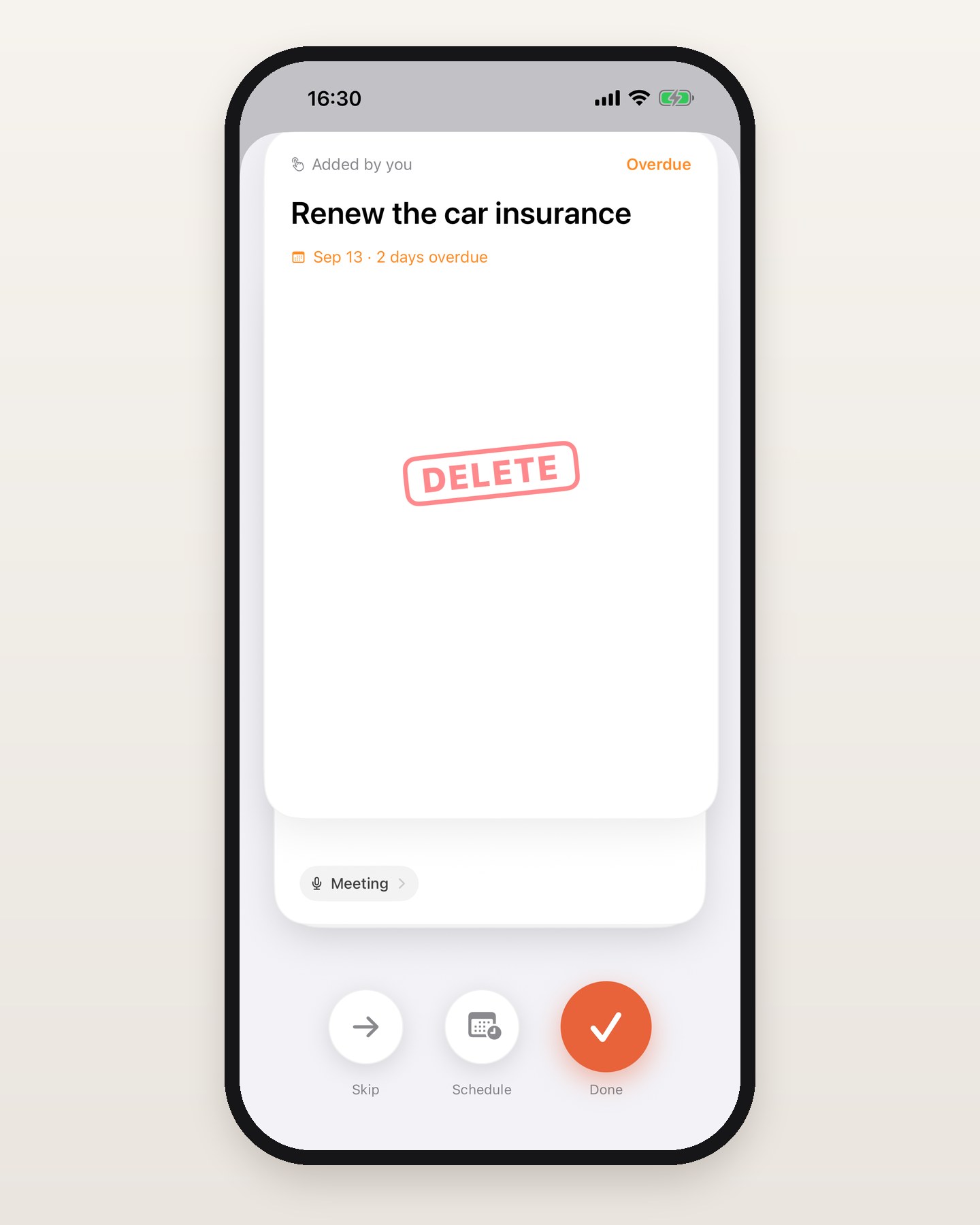
The delete only lands when that window ends, you act on the next card, you close the review or the app goes to the background. Tap Undo before then and the same card comes back. Swiping down still closes the review and never deletes.
Schedule it for later
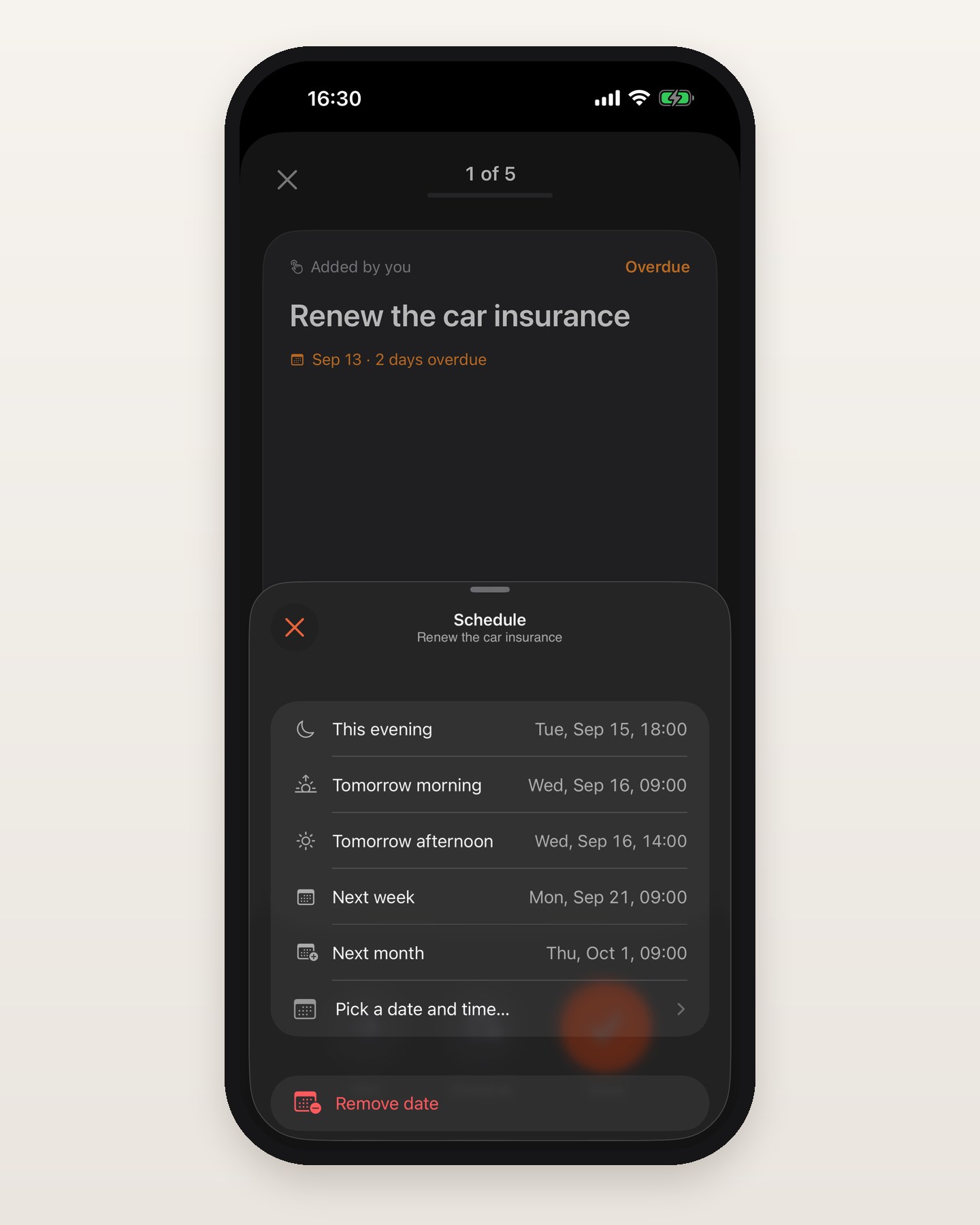
Some to-dos are not a yes or a no, they are a not now. Schedule, the middle button under the card, opens a sheet of times read off your clock. Before noon it offers this afternoon, this evening and tomorrow morning. Between noon and five it offers this evening, tomorrow morning and tomorrow afternoon. From five in the evening it offers tomorrow morning, tomorrow afternoon and, from Monday to Thursday, this weekend. Next week and next month are always on the list, and so is "Pick a date and time…". Every proposal shows the day and time it resolves to, and a moment that has already gone is never booked.
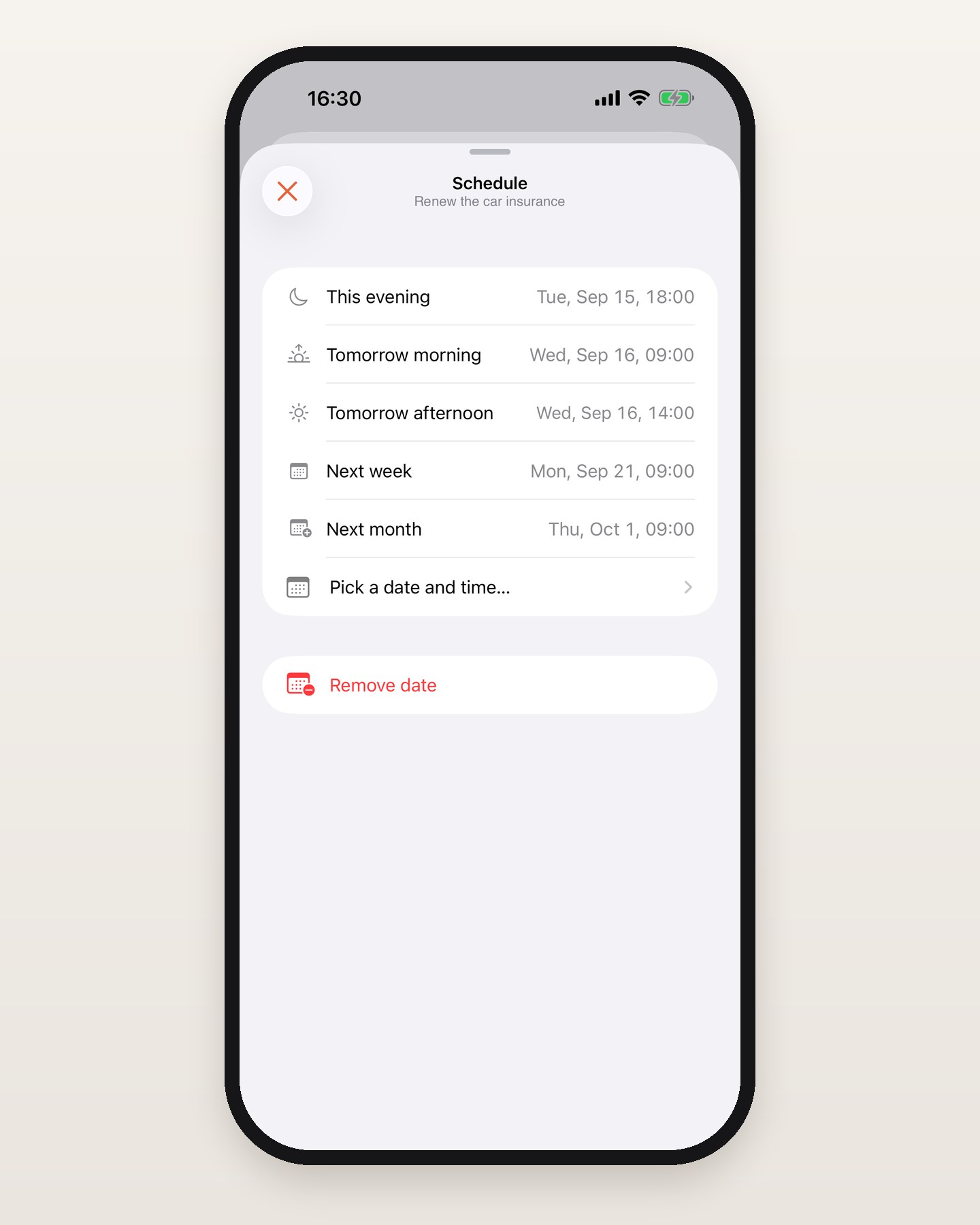
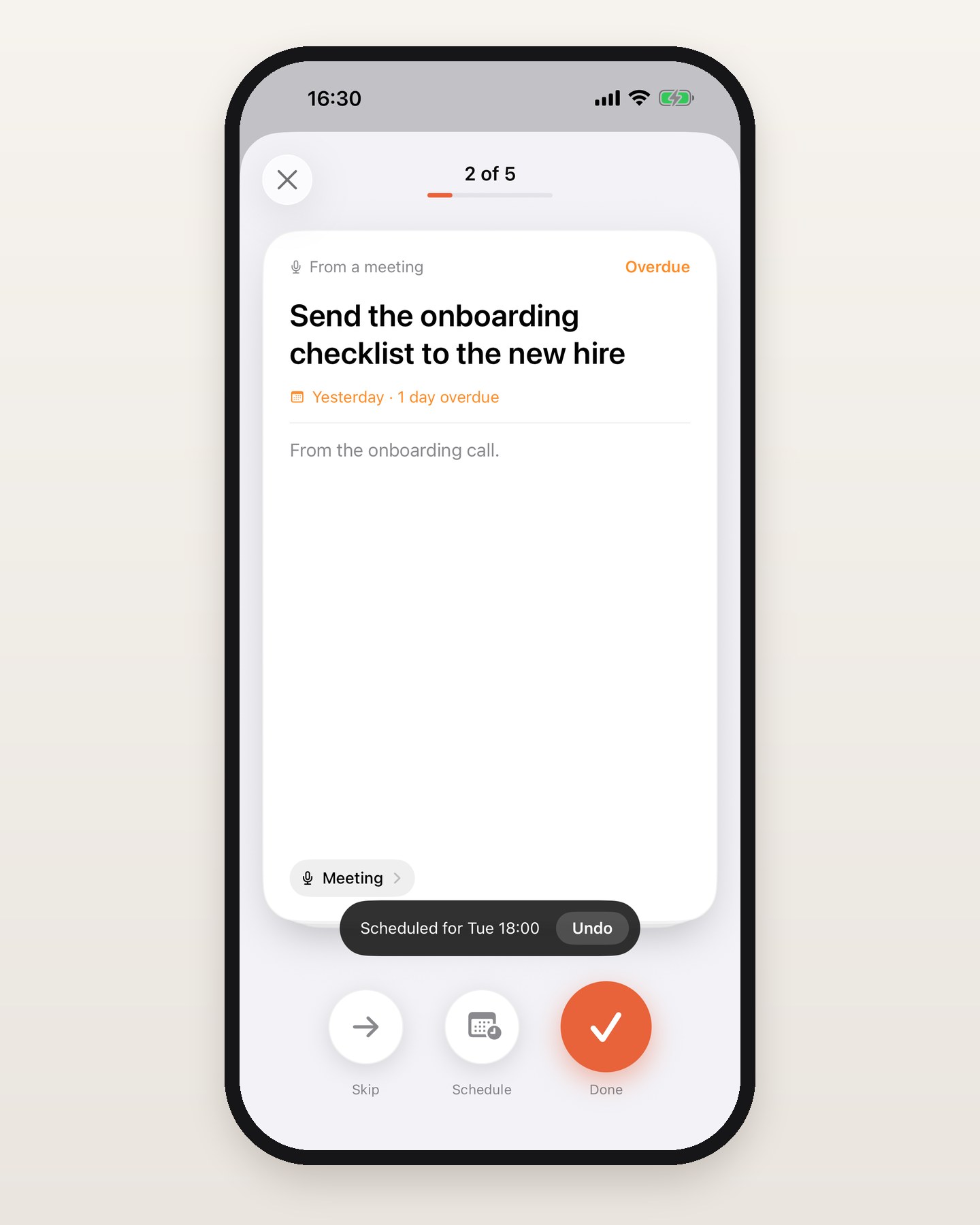
Tap a proposal and the card is stamped SCHEDULED with the time you chose, drops away, and the next one comes up. A dark bar reads "Scheduled for Tue 18:00" with an Undo button for five seconds, and Undo puts the old date and time back. When the to-do already has a date, Remove date at the bottom of the sheet takes it off.
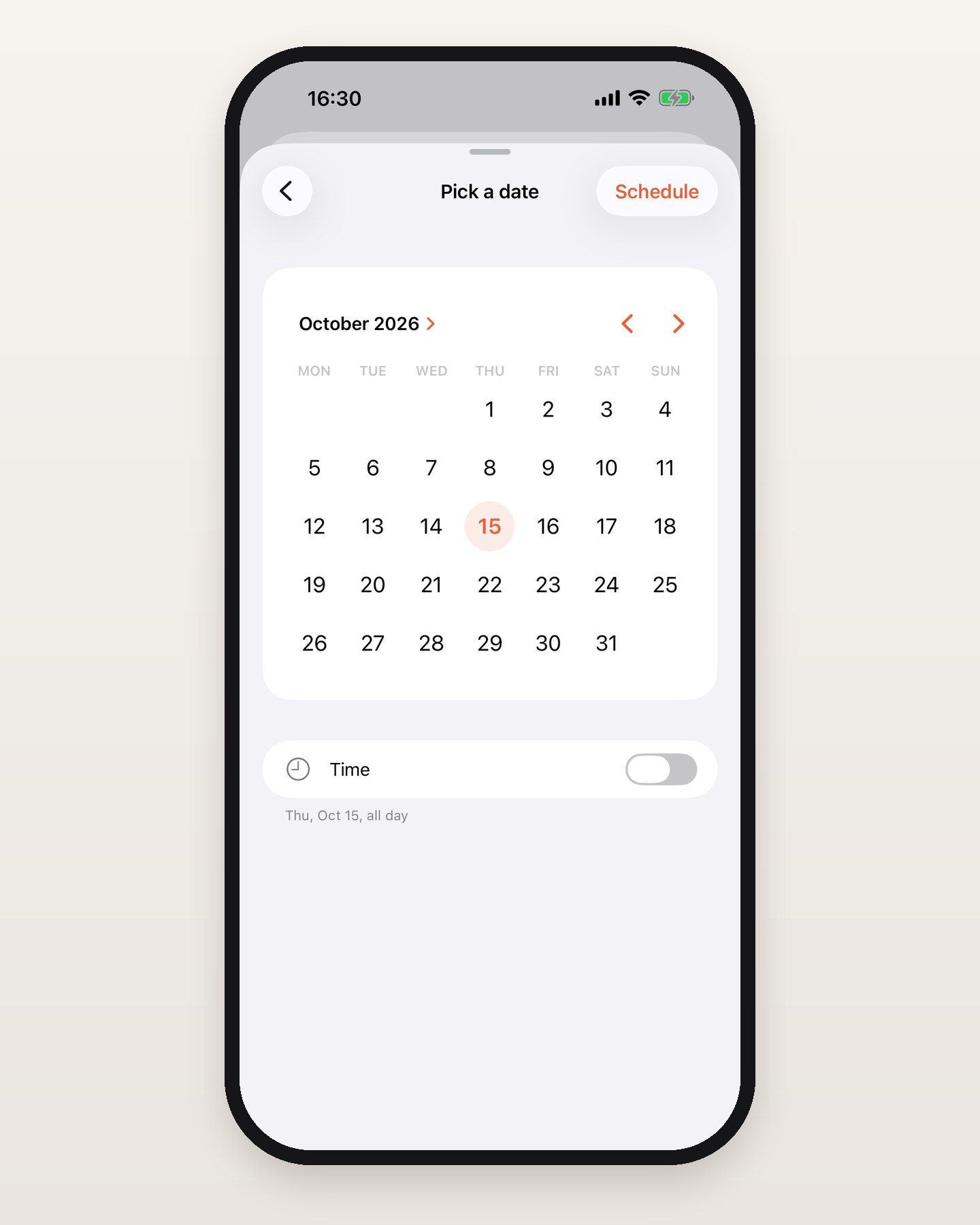
"Pick a date and time…" opens a month calendar that will not go back past today. Leave the Time switch off and the to-do is due that day, all day. Turn it on and choose a time.
Now, No date, Scheduled
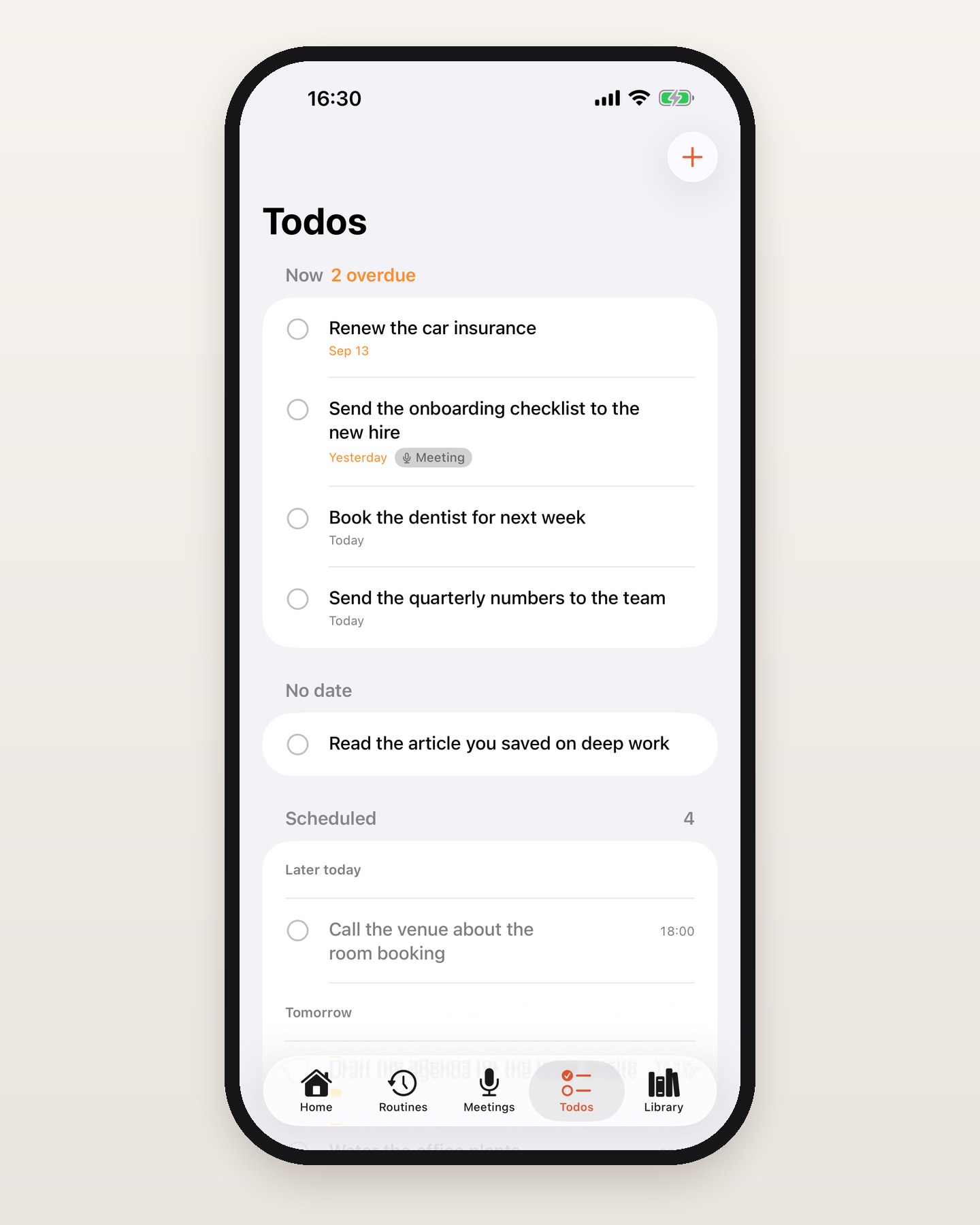
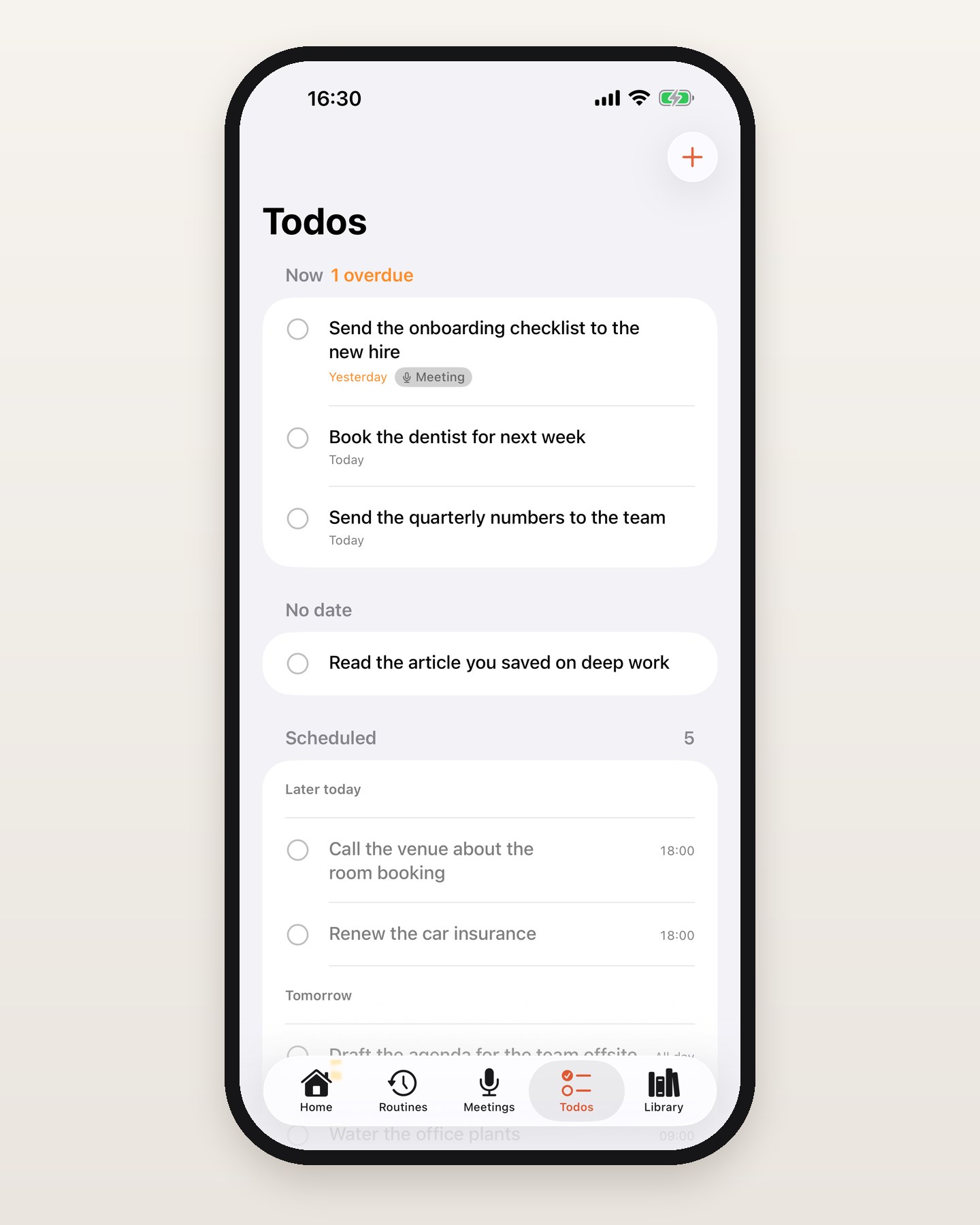
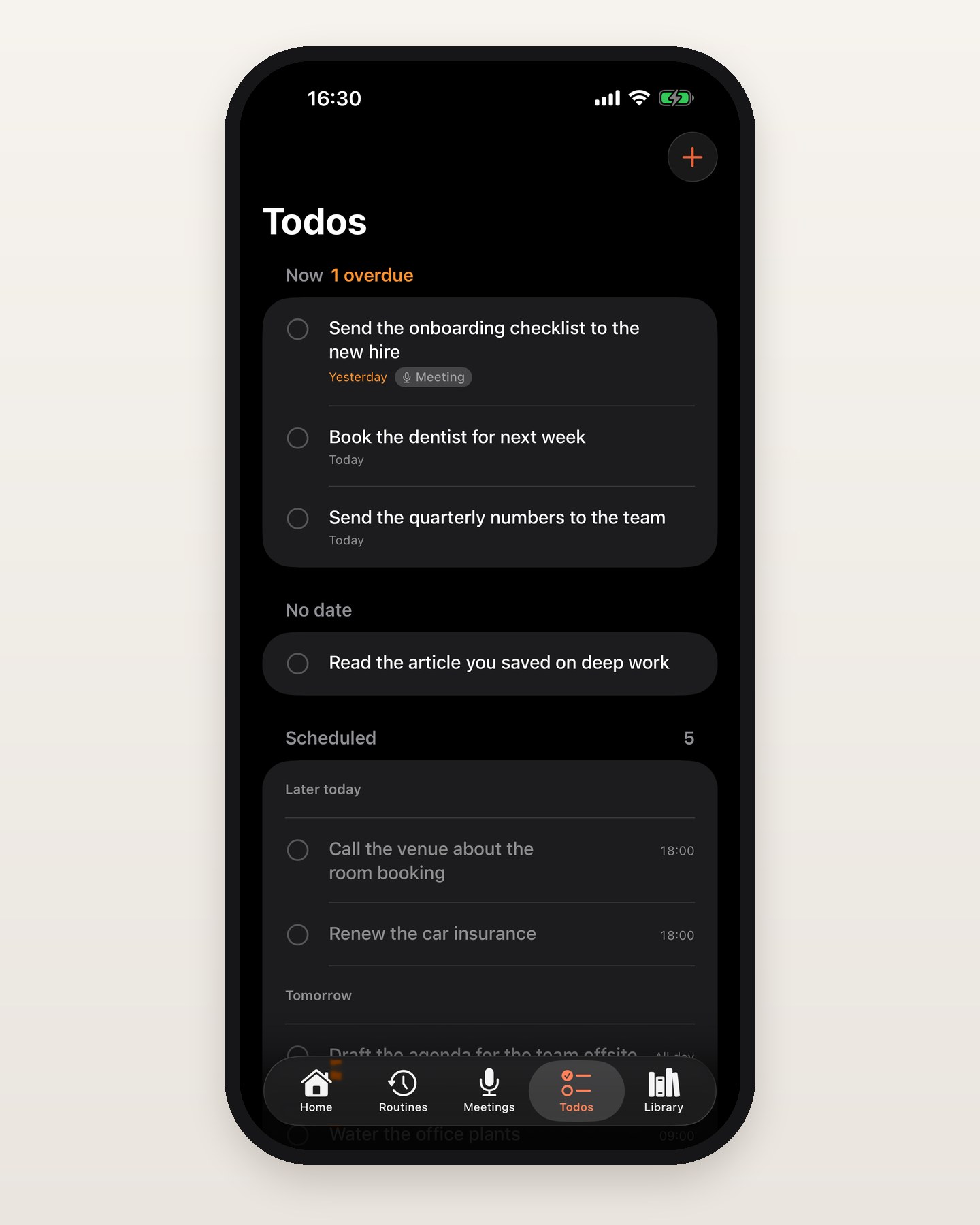
The Todos tab is sorted around the same idea. Now is what is overdue, and today's to-dos from the moment they come due, which is straight away when they have no time on them. No date is everything without a date. Scheduled is the rest, under day headers, Later today, Tomorrow, then the date, with the time, or All day, on the right. Done sits at the bottom.
A to-do you put at 14:00 today waits under Scheduled, and at 14:00 it moves into Now by itself, with no sync and no tap. Nothing notifies you at the time you picked. The to-do is simply in Now the next time you look.
You can also schedule without opening a card. Swipe an open row to the right and a blue Schedule sits next to Complete.
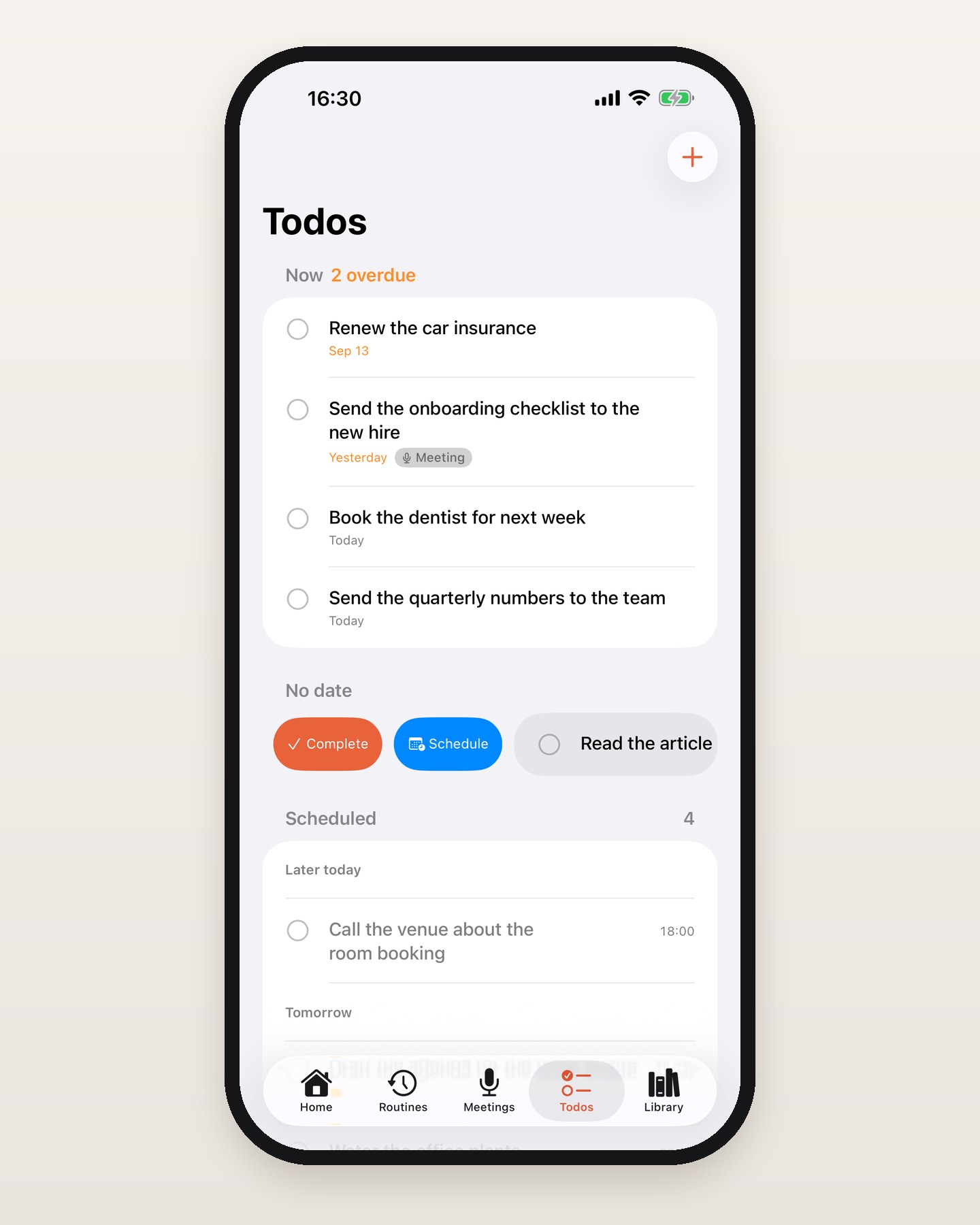
The new date is written on your phone first, so scheduling works with no connection and goes up on the next sync. With Cloud Sync and Backup on the Mac, the date lands there too. The Mac takes the date and not the time of day, so it shows the day.
Undo, buttons and VoiceOver
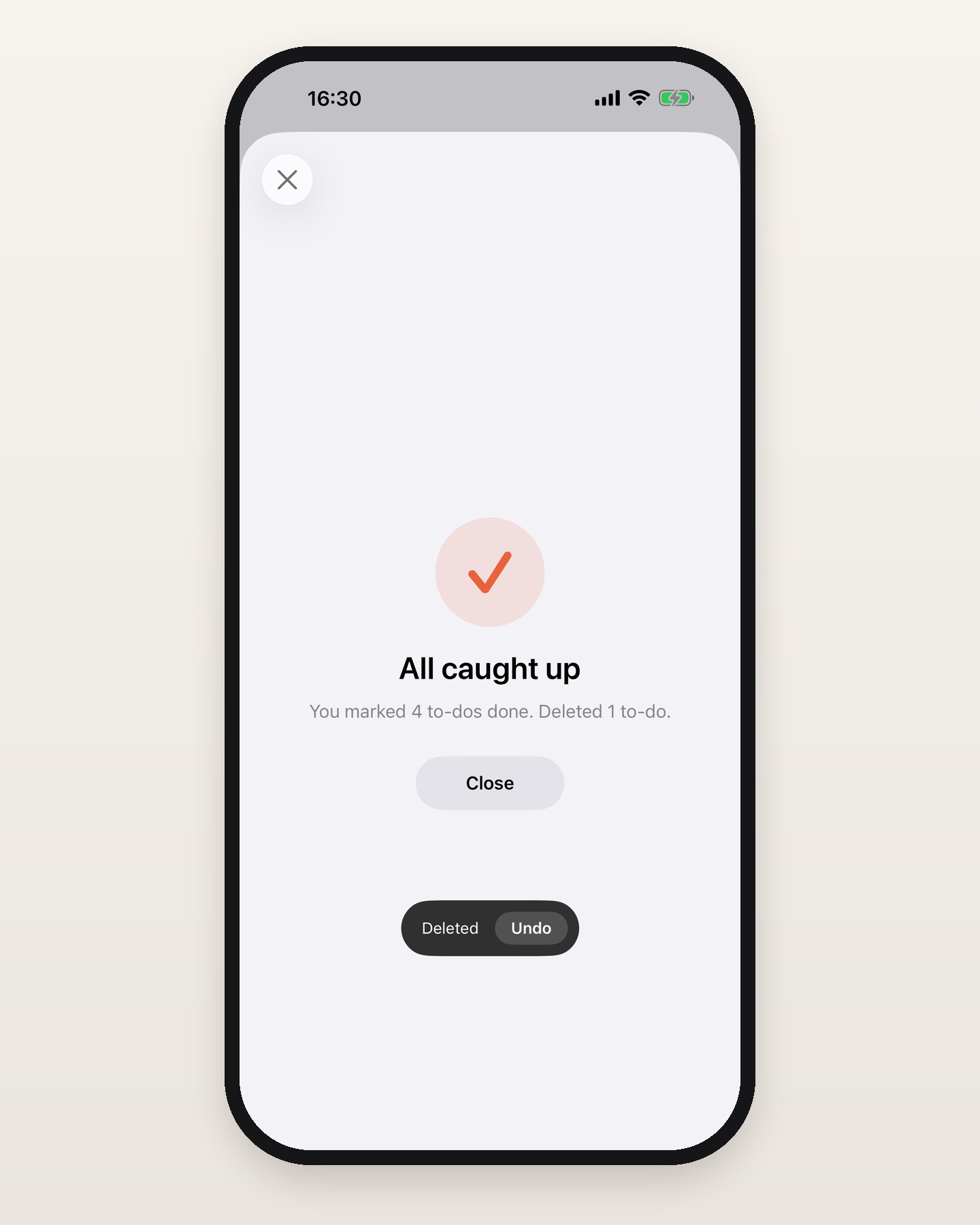
Each done shows "Marked done" with an Undo button for five seconds, and after the last card that bar shows over "All caught up". Tap Undo and the same card is back on top.
The buttons under the card are Skip, Schedule and a big orange Done, and Skip and Done do the same job as the left and right swipes. They are there for one-handed use and for accessibility, and VoiceOver offers Mark done, Skip, Schedule and Delete as actions.
Notes, meetings and reopening
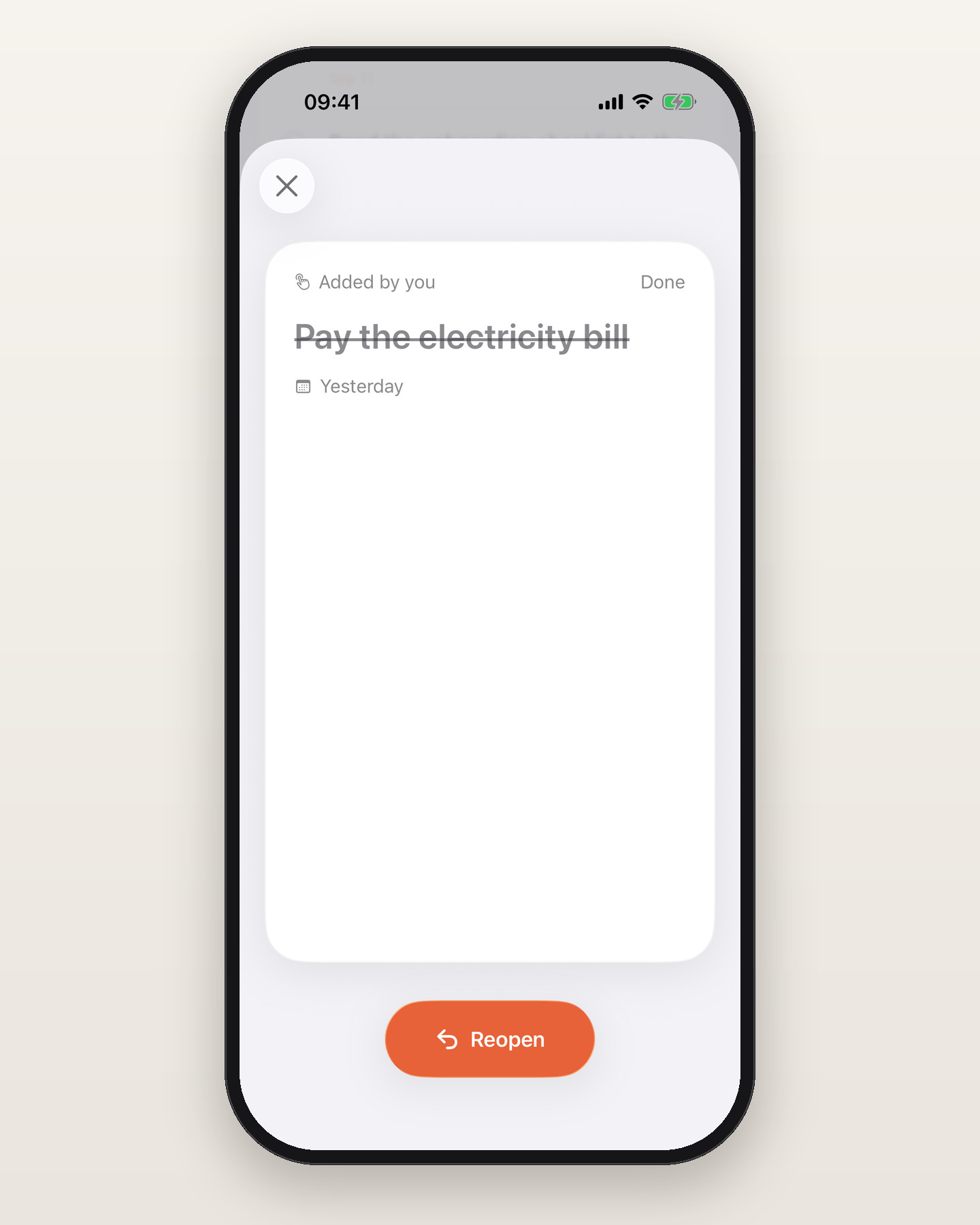
Tap the card to expand its notes. When a to-do came out of a meeting, a chip at the bottom of the card opens that meeting. A to-do you already finished opens from the Done section as the same card, with a Reopen button in place of Skip, Schedule and Done, and no swipe up to delete.
All caught up
When the last card is gone, the review says "All caught up", tells you how many to-dos you marked done and, if any, deleted, and offers Close. Each done is an ordinary check-off: it syncs through your Routines account, and with Cloud Sync and Backup on the Mac it shows up there like any other.
Dark mode, large text and Reduce Motion
The cards follow dark mode and work at large text sizes, and so do the Schedule sheet and the list. With Reduce Motion turned on, cards fade instead of flying off the screen.
Also in 1.4.0
Dictation and meeting recording now offer 28 languages, and dictation keeps a local recording, so a dropped connection no longer costs you the text. You can start and stop dictation from your Apple Watch. Meetings has one Record button that asks whether you are recording people in the room or a call on this iPhone. And there are optional Lock Screen reminders when a meeting starts, with a Record button. Turn them on in Settings.
Update to Routines for iPhone 1.4.0 from the App Store, open a to-do, and start swiping. We would love to hear how it feels, so write to us at hello@getroutines.ai.