
Pick Hebrew as the transcription language, start recording, and the meeting ends with a Hebrew transcript and Hebrew notes carrying decisions and action items. Routines records the meeting live on the Mac, from the microphone and from system audio, and streams the audio to Deepgram for transcription, on the key we manage if you are on Pro or in the trial, or on your own Deepgram key on the Free plan. The notes are saved as markdown on the Mac, and the transcript lives in the app's local database.
To get Hebrew meeting transcription you have to pick Hebrew up front. Deepgram's automatic language detection covers English, Spanish, French, German, Hindi, Russian, Portuguese, Japanese, Italian and Dutch, and not Hebrew. Auto runs Deepgram's multilingual model, and Hebrew is not among the languages it covers, so a Hebrew meeting left on Auto does not come back as a usable Hebrew transcript.
Routines against the Hebrew transcription tools
The table summarizes what each tool publishes about itself, read from the tools' own pages on 3 September 2026. A cell the vendor does not publish is marked "not published".
| Tool | Where it runs | Hebrew transcription | Live recording or uploaded file | Speaker identification | Hebrew summary | Price |
|---|---|---|---|---|---|---|
| Routines | Mac app | Yes, you pick Hebrew | Live recording only, no file upload | Speaker labels, a name only when someone introduces themselves on the recording | Yes, in the picked language | Free with your own Deepgram key. Pro with a 7-day trial, 50 hours a month, then EUR 0.79 per hour up to a further 50 hours |
| Google AI Studio | Web app, a developer console | Not published | Both, through a free-form prompt, and there is a "Live transcription" section in the Live API | Yes, through a free-form prompt | Yes, through a free-form prompt | A free tier and then pay as you go. A transcription price is not published |
| ivrit.ai | Web app, transcribe.ivrit.ai | Yes, free Hebrew models and a corpus of over 22,000 hours | Uploaded file or the transcription interface, and a WhatsApp voice message | Not published | Not published | Free. A non-profit project |
| Otter.ai | Desktop, iOS, Android, Chrome extension, web | Not published | Both, recording from your device and importing files | Yes, "speaker recognition" | Yes, not stated for Hebrew | "Free forever", and paid from 19.99 dollars per user per month |
| TurboScribe¹ | Web app | Yes, Hebrew is on the language list | Uploaded file only | Yes, optional, up to eight speakers | Not published | Three free transcripts a day, then 10 dollars a month billed yearly or 20 dollars billed monthly |
| Descript | Web app and desktop | No. Its help center limits transcription to languages written in the Latin alphabet | Both, recording inside Descript or dragging in an existing recording | Not published for Hebrew | Not published | Free with one hour a month, and plans from 16 dollars a month billed yearly |
| VIBE² | Desktop app for macOS, Windows and Linux | Not published as a claim by the tool itself | Both, including system audio and microphone | Yes, "speaker diarization" | Yes, summaries through the Claude API | Free and open source under the MIT license |
| ElevenLabs Scribe | API and SDKs for developers, and editing in ElevenLabs Studio | Yes, Hebrew rated "Good (>10% to ≤20% WER)" | Both, including realtime transcription | Yes | Not published | A free tier, plans from 6 dollars a month, and usage from 0.40 dollars per hour of audio |
| Tamleli Pro | Web app | Yes, the Ivrit.ai engine at the core of its Hebrew recognition | Uploaded file only, including Zoom recordings | Yes | Yes, an automatic summary in a fixed structure | Free transcription subject to its terms of service. A subscription price is not published |
¹ The TurboScribe row was read from an archived copy of the site dated 1 July 2026, because the live site blocks automated readers. Things may have changed since. ² VIBE here is the open-source project thewh1teagle/vibe.
Most of the tools in the table transcribe a file you upload to them. Routines works the other way around. It records the meeting while it happens, and it has no path for importing an existing audio or video file. If your recording already sits in a folder as a file, one of the other tools in the table will suit you better.
Hebrew meeting transcription on the Mac, step by step
Set the transcription language once
In Settings, on the voice tab (it reads "קול והכתבה" in the Hebrew interface), there is a field labelled "שפת התמלול", the transcription language. Pick "עברית" there and you are done. The choice sticks, and every meeting you record from then on opens in Hebrew.
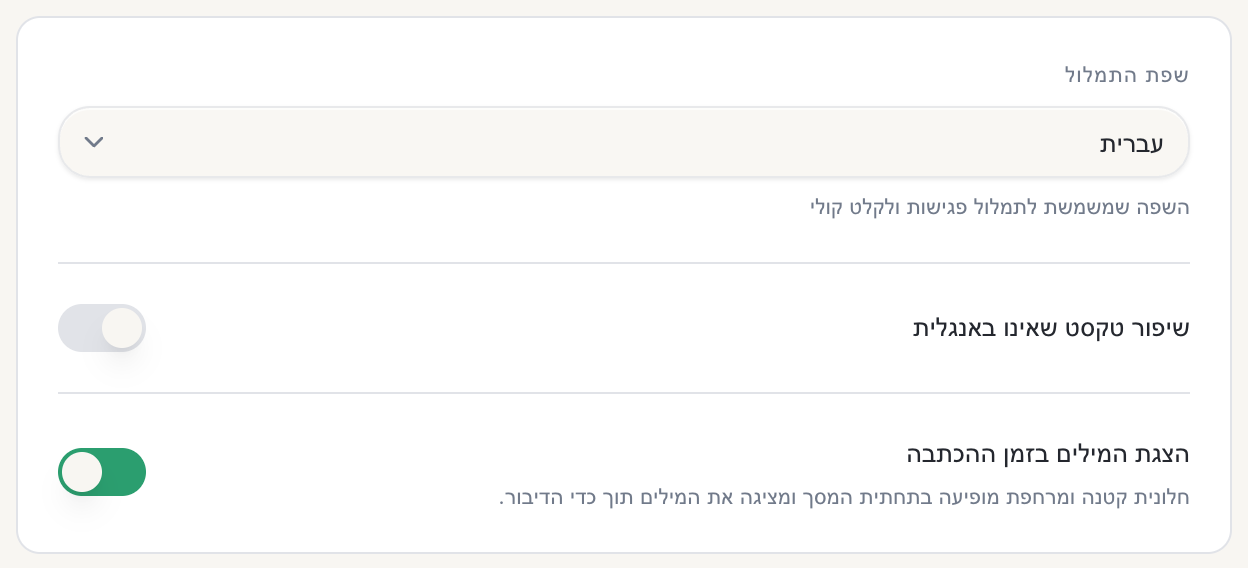
Switch language mid-meeting
Sometimes you notice halfway through that the transcript is coming back wrong, or the meeting opened in English and carried on in Hebrew. At the far end of the recording bar, next to the pause and cancel buttons, there is a language picker marked with a globe icon. Choose "עברית" there and the recording carries on in the new language without stopping.

What comes back at the end
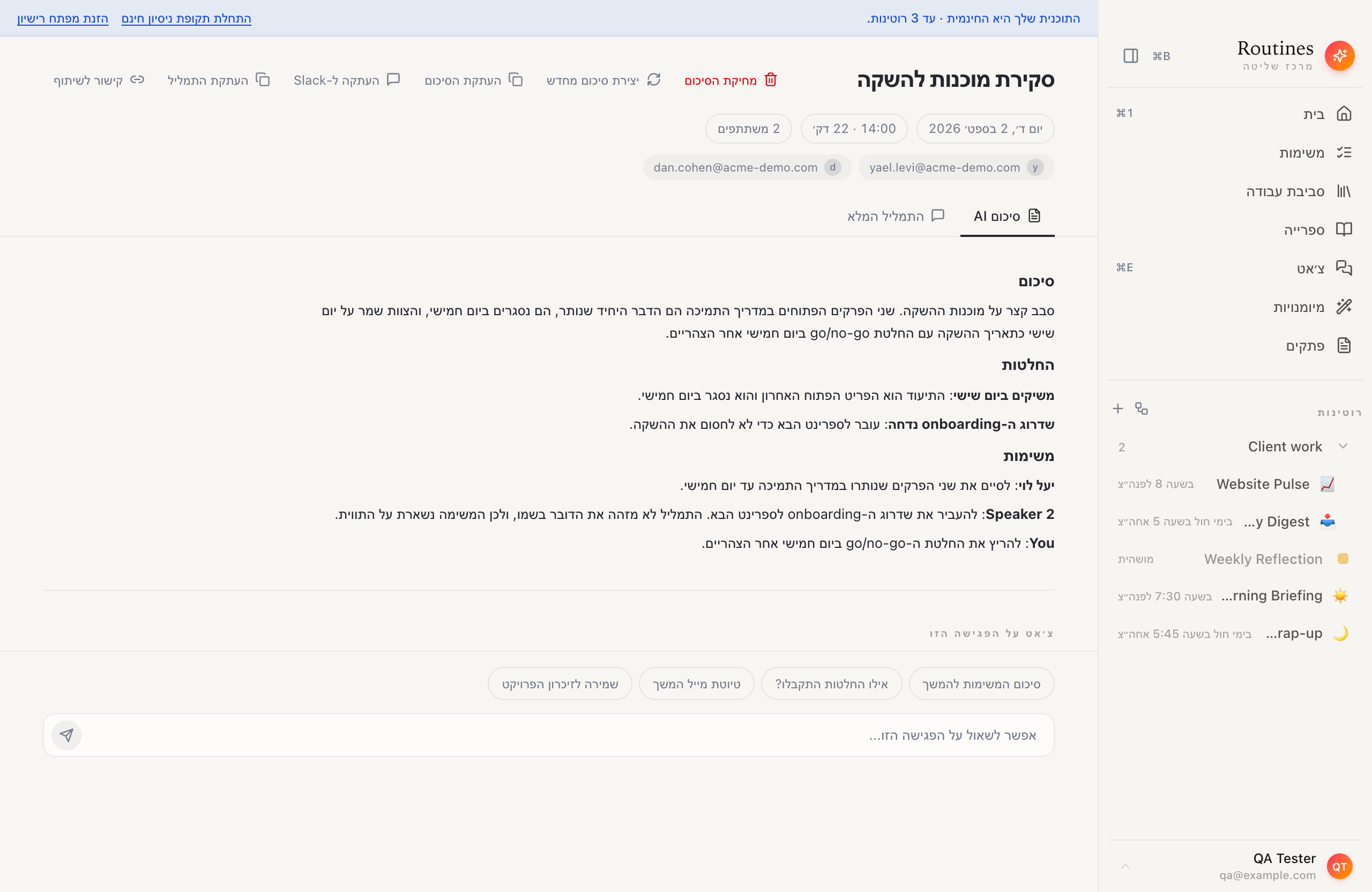
You stop the recording and Routines writes the notes in the language you picked. A Hebrew meeting comes back with Hebrew notes under Hebrew headings: summary, decisions, action items. One tab holds the notes, another holds the full transcript.
Other voices in the room are marked with labels, Speaker 1 and Speaker 2. A real name reaches the notes only when that person says their own name on the recording, for instance while introducing themselves at the start. The screenshot below shows both states side by side. One action item is filed under "יעל לוי", and another stays on the Speaker 2 label, because the transcript never carried that speaker's name.
Zoom, Google Meet and Teams
Routines does not join the call as a participant and there is no bot to invite. It records the call's audio from the Mac itself, from the microphone and from system audio, so a call in Zoom, in Google Meet or in Teams is captured the same way.
In long meetings the audio is written to disk while you record, so a crash does not wipe the call. You can also pause and resume from the recording bar instead of splitting the meeting into several recordings.
English is both on the language list and in automatic detection, so the same app handles your English meetings. Anyone working across the two languages switches between them from the same picker.
What Routines does not do
No file upload. Routines transcribes only a meeting it records itself. A recording that already exists as an audio or video file stays outside.
Hebrew is not auto-detected. You pick it, in Settings before the meeting or in the recording bar during it.
The transcription itself happens at Deepgram. The recording is what runs on the Mac. The meeting audio streams to Deepgram for transcription, on the key we manage if you are on Pro or in the trial, or on your own Deepgram key on the Free plan. Writing the notes sends data out a second time. When the recording stops, the transcript goes to the AI provider that writes them, through Routines AI on the way to Anthropic or straight from your Mac on your own provider key. Working out which speaker label carries a name is a separate request to that same provider, over that transcript, sent just before the notes are written. What is stored on the Mac is the result: the notes as markdown, and the transcript in the app's local database, which stays there unless you turn on Cloud Sync & Backup in Settings or share the meeting by link.
Speaker labels only. Routines holds no voiceprints and does not work out who is speaking from the voice. It marks speakers with labels, and applies a name only on the evidence of a self-introduction on the recording.
This is the Mac app. Everything written here refers to the Mac app.
The full breakdown of what each plan includes is on the pricing page, and the feature itself is described on the meetings page.
Frequently asked questions
How do I transcribe a recording with AI?
In the Routines Mac app you pick Hebrew as the transcription language, start recording the meeting, and end up with a Hebrew transcript and Hebrew notes carrying decisions and action items. The recording happens on the Mac, from the microphone and from system audio, and the audio streams to Deepgram for transcription, on the key we manage if you are on Pro or in the trial, or on your own Deepgram key on the Free plan. Pick Hebrew up front, because automatic language detection does not cover Hebrew.
How do I transcribe long recordings?
Record the meeting from start to finish without splitting it. The audio is written to disk while you record, so a crash does not wipe the call, and you can pause and resume from the recording bar. Pro includes 50 hours of meeting transcription every month, and past that the charge is EUR 0.79 per hour up to a further 50 hours.
How do I transcribe a Zoom recording?
Open the Zoom call as usual on the Mac and start a recording in Routines. It records the call's audio from the machine, from the microphone and from system audio, and no bot joins the meeting. The same works in Google Meet and in Teams. What you cannot do is take an existing Zoom recording file and upload it for transcription, because Routines has no file import path.
What does it cost to transcribe a recording?
On the Free plan you can record meetings with your own Deepgram key, and Deepgram then bills you directly for the transcription. Writing the notes runs on AI, on your own provider key or on Routines AI, and it is billed separately from the transcription. Pro has a 7-day trial with no credit card, and includes 50 hours of meeting transcription every month. Past that the charge is EUR 0.79 per hour, up to a further 50 hours, so no month catches you by surprise.
Can I upload an existing recording?
No. Routines transcribes only a meeting it records itself, and it has no path for uploading an existing audio or video file. Most Hebrew transcription tools work the other way around and take an uploaded file, so a recording already saved as a file suits one of them.
Does transcription run on my computer?
The recording does. The transcription happens at Deepgram: the meeting audio streams there, on the key we manage if you are on Pro or in the trial, or on your own Deepgram key on the Free plan. Writing the notes sends data out a second time: when the recording stops, the transcript goes to the AI provider that writes them, through Routines AI on the way to Anthropic or straight from your Mac on your own provider key. What is stored on the Mac is the result: the notes are saved as markdown, and the transcript is stored in the app's local database, which stays there unless you turn on Cloud Sync & Backup in Settings or share the meeting by link.
Getting started
Download Routines, pick Hebrew as the transcription language, and record your next meeting.