
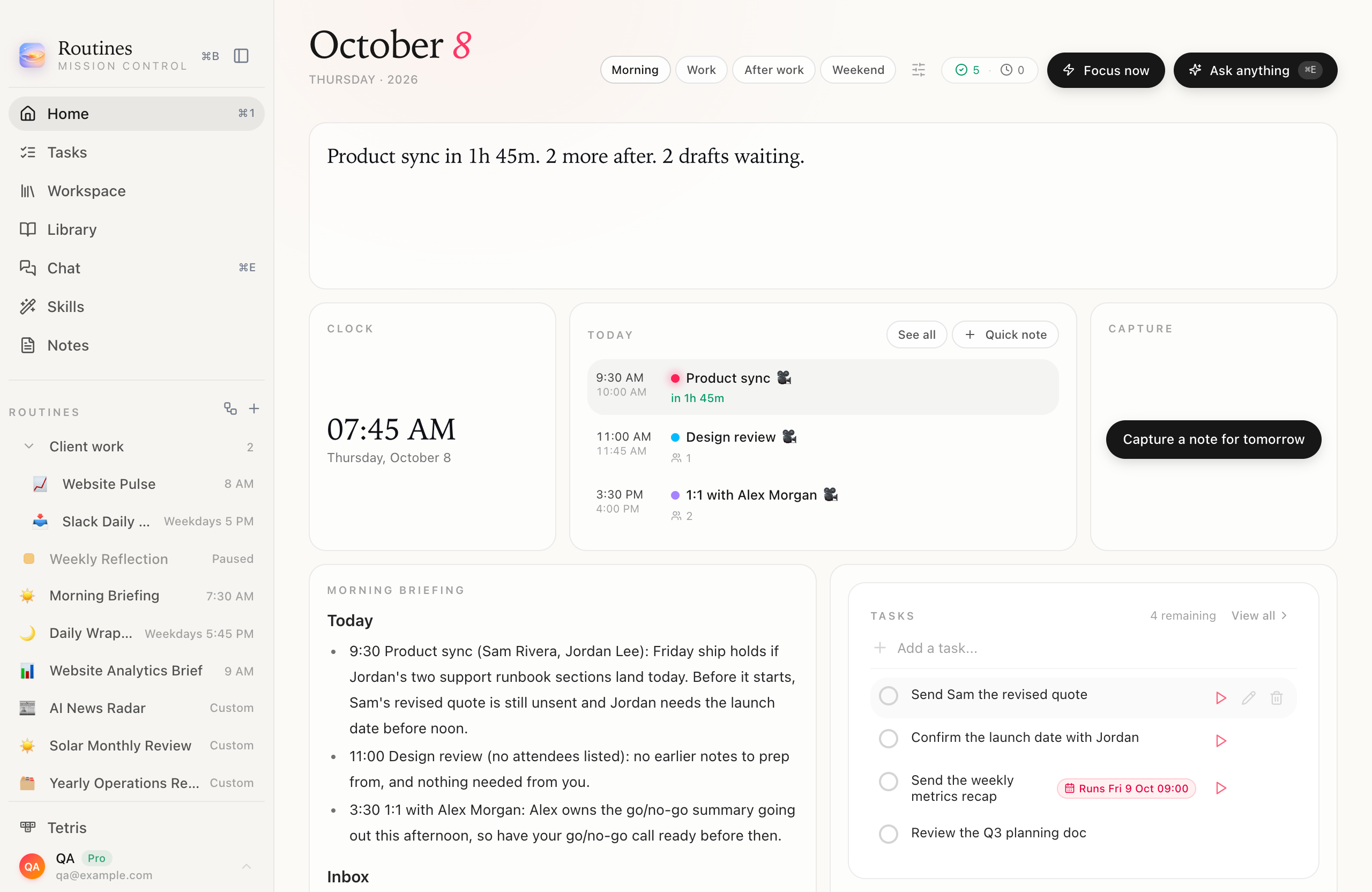
The Morning layout from this guide. Every app screen in this article is a real capture with demo data.
An AI dashboard is worth having when it answers your first three questions of the day before you ask them: what is next, what is still open, and what did my morning report say. Since v1.11.0, the Home screen in Routines is a dashboard you build yourself. You choose the cells, size them, drag them into place, and keep a different layout for the morning, the workday, the evening and the weekend.
This guide walks through it step by step with real screenshots, then shows three layouts you can copy. It takes about as long as reading it.
Why build your own dashboard
Most of us already have a dashboard. It is just spread across five apps: the calendar for the next meeting, a to-do app for what is open, an inbox for the report a routine emailed you, the menu bar for the time. A personal dashboard puts those on one screen, in the order you read them.
The second reason is that your day changes shape. At 8 AM you want the briefing and the agenda. At 2 PM you want the to-do list and the numbers. After six you want none of that, just a clean wrap-up and a way to note something for tomorrow. One fixed screen cannot be right for all three, so Routines keeps one layout per time of day and switches between them on its own.
And if you never touch any of it, nothing changes. Home looks exactly as it did before 1.11.0 until you customize it.
Build your own AI dashboard in seven steps
1. Open Home
Open Routines and click Home in the sidebar, or press ⌘1. This is the default Home: your day briefing, today's meetings, the agenda of pinned routines and your tasks, in one column.
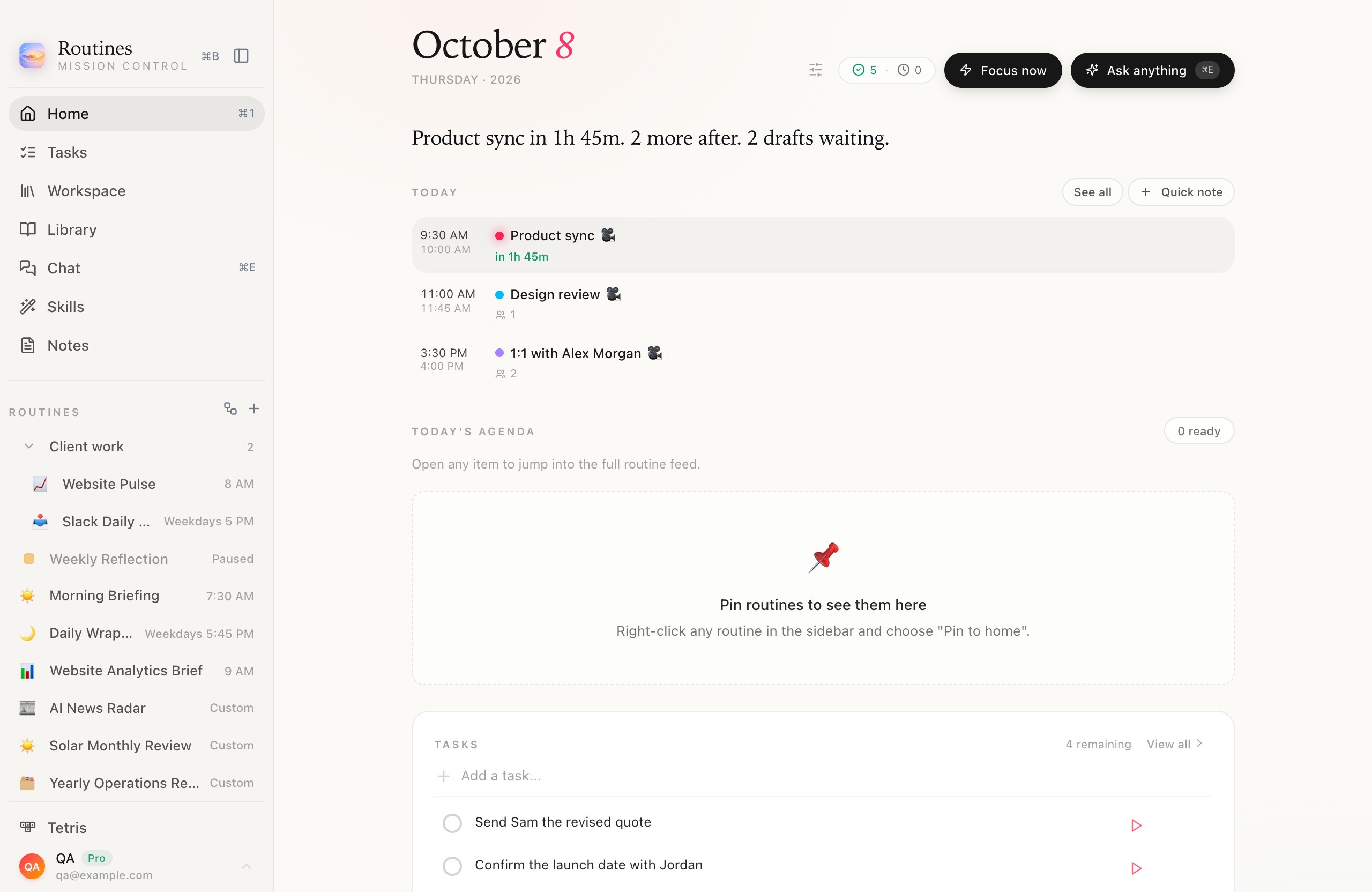
The default Home, untouched.
2. Click Customize
Next to the date, in the Home header, there is a small sliders icon labelled Customize. It shows when the window is at least 960 pixels wide, so widen the window if you do not see it.

The Customize icon sits to the left of the counters.
Click it and Home turns into a 12 column grid. Every cell gets a frame with its name, a drag handle, a row of size buttons and a remove button. The header gains four time-of-day pills (Morning, Work, After work, Weekend) and a Done button.
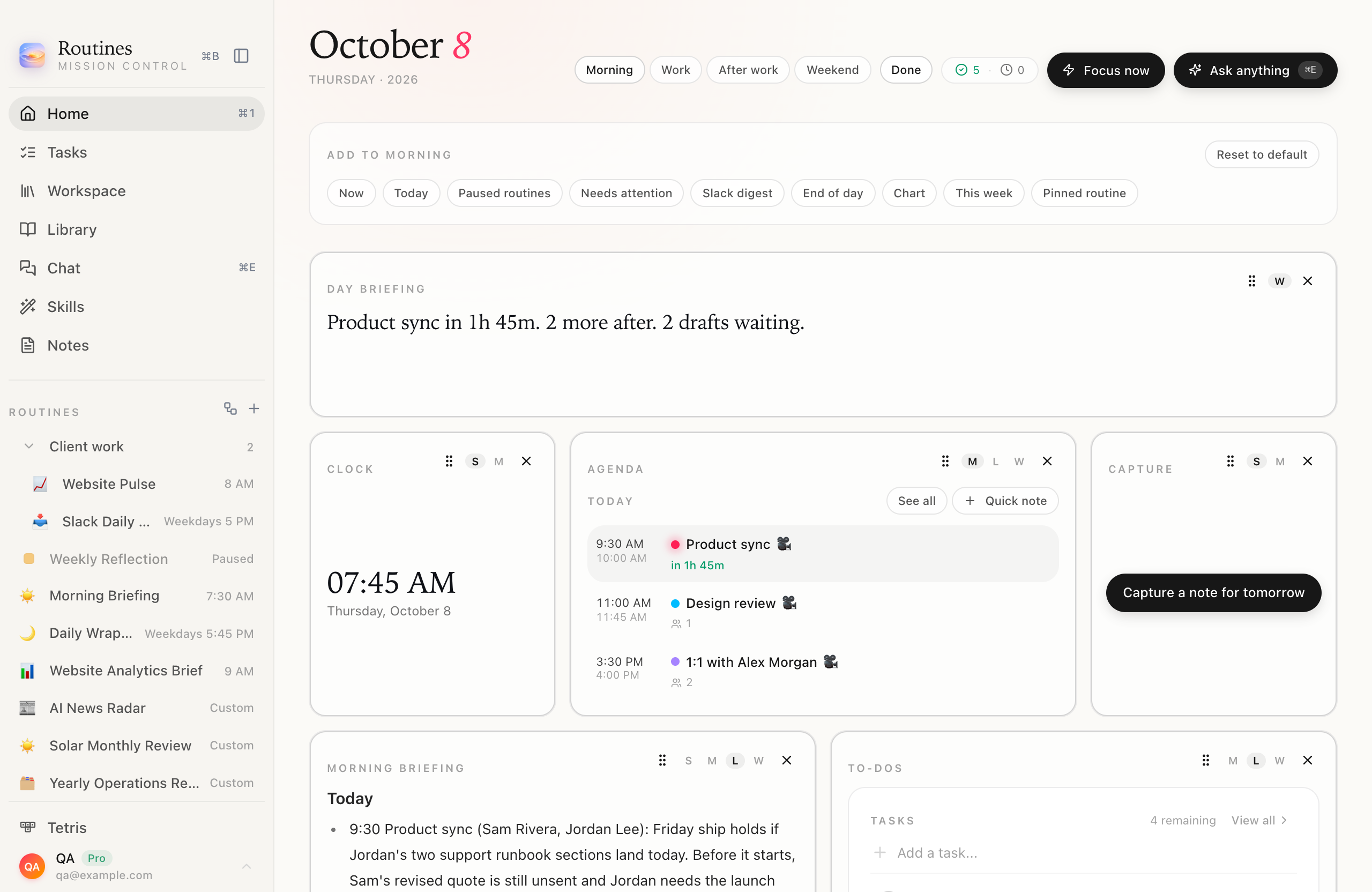
Customize mode. Nothing here is a mockup.
3. Add cells from the drawer
The panel at the top is titled after the layout you are editing, for example Add to Morning. It offers every cell that is not on the layout yet, so each one shows once:
- Day briefing, Now and Today: the one line summary of your day, a strip for the meeting that is on now or next, and today's meetings with the agenda of your pinned routines.
- Agenda and To-dos: today's calendar and your open tasks.
- Clock: the time and the date in large type.
- This week: one line counting the to-dos you closed and the routines that ran this week. It is counted on your Mac with no AI call.
- Capture: a single "Capture a note for tomorrow" button.
- End of day: the evening wrap-up panel.
- Slack digest, Needs attention and Paused routines: the sections you already know from Home.
- Chart: a placeholder for now. It shows "Choose what this chart watches", and picking the number it tracks comes in a later update.
- Pinned routine: opens a list of your routines. Pick one and its cell shows the output of that routine's newest run that did not fail, with the time it was updated.
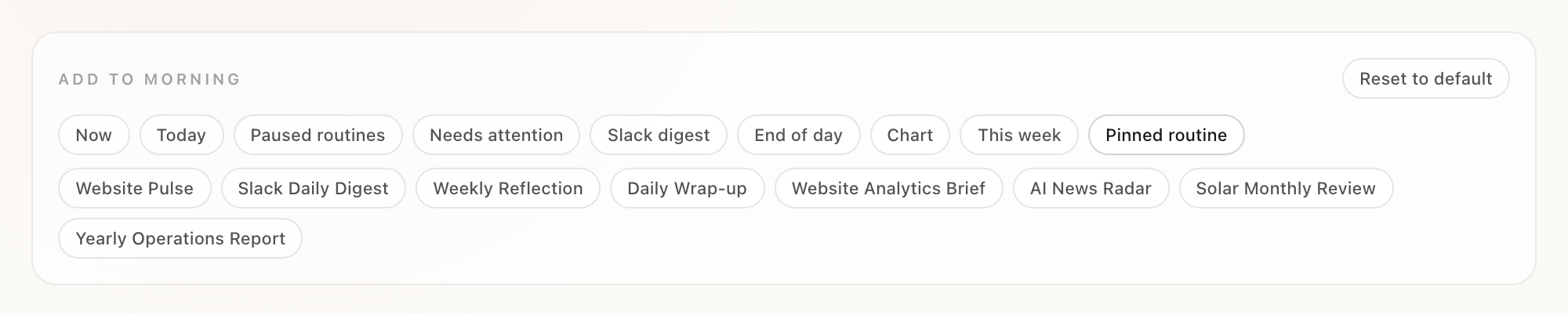
The drawer with Pinned routine opened. Each routine appears once.
A new cell lands at the end of the grid in its default size. Every change you make in Customize mode is saved as you make it, so there is no save button to forget.
4. Resize: pick a size or drag an edge
Each cell has size buttons in its corner. There are five snap sizes on the 12 column grid:
| Size | Columns | Rows |
|---|---|---|
| S (Small) | 3 | 2 |
| M (Medium) | 6 | 2 |
| L (Large) | 6 | 4 |
| W (Wide) | 12 | 2 |
| Hero | 8 | 5 |
A cell only offers the sizes that suit it. The Clock comes in S or M, the Agenda in M, L or W, the Day briefing only in W, and End of day only as Hero. Rows grow with their content, so a long routine output is never cut off inside its frame.
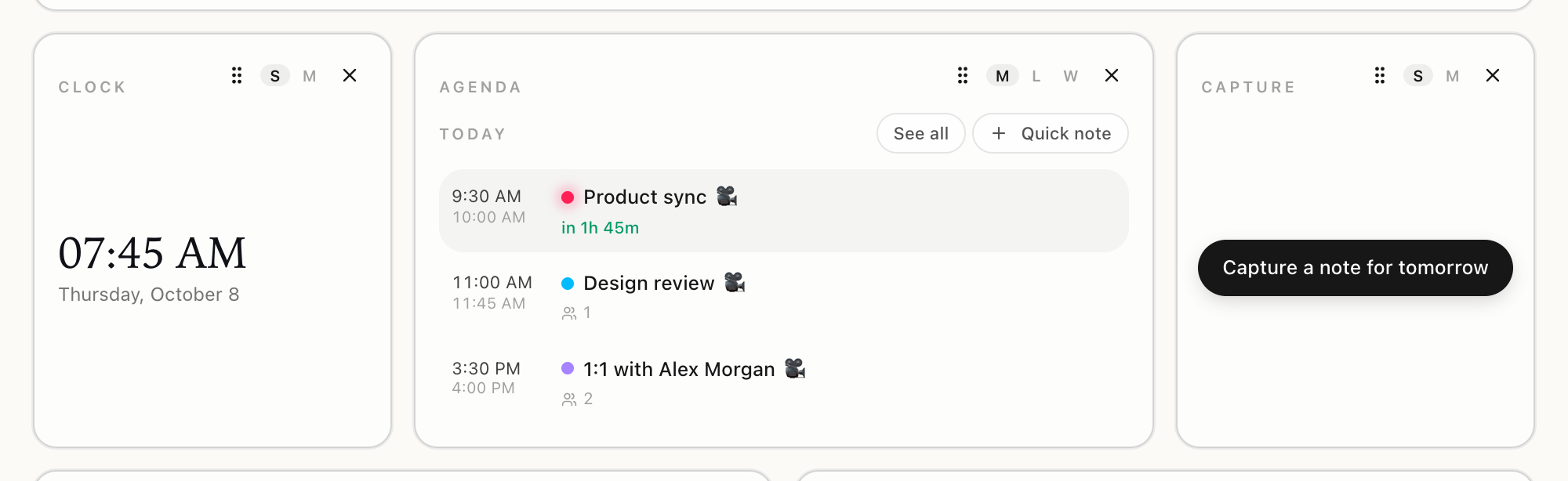
The size buttons. The highlighted letter is the current size.
For anything in between, drag the cell itself. Hover a cell in Customize mode and three grips appear: on its end edge, its bottom edge and its corner. That is on a window at least 1,100 pixels wide; in a narrower window the grid has fewer columns and only the bottom grip shows.
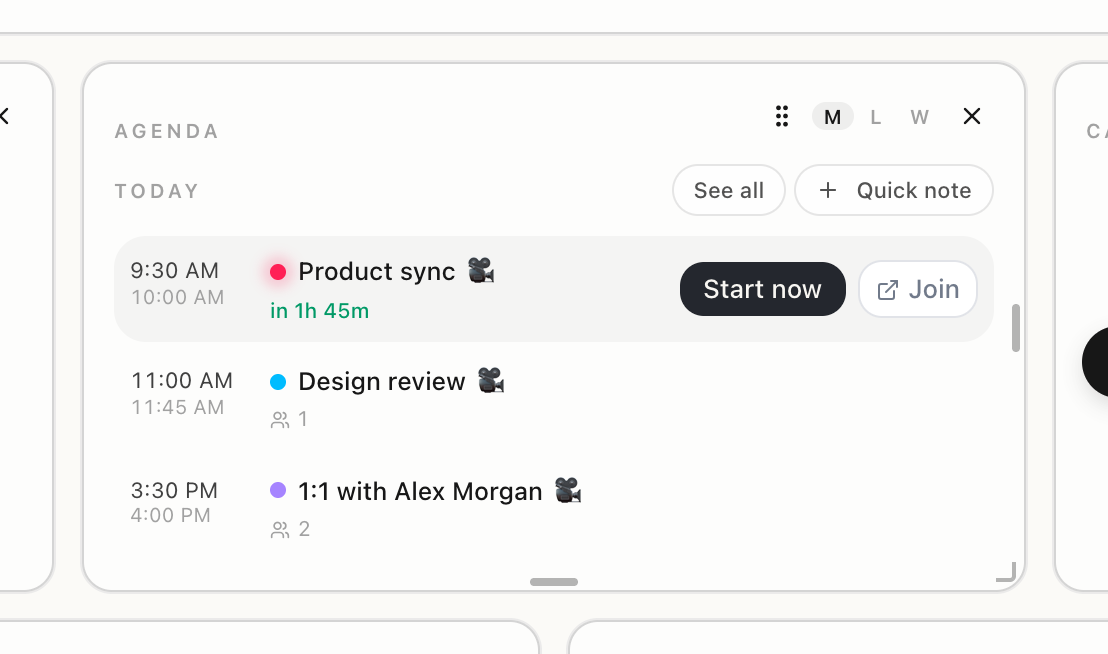
Grips on the end edge, the bottom edge and the corner.
Drag one and a dashed outline shows the size the cell will snap to, while the rest of the grid moves out of the way live. Let go to keep it, or press Escape to cancel. From the keyboard, focus any control in the cell and press Shift with an arrow key, one column or row per press (in a narrower window, only up and down work).
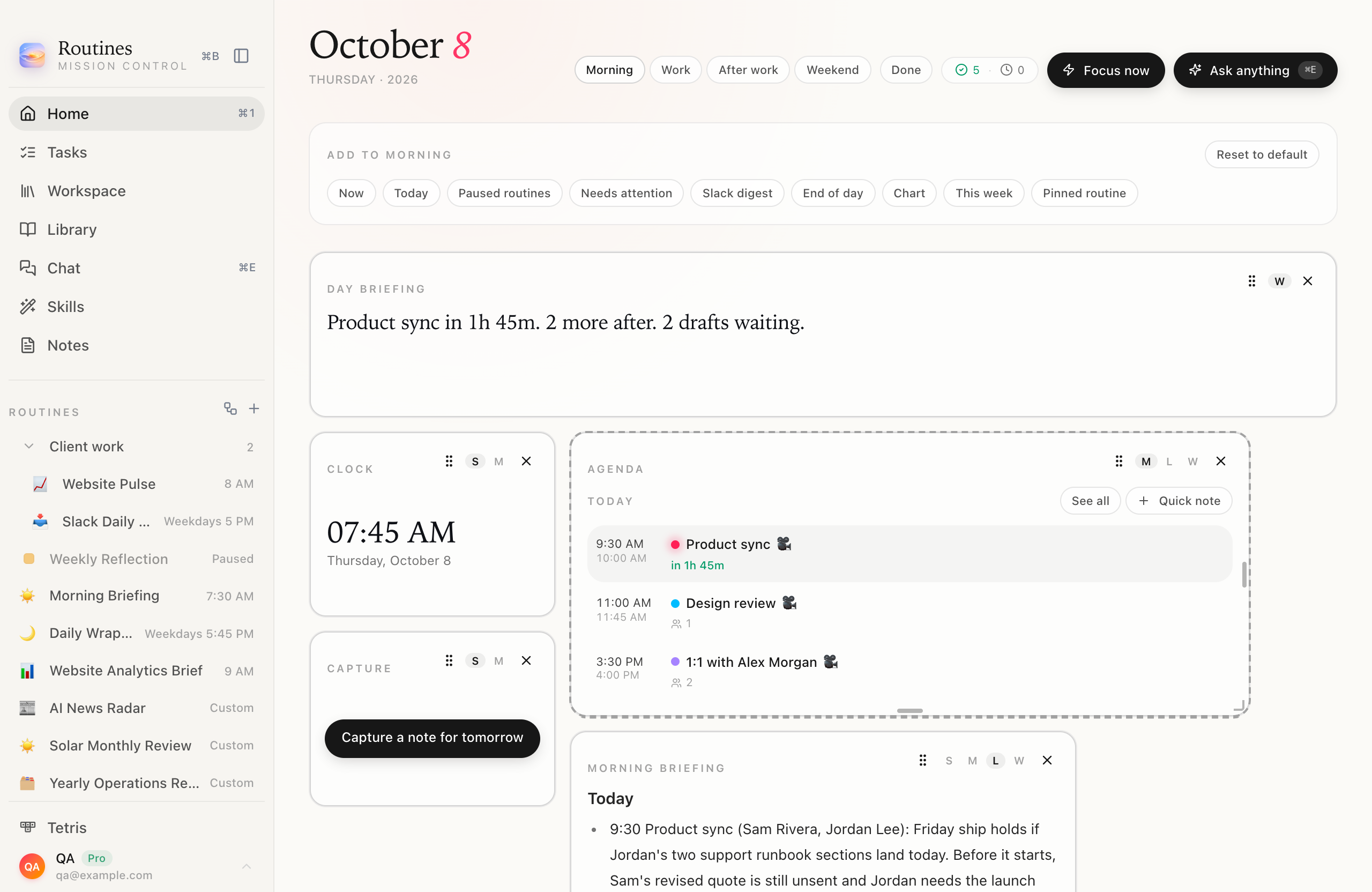
Mid-drag: the dashed outline is the target, and Capture has already reflowed under the Clock.
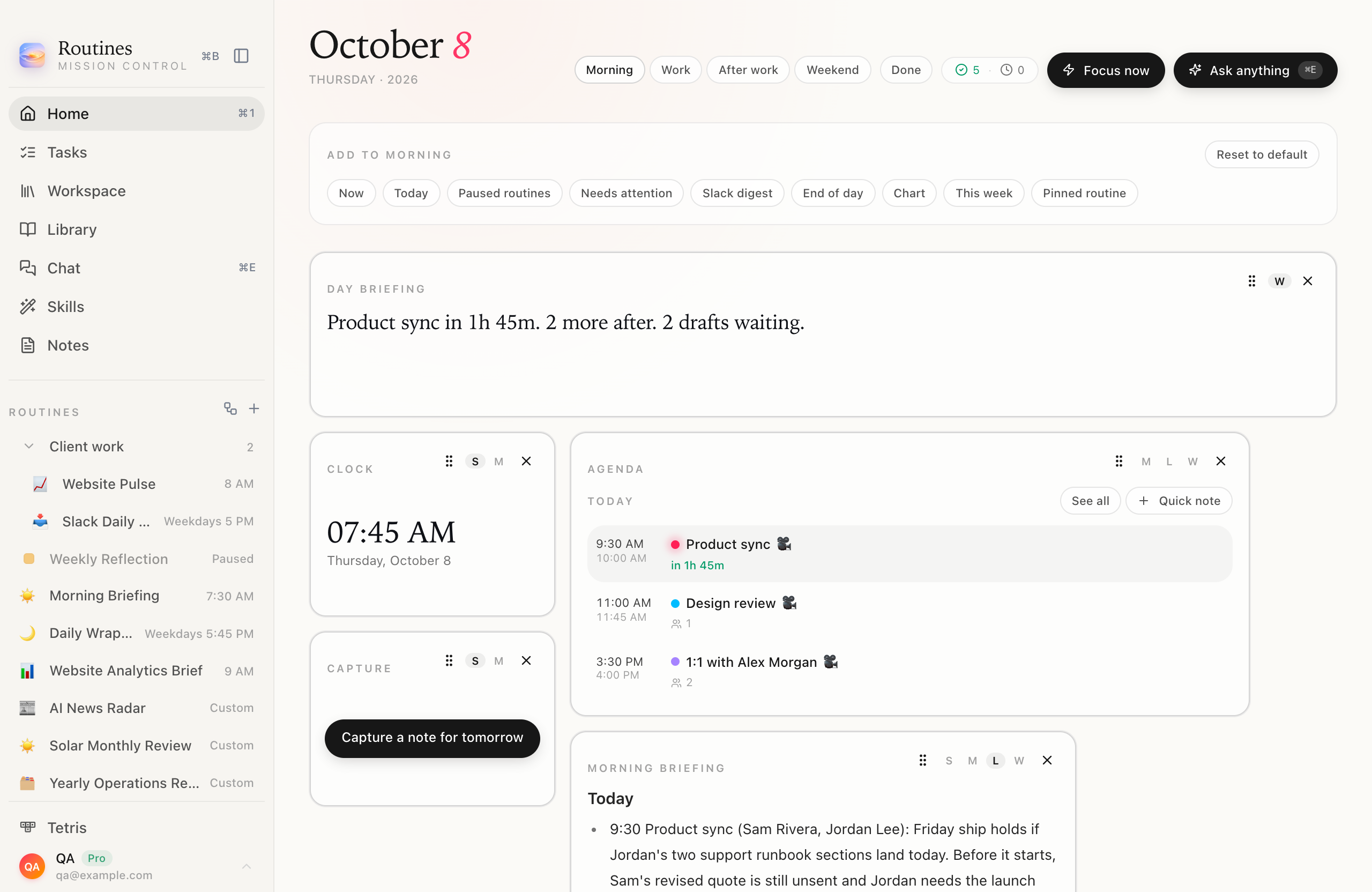
After the drag. A free size lights up no preset button, because it matches none of them.
A dragged cell can be any whole number of columns and rows up to 12 by 12, and no narrower or shorter than the smallest of its presets. The size buttons still work as quick presets afterwards. Drag to resize is the newest part of this feature: it is on our main branch now and reaches you with the next update after 1.11.0. The size buttons are in 1.11.0 today.
5. Reorder by dragging
Grab the handle (the six dots) on any cell and drag it to a new place. The other cells slide aside as you move, and the new order is saved when you let go. The handle works from the keyboard too.
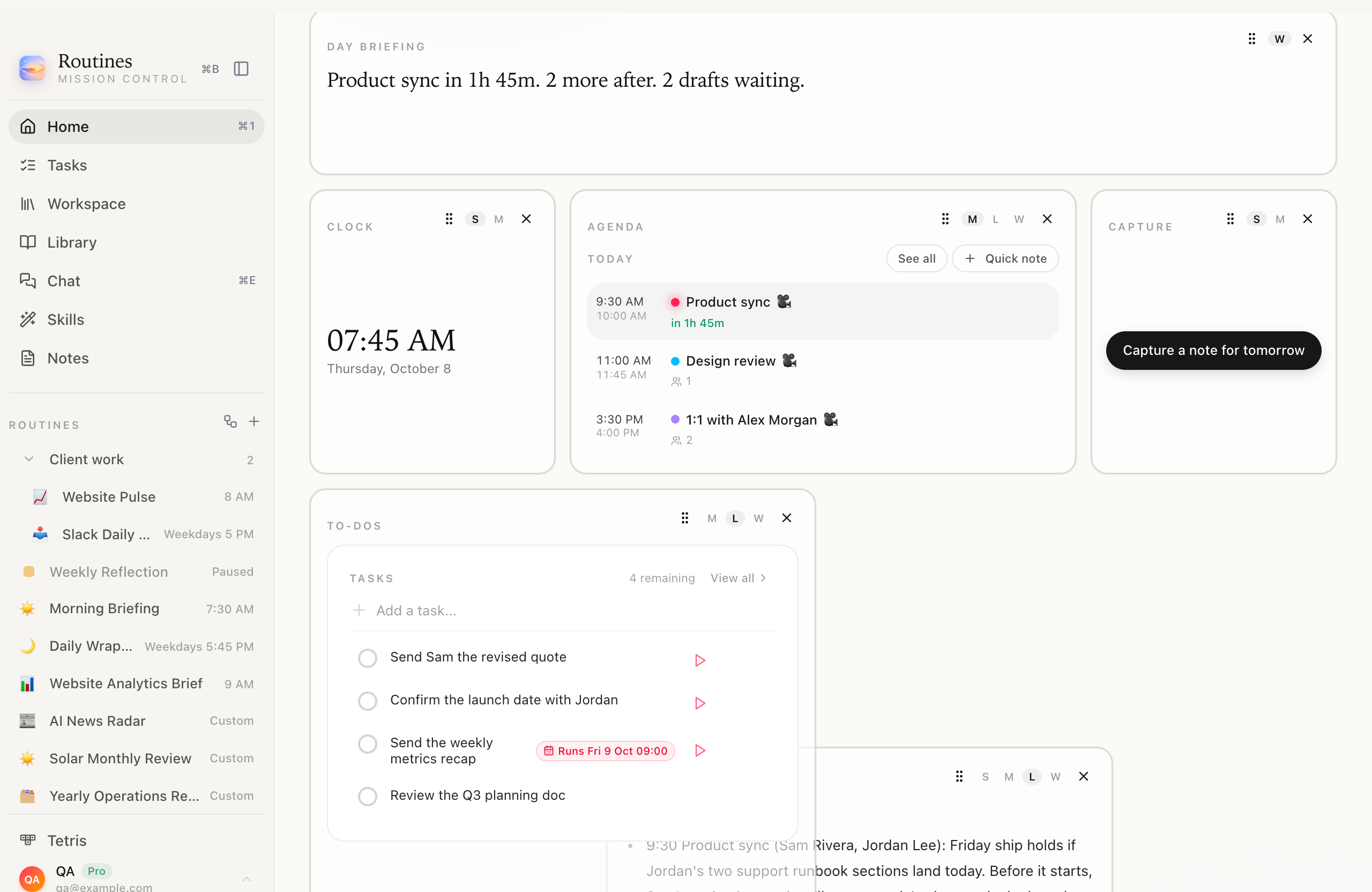
Morning Briefing on its way right, To-dos sliding into its spot.
6. Switch the time-of-day layout
Click Work, After work or Weekend in the header to edit that layout. Each one is separate: the drawer title changes to match, and what you add or move only changes the layout you are on.
Outside Customize mode, Routines picks the layout for you:
- Weekend on Saturday and Sunday.
- Morning from 5 AM until 11 AM, or until your first timed meeting if that comes earlier.
- After work from 4 PM, once no timed meetings are left today.
- Work the rest of the time.
All-day events never change the layout. Clicking a pill shows that layout until the next switch point, then Routines goes back to choosing. The pills stay in the header once any layout is customized.
7. Reset to default
Reset to default, on the right of the drawer, puts the layout you are editing back to the standard Home. It only resets that one time of day. Click Done when you are finished.
Three AI dashboard layouts to copy
These are the layouts in the screenshots. Build them as a starting point, then trim.
Morning: briefing first
Day briefing across the top (W). Below it a Clock (S), the Agenda (M) and Capture (S). Then a Pinned routine cell with the Morning Briefing routine (L) next to To-dos (L). You read top to bottom once, and you know your day.
The Morning Briefing routine is one of our recipes. Set it up from the Morning Briefing recipe page, schedule it for 7:30 AM, and the cell shows that morning's run when you sit down.
Work: the list and the numbers
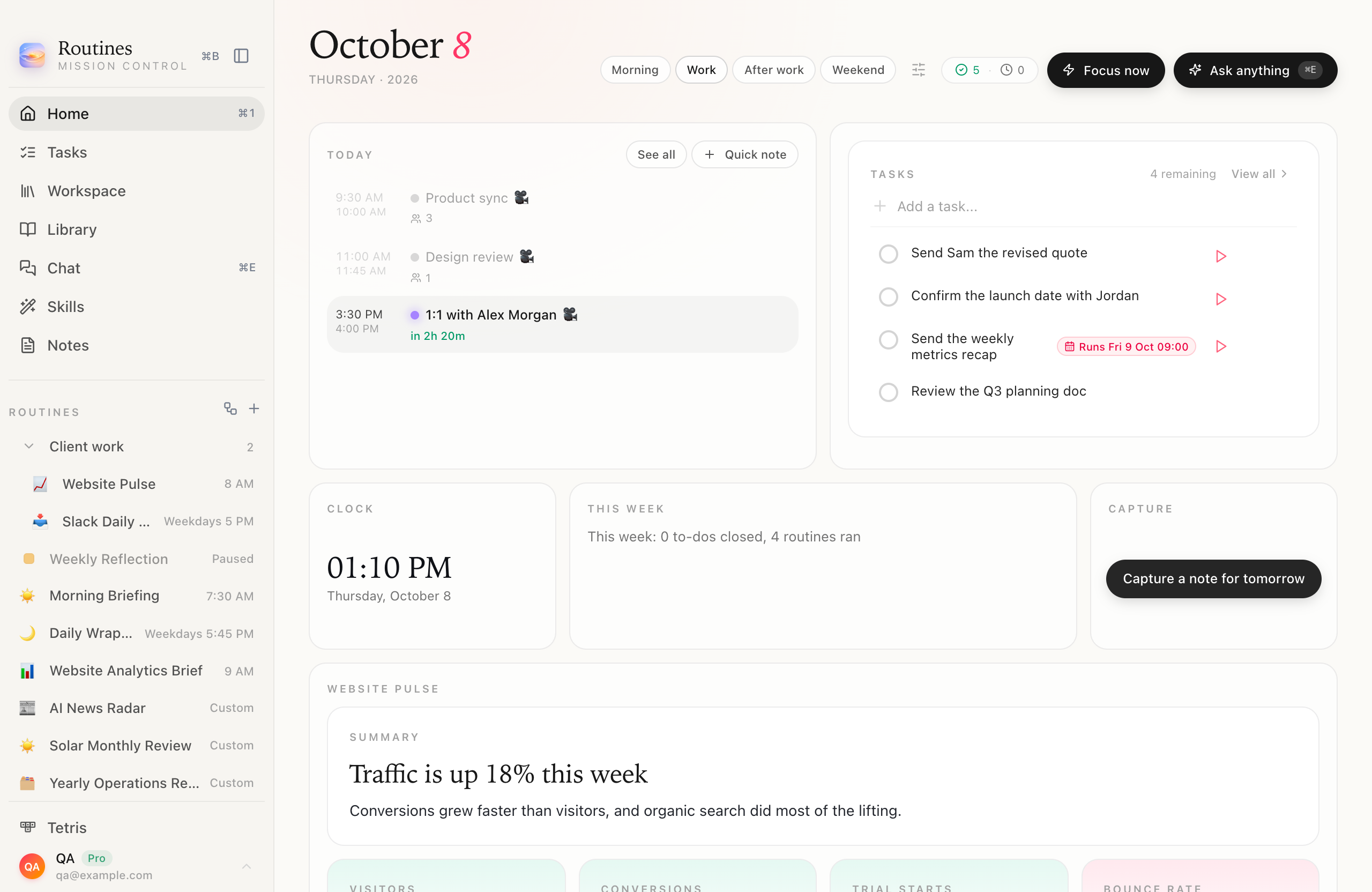
Work: agenda and tasks up top, the numbers below.
Agenda (L) and To-dos (L) side by side. A row of Clock (S), This week (M) and Capture (S). Then a wide Pinned routine cell with a reporting routine, here Website Pulse, so the day's numbers are one glance away.
After work: wind down
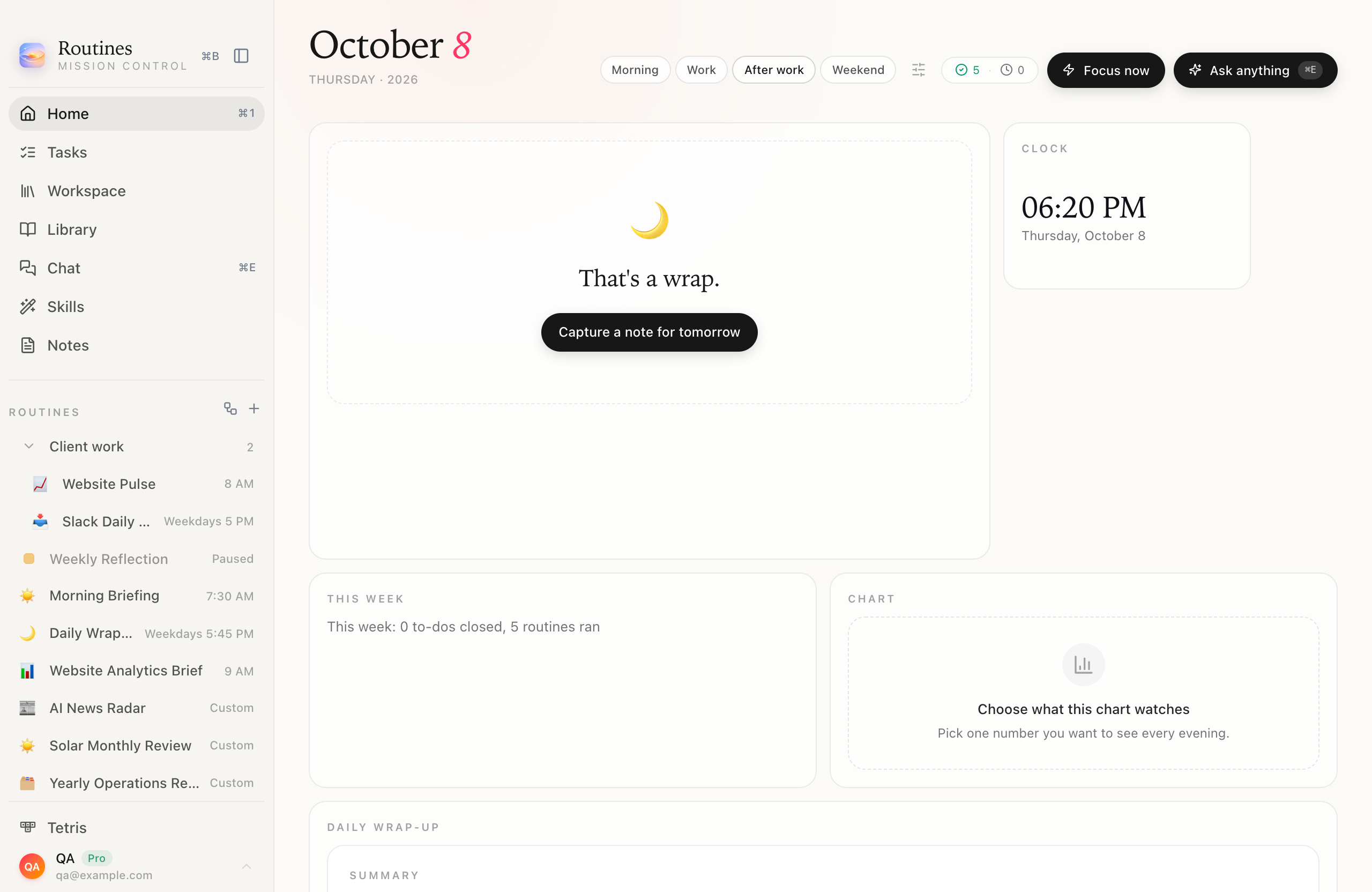
After work: the End of day panel as the Hero cell.
End of day as the Hero (8 columns by 5 rows), a Clock (S), This week (M), the Chart cell (M) and a wide Daily Wrap-up routine. No to-dos, no Slack. If your Work layout shows To-dos, Needs attention or the Slack digest and this one does not, Home adds one quiet line naming the ones that still have something open (the Slack digest is always named) and when they are back, usually tomorrow morning. Click it to look at Work anyway.
The Chart cell in this shot is the placeholder. We kept it in the layout because it is in the drawer today, but it does not draw anything yet.
Your dashboard stays on your Mac
A layout is a small settings entry in the app's local database, on the Mac where you made it. It is not synced to your other Macs, so the laptop and the desk Mac can each have their own. Building and arranging cells makes no AI call and sends nothing anywhere.
What the cells show is data Routines already has: your calendar and to-dos, the counts it keeps for the week, and the latest output of your routines. Those outputs were written by whichever AI provider your routines use, on the schedule you gave them. The dashboard only puts them on one screen.
What comes next
Cells that run a prompt of their own are planned, and they are not available yet. Today the dashboard shows the routines you already run, and the personal dashboard feature page collects every cell and size in one place.
If you want more ways to make the app yours, read how to set up and customize Routines. Ready to build yours? Download Routines for Mac, open Home and click Customize.