
Team Meeting Notes: Client Call Summaries Your Whole Team Reads in Slack
Record the call on your Mac. Every weekday evening, a routine posts the summary, decisions, and action items to your team’s Slack channel.
Only the person on the call needs Routines.
How it works
One call, one post, nobody asking what was said.
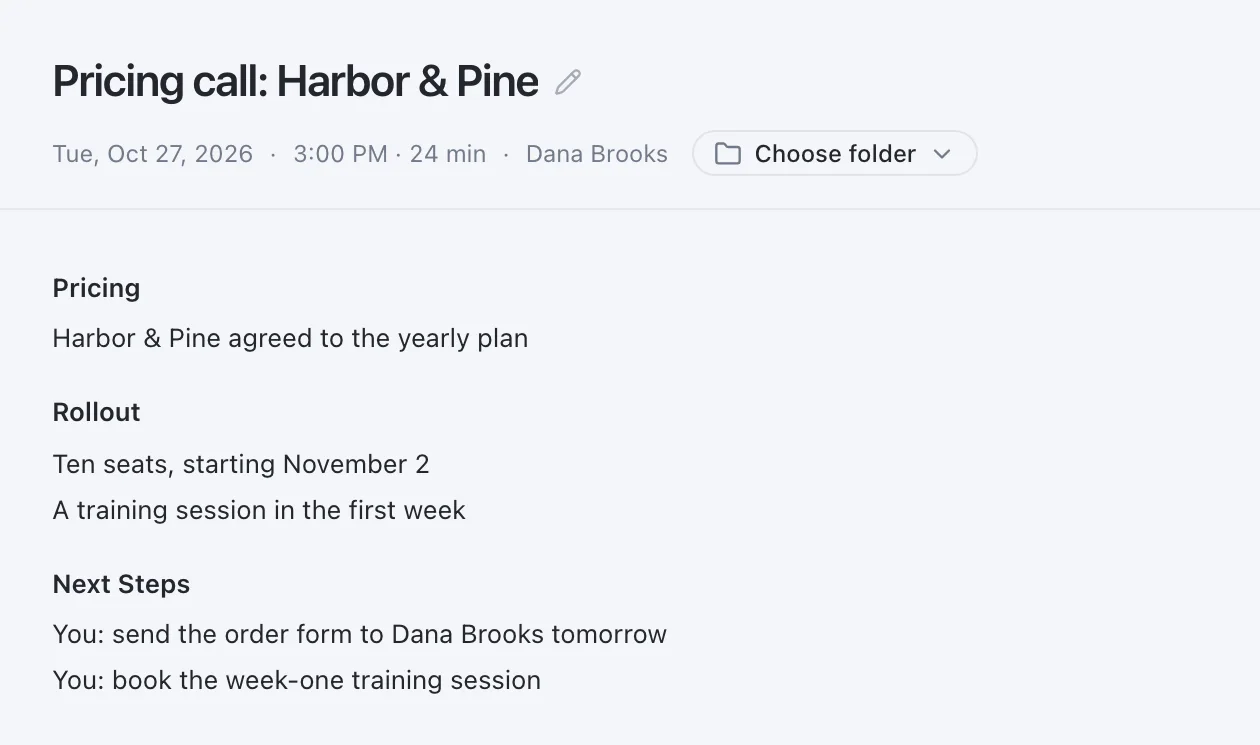
Record
Record the client call on your Mac.
One click when the call starts. Nothing joins the call, so tell people you record.
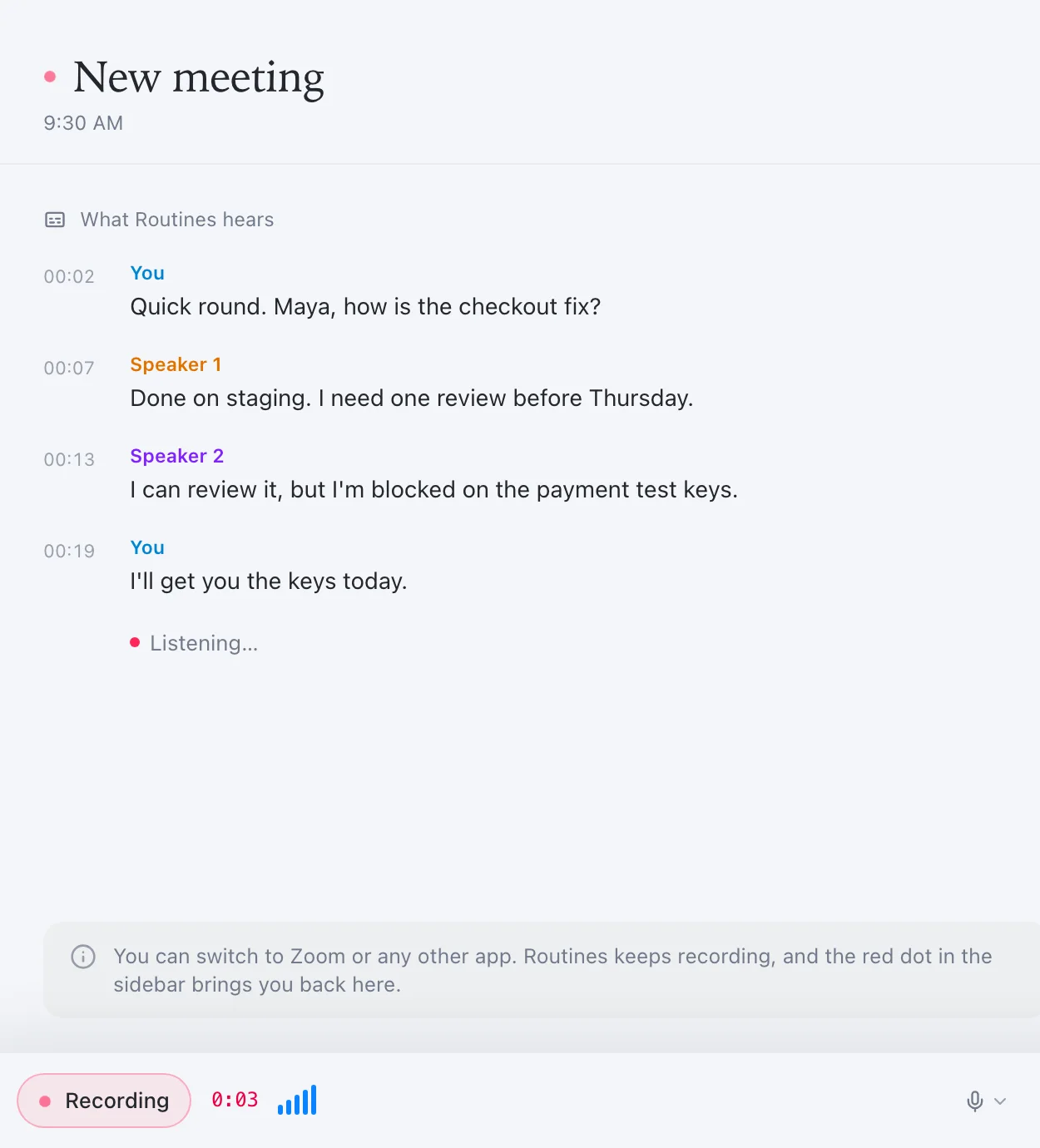
Write
It writes the summary, decisions, and action items.
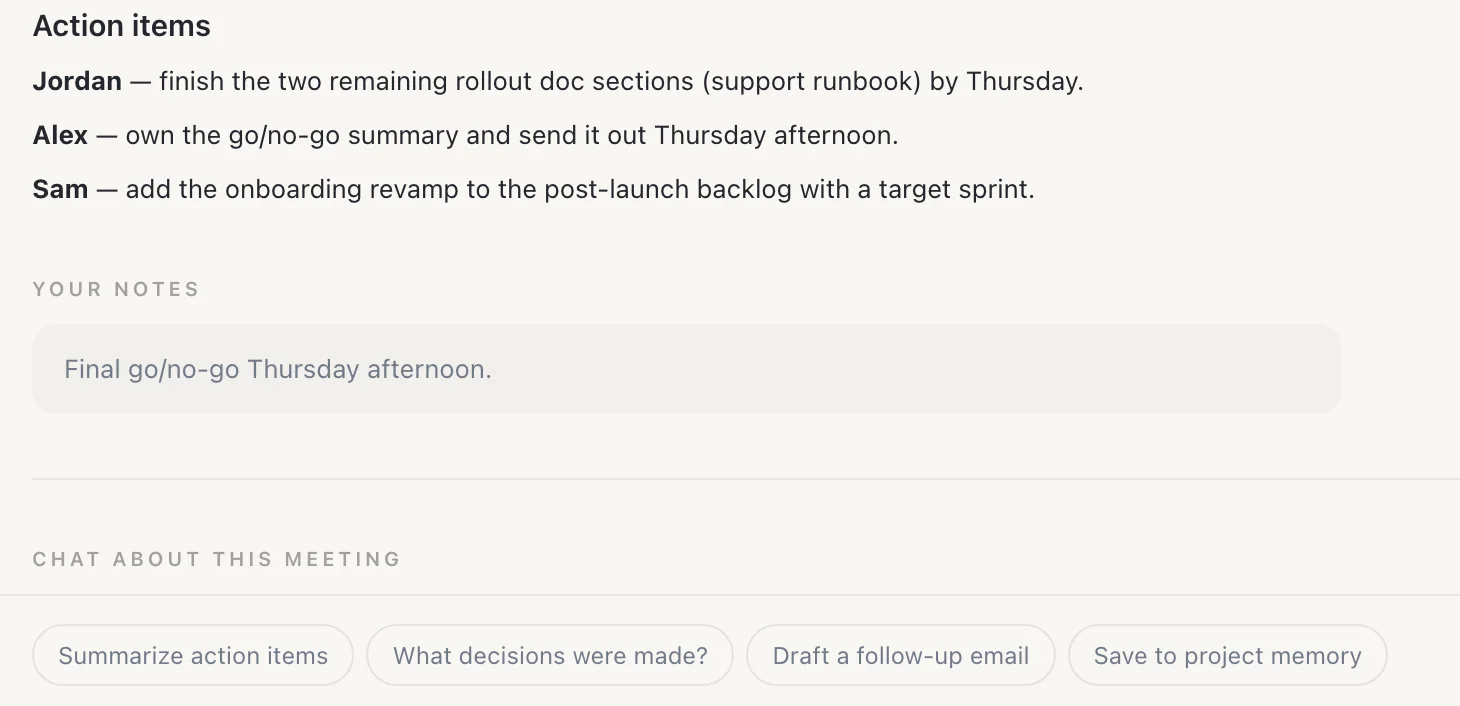
Each action item gets its owner. The prompt asks it to flag an unclear owner, not guess.
Post
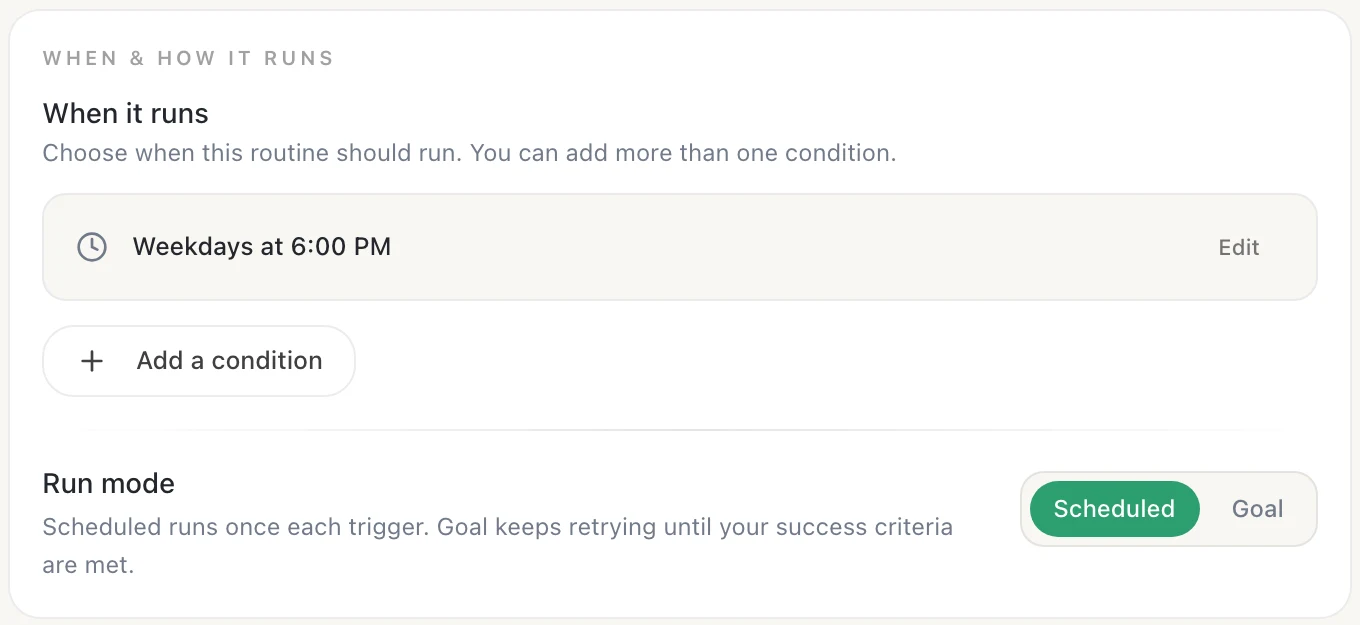
Weekdays at 6:00 PM, it posts to Slack.
One message per client call, as the Routines app. No new client call, no post.
What your team sees
A post in the channel, not another app to open.
- Posted by the Routines app in your workspace, not from your own account.
- Teammates read it like any other Slack message. No recording is attached.

RoutinesAPP6:00 PM
Website refresh kickoff
- Summary: the client wants the new homepage live before their spring campaign.
- Decision: we keep the current CMS and redesign the templates only.
- Action: Ana sends the revised sitemap; Dan books the content review.
- Open: budget for extra pages, still to confirm with their team.
Look at the meetings I recorded since this time yesterday and pick out the client calls. For each one, write a short note for my team: the meeting title and date, who was on the call, a summary of what the client asked for, the decisions we made, and the action items with owners and any due dates said on the call. If an owner or a decision is unclear, say so instead of guessing, and leave out small talk. Post one message per client call to the #client-calls Slack channel. If there are no new client calls, post nothing.
Change #client-calls to your channel.
Set it up, step by step
Install Routines
Download the DMG, drag to Applications, and sign in with Google once.
Connect Slack
Connect Slack in Routines, then in Slack type /invite @Routines in the channel you want the notes in. The routine posts as the Routines app, and it can only post where the app has been invited.
Record the client call
When the call starts, record it in Routines with one click. There is no meeting bot, so nothing joins the call.
Paste the prompt and set the schedule
Paste the example prompt into a new routine, change #client-calls to your team's channel, and keep weekdays at 6:00 PM so the notes land after your last call.
Other ways to share
Not on Slack? Three more ways.
One meeting by link
Read-only, no login, kept out of search. Its chat reads the transcript. Never expires, cannot be revoked today.
A shared folder
Your whole memory folder in a shared Drive, Dropbox, or iCloud. A Markdown file per meeting, AI notes plus yours, no transcript. Who can open it is up to that provider.
Email through Gmail
Needs Gmail with read and write access. Outlook is connected read only, so it cannot send.
Before you turn it on
Know what it sends, and where.
- Call audio goes to Deepgram for transcription, with model training off.
- Writing the note sends the transcript to the AI, through Routines AI or your own key, and the note goes to Slack.
- The transcript and notes are stored in local SQLite on your Mac.
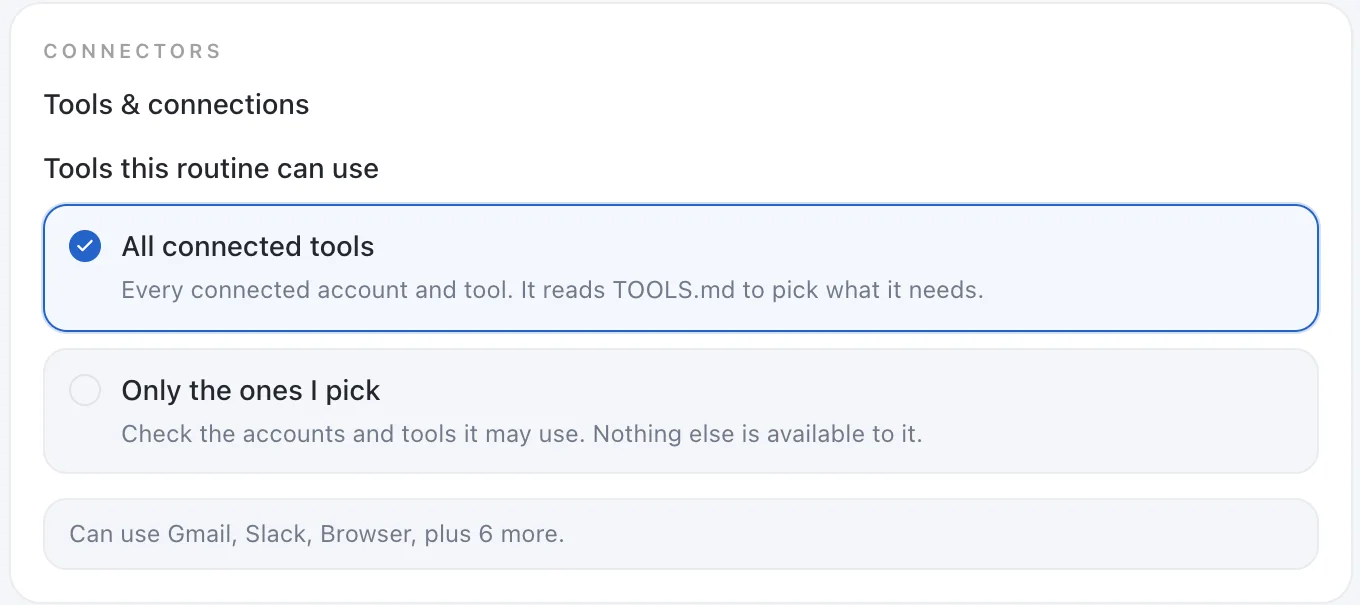
- No approval step: it posts as soon as it runs. To limit its reach, choose Only the ones I pick under its tools.
Questions
Before your team reads the first post.
What does the team actually see?
One Slack message per client call in the channel you name, posted by the Routines app in your workspace, not from your own account: the title and date, a short summary, the decisions, and the action items with owners. Teammates read it in Slack like any other message, with no recording attached. Prefer email? Connect Gmail with read and write access and ask for one email to your team address instead. Outlook is connected read only, so it cannot send.
Does it ask me before it posts?
No. A routine run has no approval step today, so the Slack post or email goes out as soon as the routine runs. To read it first, change the last part of the prompt to write each note in the routine output instead of posting it, then paste what you want into Slack yourself.
Can I share one meeting by link instead?
Yes, with the Share button on a meeting while you are signed in. Anyone with the link can open the page without logging in, and it is kept out of search engines. It shows the title, date, duration, attendees, and the AI notes, without your own notes and without audio. The transcript is not shown as text, but it is uploaded with the share and answers the page's Ask about this meeting chat, so treat the link as access to what was said. Links do not expire and cannot be revoked today, and each one is a snapshot of the notes when you shared.
What leaves my Mac?
The meeting audio does leave: it goes to Deepgram for transcription with model training switched off, on the key we manage if you are on Pro or in the free trial, and on your own Deepgram key on the Free plan. Transcripts, summaries, and notes are then stored in local SQLite on your Mac, and stay there unless you turn on Cloud Sync and Backup, share a meeting by link, or share the memory folder they are saved in as a collection or a team folder. Writing the summary is a model call, so the transcript goes to the AI: through Routines AI, which stores neither the prompt nor the answer, or straight to your provider on your own key. The routine then posts the note to Slack, which keeps it like any message in that channel.
Does the whole team need Routines, or a team workspace?
No. Only the person who records the calls needs Routines on a Mac. Teammates read the note in Slack, or open a shared meeting link in a browser. There is no team workspace for meetings in the app: the Teams plan shares memory folders between members, and Cloud Sync only syncs your own devices, not your teammates'. If your team already shares a Drive, Dropbox, or iCloud folder, you can put your memory folder inside it, and each finished meeting is saved there as a Markdown file with the AI notes and any notes you typed during the meeting, and no transcript. Do not type anything there you would not show the team. Routines does not manage who can open that folder, and the whole memory folder moves there, not only meetings. If you want Routines to manage who reads them, share the meetings folder as a collection or a team folder instead, which uploads that folder to your Routines account.
Does it join the call as a bot, and does it tell the client?
No bot. Routines records locally with one click when a call starts, so nothing appears in the participant list. Routines ships no disclosure watermark, no automatic announcement, and no consent prompt today. Telling the people in the meeting is your responsibility, and we recommend saying you record.
Related recipes
Try it on your next client call.
Record the call. Every weekday evening, your team reads the notes in Slack.