
An assistant you have used for a year knows things. That you write in English and Romanian. That you want short answers with no preamble. That the thing called Routines is a Mac app and not a scheduling feature. None of that was typed into a settings screen. It accumulated.
Then you open a different assistant, and it asks what you do for a living.
Your ChatGPT memory is not gone and it is not locked. It sits inside one vendor's account, and the way to transfer it to Claude, or to anything else, is to ask the assistant to write it down.
What "your data" actually is inside ChatGPT and Claude
Three separate things get called your data, and they move differently.
The transcripts. ChatGPT's full archive comes from Settings. Sign in, open your profile menu, select Settings, select Data controls, and under Export data select Export, then Confirm export. OpenAI emails or texts you when the ZIP is ready, it can take up to 7 days, and the download link expires 24 hours after it arrives. Claude's equivalent is click your initials, Settings, Privacy, Export data, also delivered as an emailed link that expires in 24 hours.
The custom instructions. What you wrote yourself about how you want to be answered. OpenAI keeps these deliberately separate from memory.
The memory. The part that makes an assistant feel like yours. OpenAI describes it as context ChatGPT remembers from your chats, files and connected apps, managed under Settings, Personalization, Memory. The summary page there is not the whole story, and OpenAI says so: it "will not include everything that ChatGPT remembers based on your chats", and if you want to know whether something was remembered, "just ask in chat".
That sentence is the whole method. A ZIP of every message you have ever sent is an archive you will never open. Twenty lines of what it learned about you is the thing you actually want to carry.
The prompt that gets your ChatGPT memory out
Asking is a supported route. Anthropic's own import flow tells you to ask your previous assistant to list every memory it has stored in a single code block, and its instructions for reading Claude's own memory are to ask Claude to write its memories out verbatim, exactly as they appear (help center).
Routines will ask the same question with a fixed shape, so the answer comes back in a form something can parse. This is a design we are building into the first run of the app, not something you can click today. For ChatGPT, the text reads:
Look at your saved memory, your memory summary, my custom instructions, and what you have picked up from our chats.

I am moving to a different assistant and I want to take what you know about me with me.

Write it all out in ONE code block, using exactly these six headings and nothing else. Under each heading use short one-line bullets. If you know roughly when you learned something, start that line with [YYYY-MM-DD].

=== ABOUT ME ===
=== HOW I WANT REPLIES ===
=== WHAT I AM WORKING ON ===
=== MY TOOLS AND SETUP ===
=== MY PREFERENCES ===
=== NOT CAPTURED ===

Rules: use my own wording wherever you have it. Do not invent anything. If a section is empty, write "nothing" under it. Do not include passwords, API keys, or card numbers.
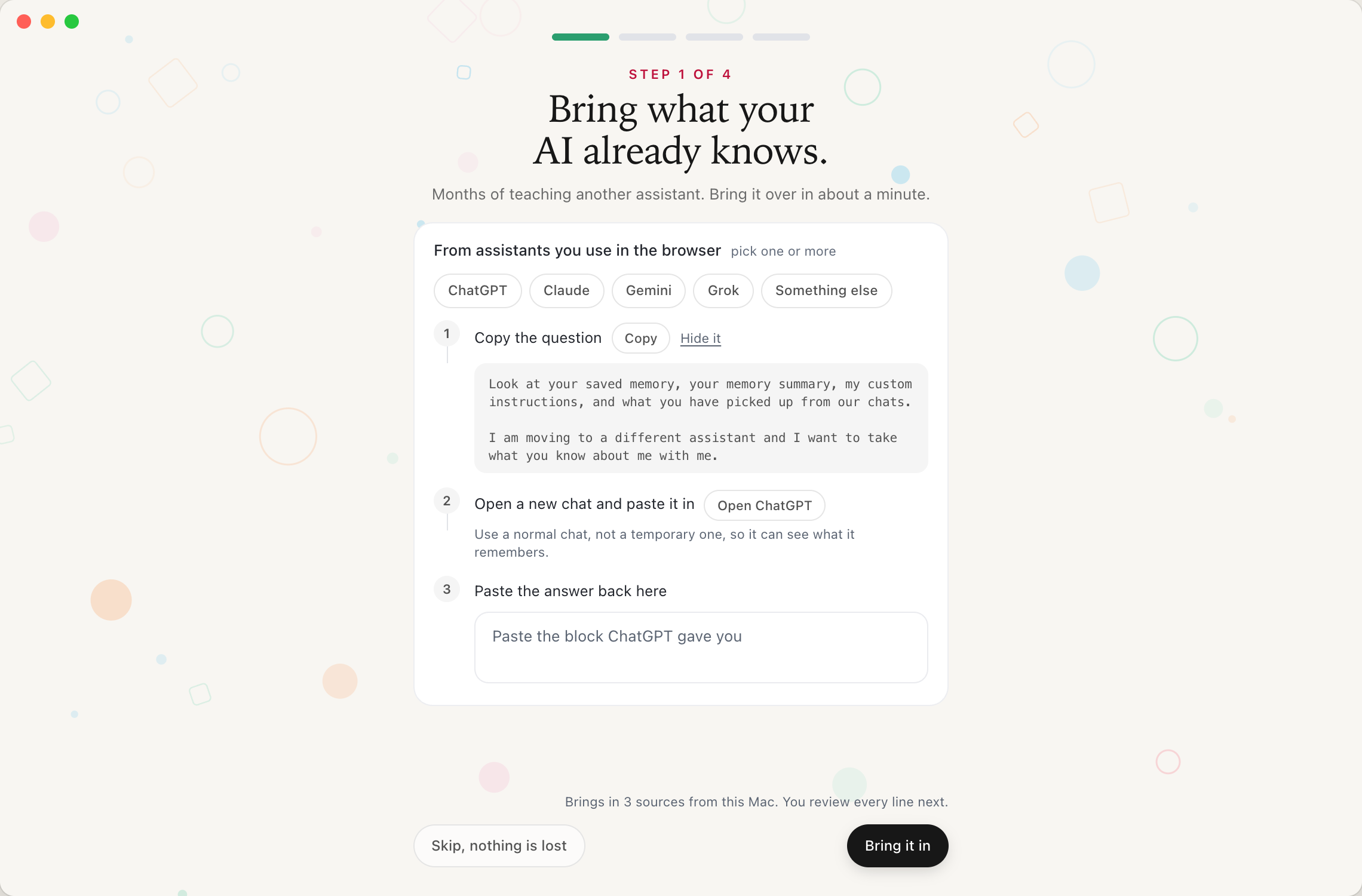
Only the first line changes per assistant. Claude gets "Look at your memory, my preferences, and what you have picked up from our chats. Write your memories out exactly as they appear." Gemini gets "Look at what you remember about me from our chats and my saved info." Grok gets a line about its memory and your custom instructions, plus a warning that matters: if you use Grok inside the X app, ask it there, because its memory lives in that app. And for anything else, "Look at anything you remember about me, including any standing instructions I have given you."
Three details in that prompt are doing real work.
The six headings mean the output is structured enough to route automatically, instead of a paragraph someone has to reread. "Do not invent anything" plus the empty-section rule is what stops a model filling gaps with plausible fiction, which is the failure that would quietly poison a memory file. And the last rule keeps passwords and keys out of a block you are about to paste somewhere.
If the answer stops halfway, which long ones sometimes do, the paste box is designed to notice and to tell you to ask "is that everything, or is there more?" and paste the rest underneath.
One more: run it in a normal chat. ChatGPT's temporary chats, by design, do not use existing memories or create new ones, so a temporary chat has nothing to report.
What Routines does with the answer
Again, this is the design and not a shipped screen. It sits at step 1 of 4 in the first run, before Routines asks you anything about yourself.
Update, 2026-09-10: this is how it shipped, and it is not a wizard step. Routines 1.5 has no import screen in the first run at all. Instead you ask for it in chat: /setup opens with this as its first question, and /import starts the same thing on its own. Either one hands you the prompt to paste into ChatGPT, Claude, Gemini or Grok, then reads back whatever you paste and writes it into your memory notes. The rest of this section is the design we drew, kept here because the prompt and the review logic are what the shipped command does. See what shipped in Routines 1.5.
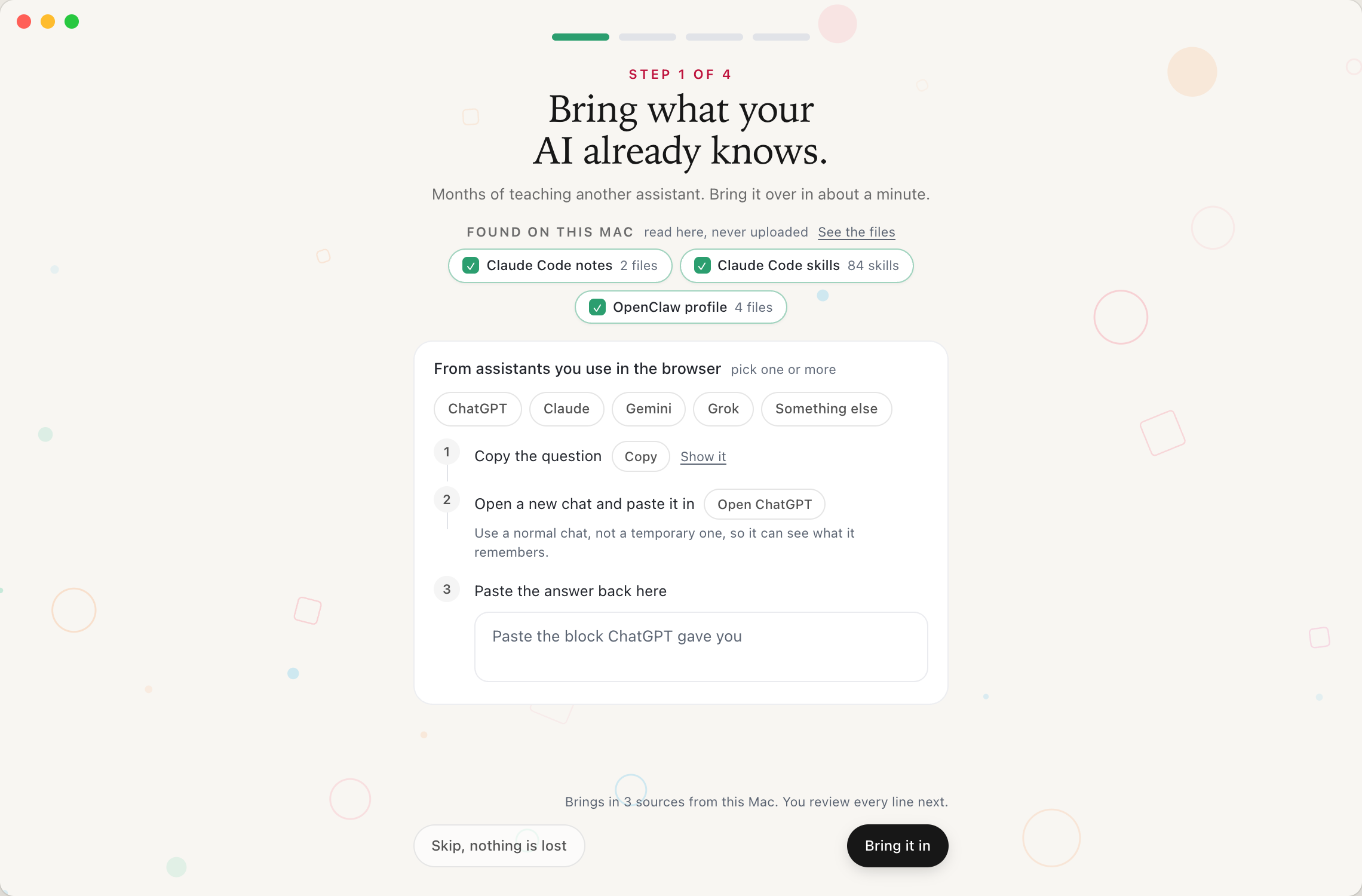
Two kinds of source in one step. The top strip is what is already on the machine: Claude Code notes, Claude Code skills, an OpenClaw profile, each a tickable chip with the count of files that will actually be read, next to a "See the files" link and the line "read here, never uploaded". The strip only renders when the scan found agent files.
The lower card is the browser assistants, and those chips are multi-select too. Pick ChatGPT and Claude together and each gets its own paste lane, one open at a time, so the step still fits the window. One button then brings in everything ticked, the local sources and any answers you pasted.
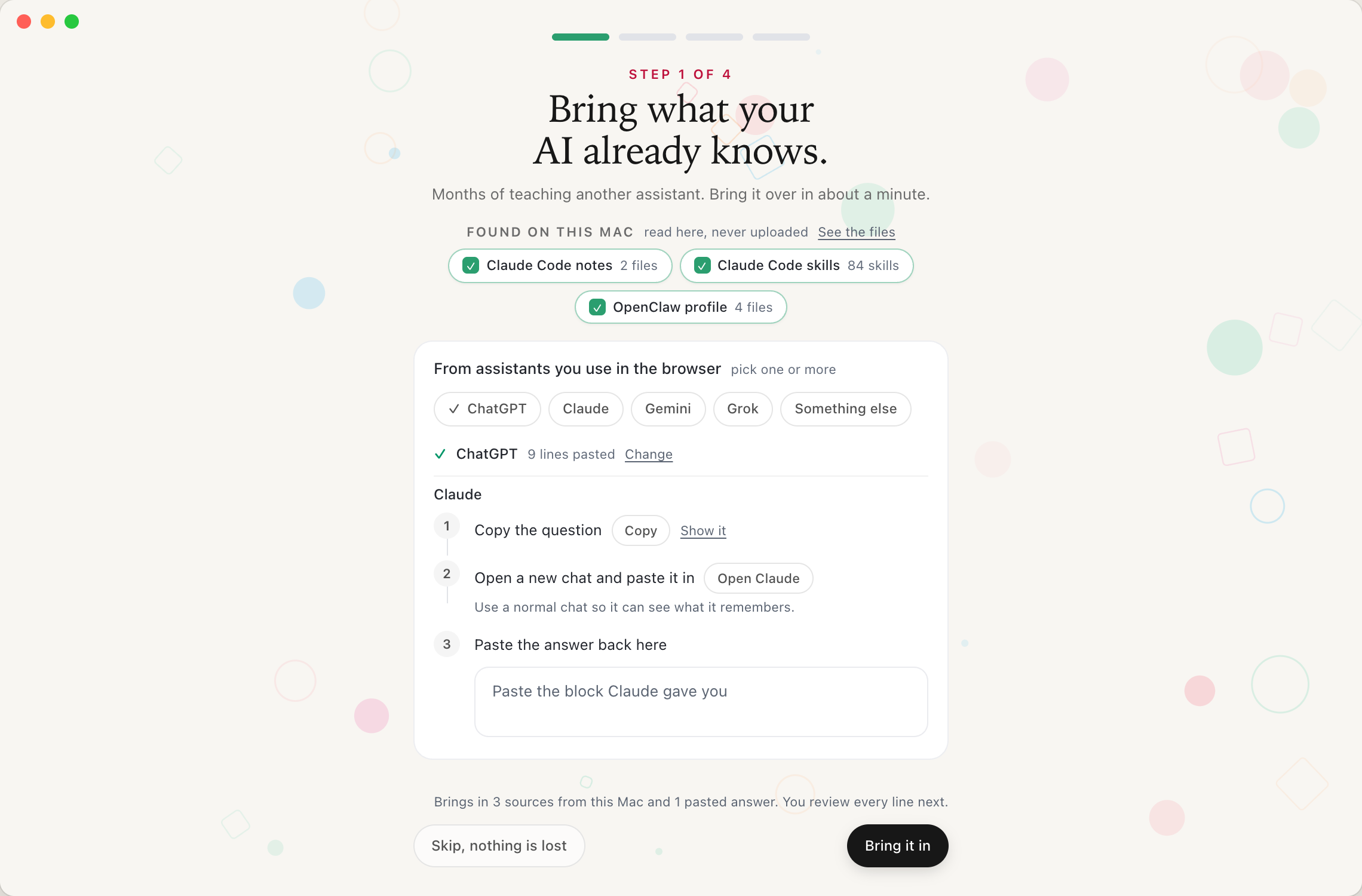
The next screen is where the work happens.
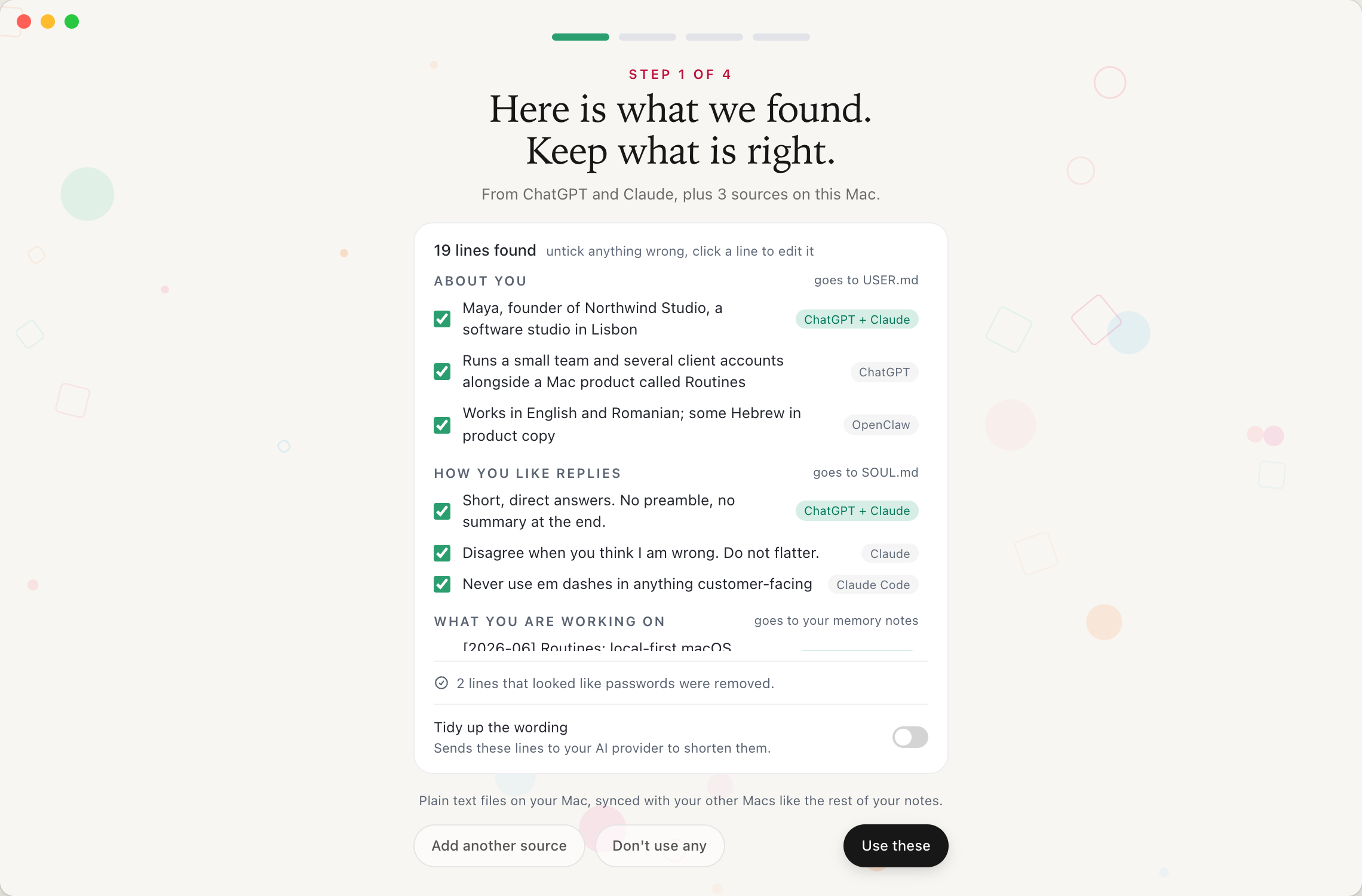
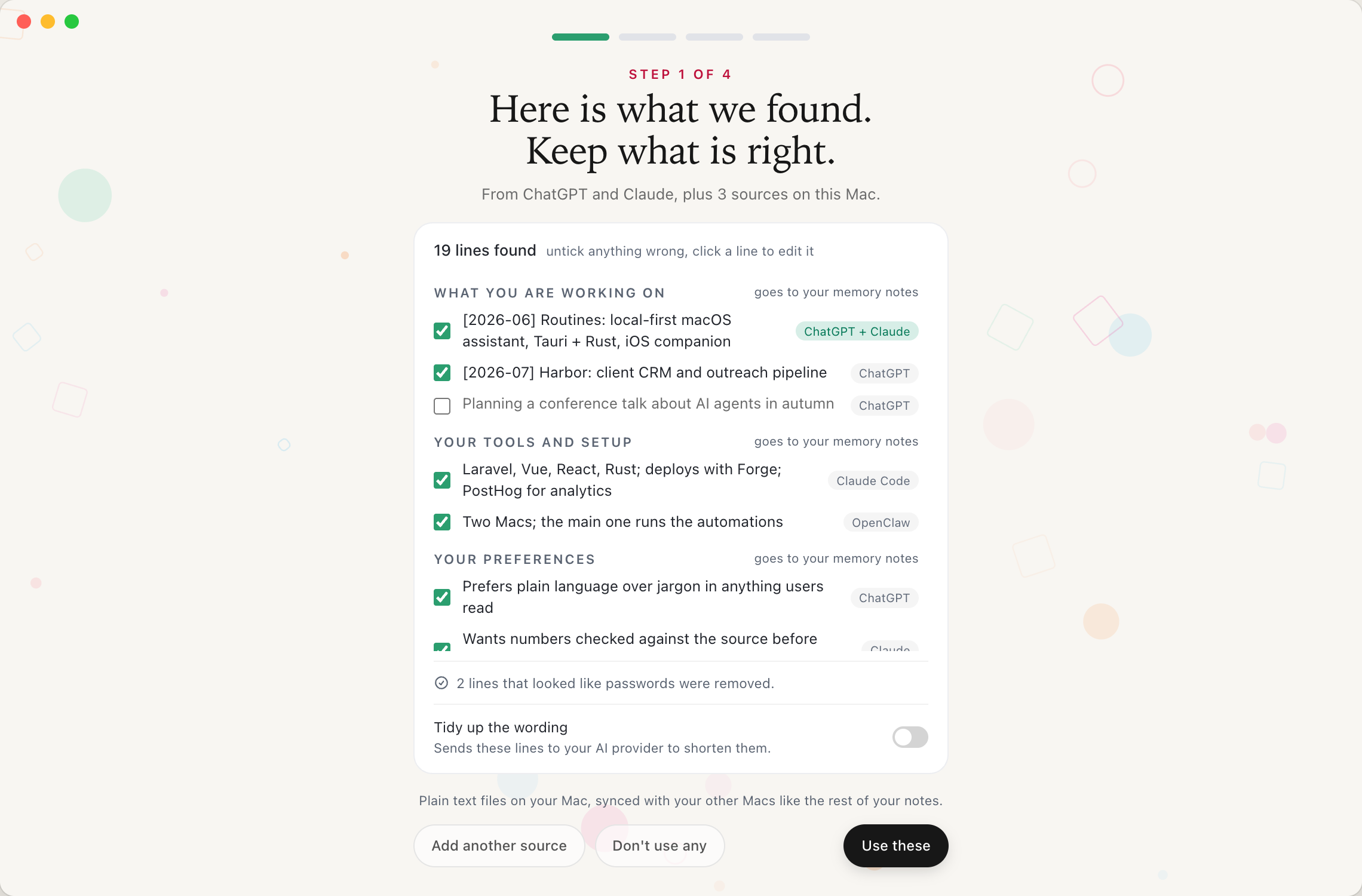
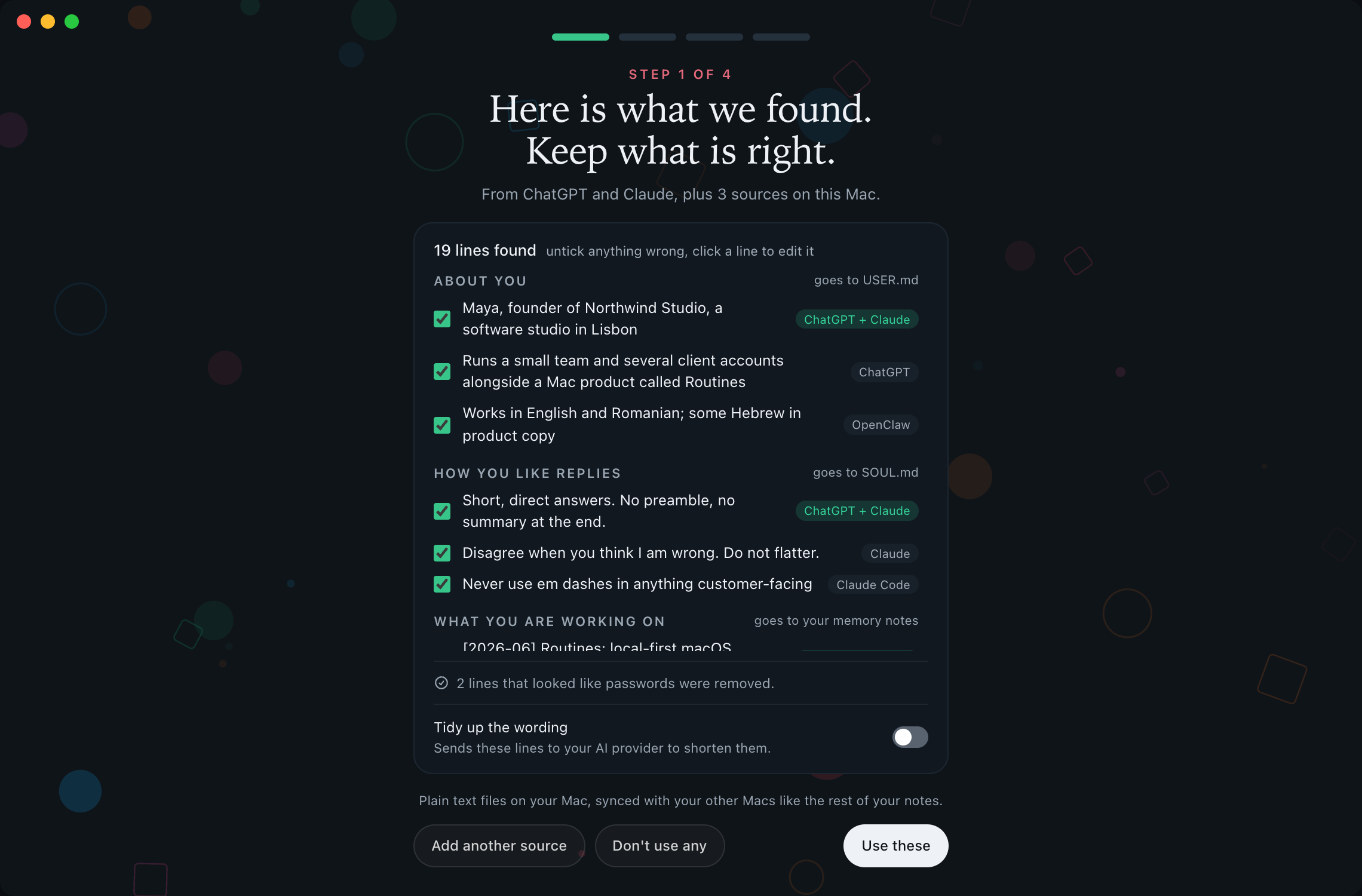
Every line carries a badge saying where it came from: ChatGPT, Claude, Claude Code, OpenClaw. Lines that showed up in two assistants get merged and badged "ChatGPT + Claude", which is a useful signal, since a fact two systems learned separately is probably right. Each group says where it will land: About you goes to USER.md, How you like replies goes to SOUL.md, the rest goes to your memory notes. The header counts the lines it found, and tells you to untick anything wrong and click a line to fix it. Nothing is written until Save and continue on step 2. The review only decides what goes in.
Two things sit under the list.
Anything that looks like a password is stripped before you see the list, and the screen tells you how many it left out, so you know something was held back without seeing it.
And "Tidy up the wording" is a switch that is drawn off in the design. Turn it on and, in the screen's own words, it "sends these lines to your AI provider to shorten them." Leave it off and the wording stays exactly as your old assistant wrote it. The agent files found on the Mac carry their own label in the same design, "read here, never uploaded".
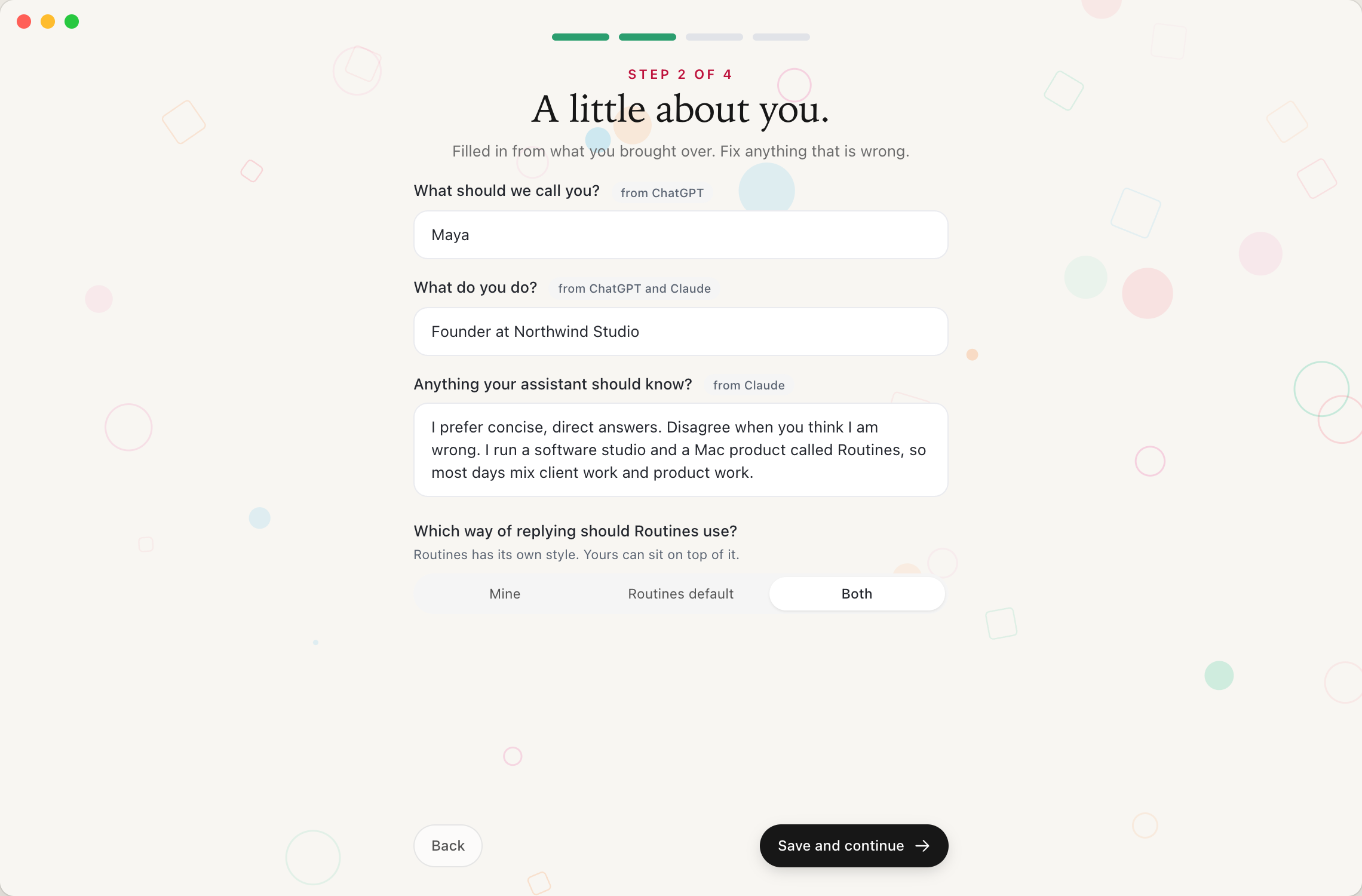
By step 2 the form is already filled in, with a chip over each field saying which assistant it came from: from ChatGPT on your name, from ChatGPT and Claude on what you do, from Claude on the free-text box.
Reply style gets its own question there, because a preference is not a fact. Routines has its own style, yours can sit on top of it, and you pick Mine, Routines default or Both.
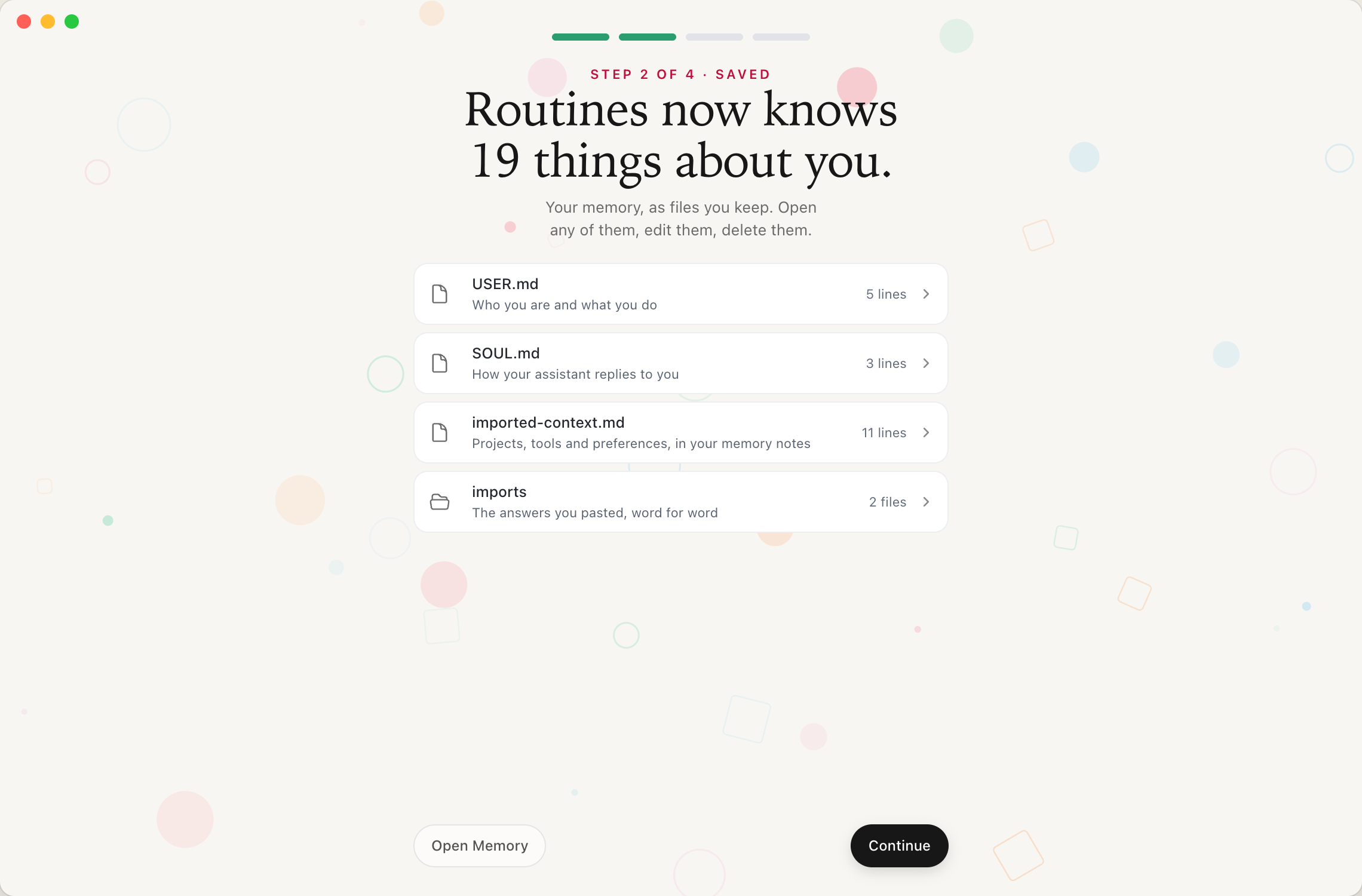
Save and continue writes real files with real names: USER.md for who you are, SOUL.md for how your assistant replies to you, imported-context.md for projects, tools and preferences. The blocks you pasted are kept next to them in an imports folder, listed on that screen as "the answers you pasted, word for word", so you can always see what you actually handed over. They are plain text files on your Mac, synced with your other Macs like the rest of your notes, on the same terms as every other note you keep. The saved screen says the rest out loud: "Afterwards, delete those chats in ChatGPT and Claude if you like. Routines keeps its own copy here."
The same import also lives in Settings, Assistant, Behavior as a "Context from other assistants" card. Run it again in six months and it compares against what Routines already has rather than duplicating: new lines are added, identical lines are left alone, changed lines show both versions so you pick. Nothing is removed, and your edits to earlier imports are kept.
What actually moves when you switch assistants
If you are weighing up how to switch from ChatGPT to Claude, or migrate anywhere else, be precise about what transfers.
Facts and preferences move. Your role, your projects, your tools, how you want to be answered. That is text, and text is portable.
Nothing else does. Not the model's behavior, not your connected apps, not the threads. Anthropic is candid that memory imports are experimental and that Claude may not always incorporate them, and that Claude's memory leans toward work topics, so personal details may not survive the trip.
So keep the extracted block yourself instead of only pushing it into the next vendor's store. Then the migration is a paste, and it is repeatable.
Why plain markdown on your Mac wins
Vendor memory is a database you visit. A markdown file is a file you own.
You can read it without logging in. You can grep it. You can edit a line that went stale in 2025 without negotiating with a chat interface. You can open the folder in Obsidian. You can copy it to a new Mac. And when you switch assistants again, which you will, the export step is finished before you start, because the file has been sitting there the whole time.
That is how memory works in Routines: markdown on your Mac with a local index over it, open in Obsidian if you want. A Morning Briefing is a different brief once the assistant knows which projects are yours and how blunt you want it. The same principle drives building a second brain from the files you already have: use what exists instead of starting at zero.
Do this today, even without Routines
You do not need the onboarding step to stop losing your context.
Open ChatGPT in a normal chat. Paste the prompt above. Copy the code block it returns. Save it as chatgpt-memory-2026-08-28.md in a folder you control. Do the same in Claude, in Gemini, in whatever else you use. Read the results and delete the lines that are wrong, because some will be.
Fifteen minutes, and the thing that was locked in an account is now a file on your disk. Redo it every few months, since assistants keep learning about you.
Routines is a free trial on macOS if you want your memory kept as plain markdown on your Mac today. The import step is coming to onboarding.
FAQ
How do I transfer ChatGPT memory to Claude?
Open a normal ChatGPT chat, not a temporary one, and ask it to write out everything it remembers about you in a single code block. Then paste that block into Claude. Anthropic ships this as a supported flow: go to Settings, then Memory, and select Start import, which shows you a suggested prompt and a text box to paste the result into. Anthropic warns that memory imports are experimental and that Claude may not always incorporate them, and that Claude's memory focuses on work topics, so personal details may not stick.
How do I export my ChatGPT conversation history?
Sign in, open your profile menu, select Settings, select Data controls, and under Export data select Export, then Confirm export. OpenAI sends an email or SMS when the archive is ready and the ZIP contains your chat history and other account data. The download link expires 24 hours after you receive it, and an export cannot restore chats you already deleted.
How long does a ChatGPT data export take?
OpenAI's help center says exports can take up to 7 days to arrive, and asks you to wait for an existing request to finish before submitting another. Check spam and promotions, and if the account uses only a phone number, check SMS. The copy-paste memory prompt takes about a minute by comparison, which is why it is the faster route when what you want is the facts rather than the transcripts.
How does ChatGPT memory work, and what does it actually store?
Memory is separate from your chat log. OpenAI describes it as context ChatGPT remembers from your chats, files and connected apps, with controls under Settings, Personalization, Memory. The memory summary shown there is a high-level view, and OpenAI states plainly that it will not include everything ChatGPT remembers based on your chats, adding that if you want to know whether it has remembered something, you should ask in chat. Custom instructions are a third, separate thing you wrote yourself.
How do I see or delete what ChatGPT remembers about me?
Memory controls live in Settings, Personalization, Memory. From the three-dot menu you can choose Delete and turn off memory, which clears the memories shown on the summary page without deleting your past chats. OpenAI notes that if you turn memory back on, ChatGPT may create new memories from chats still in your history, and that fully removing a fact means deleting every source it appears in, including past chats, archived chats and files.
Should I switch from ChatGPT to Claude?
You do not have to choose, and the point of extracting your context is that the choice stops being expensive. Once the block of facts about you is a text file you hold, you can paste it into a second assistant in under a minute and run both. What locks you in is the year of accumulated context that exists inside one vendor's account, and a text file fixes that.
Which AI has the best memory?
They work differently rather than better and worse. Claude stores memory as individual topics you can read and edit under Settings, Memory, and by default keeps sensitive subjects such as health and beliefs out unless you opt in. ChatGPT synthesizes context from chats, files and connected apps, and tells you the visible summary is not the whole of it. The more useful question is whether you can get the memory out again, and both let you do that by asking in chat.
Can I move my ChatGPT memory to more than one assistant?
Yes, because the output is plain text. Run the prompt once, save the block as a markdown file, and paste it wherever you want. In the Routines onboarding step we are building, you can pick ChatGPT, Claude, Gemini, Grok or Something else, paste a block for each, and the review screen merges them, badges each line with where it came from, and marks the lines that appeared in more than one assistant.