Your to-dos, rebuilt from top to bottom Hi there, Routines 1.21.0 is out. The To-do page is new from top to bottom: every to-do shows where it came from, takes your notes, files and tags, and ticks off with one key. Here is what changed, and at the end, how to update in one click. 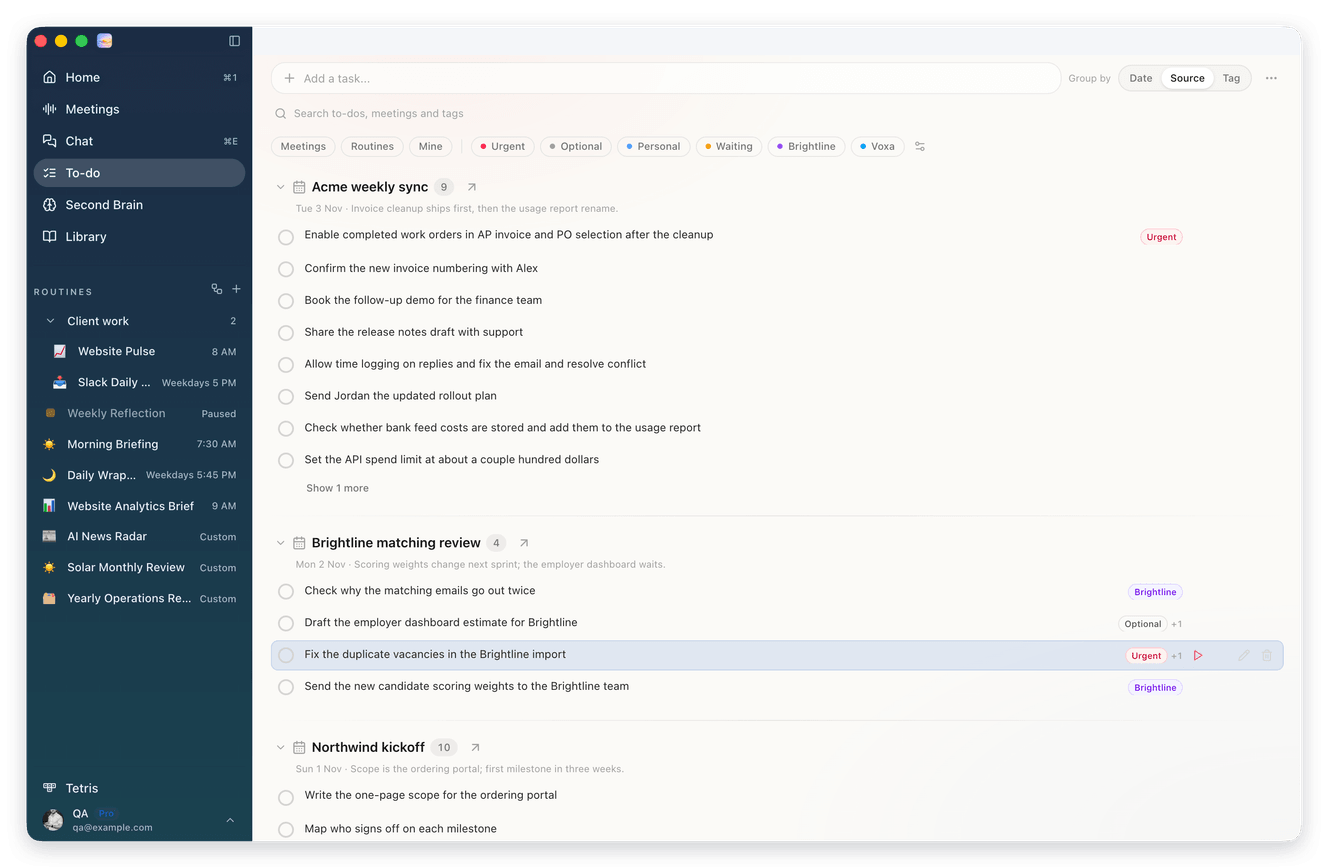
|

|
01 Your to-dos, rebuilt Click To-do in the left menu. Add a task... is the first line, ready to type in. Tag your to-dos with your own tags: you start with Urgent, Optional, Personal and Waiting, and you make more in Manage tags. 1 Every to-do says where it came from: the meeting and its date, the routine, a chat, or Added by you. Group the list by Date, Source or Tag, and show only Meetings, Routines or Mine. 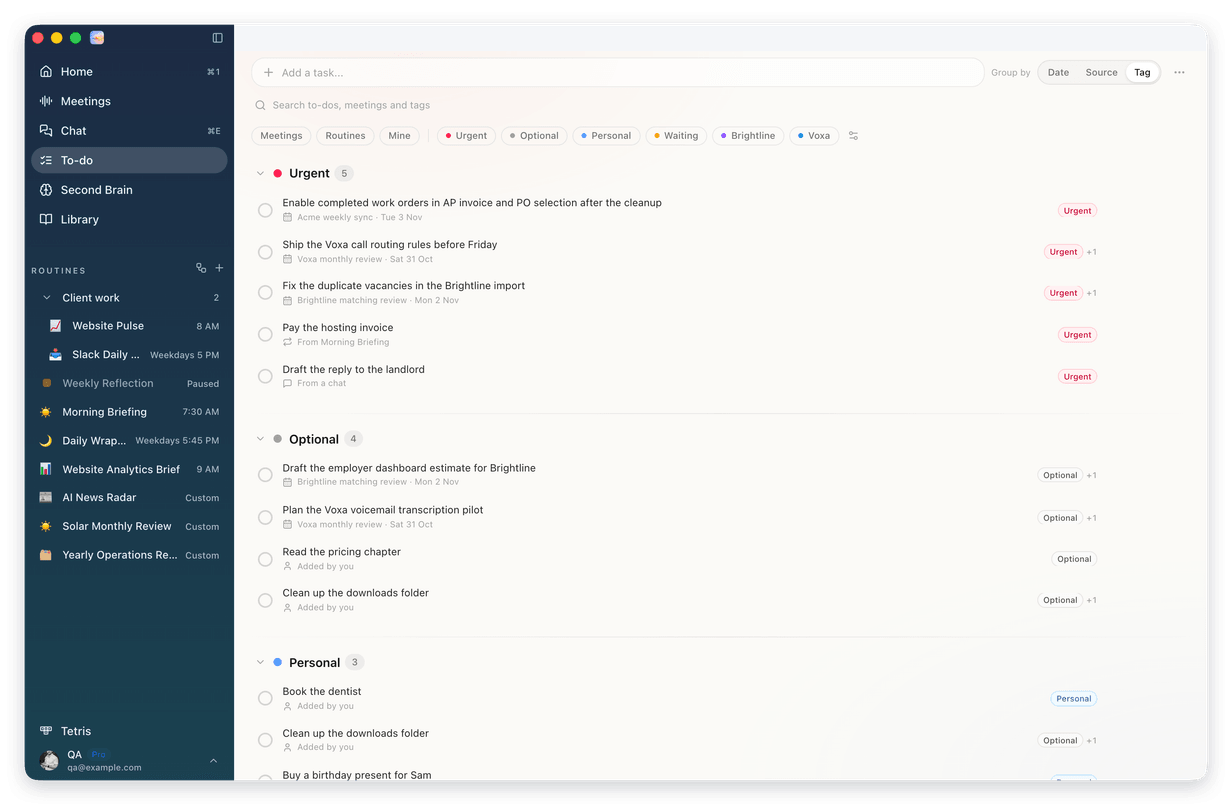
2 Click a to-do to open it. Rename it, write notes, and drop files on the notes. Pick a due date with the Due date button, from quick picks like Tomorrow morning. The play button, Open in chat, puts the to-do in Chat, ready for your question. Nothing is sent until you send it. 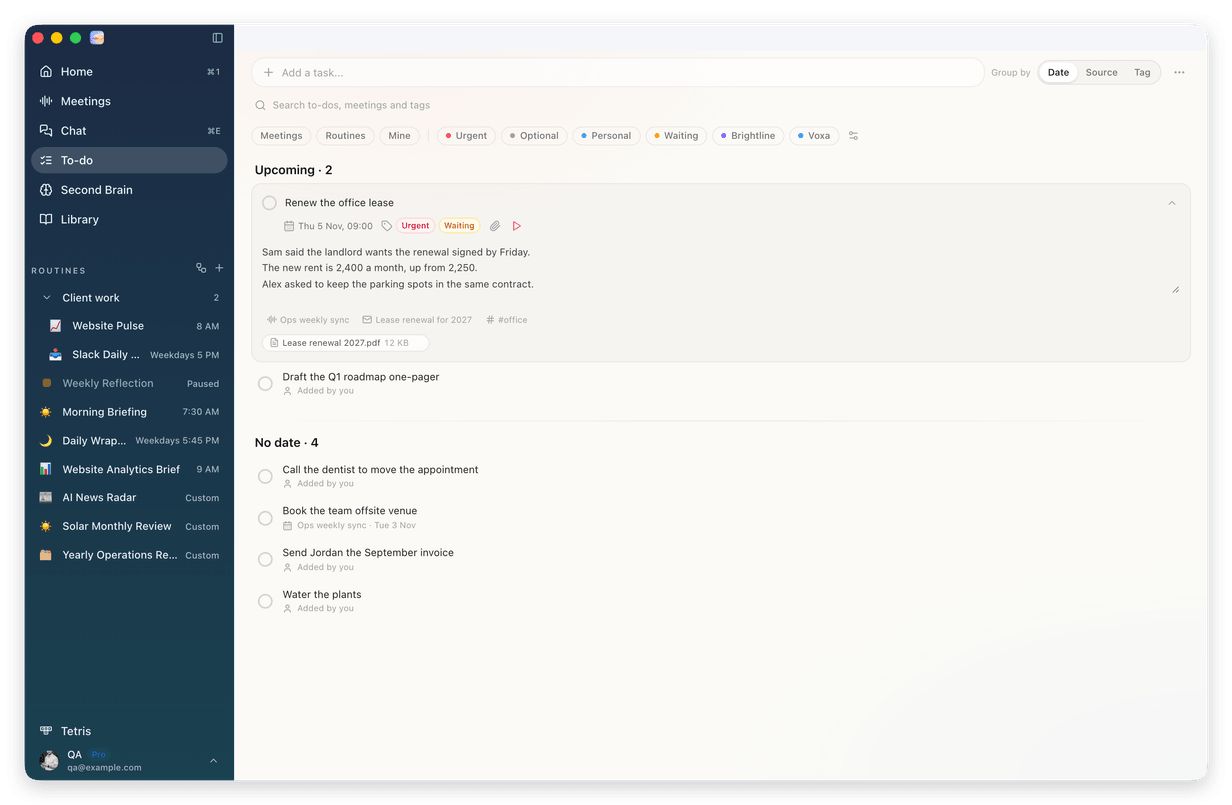
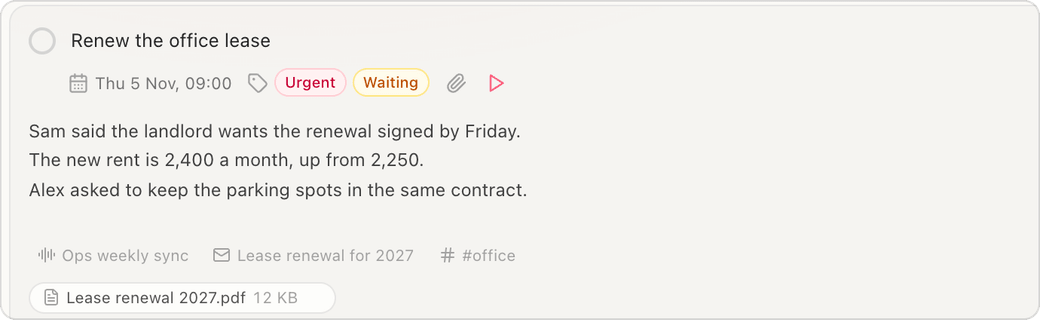
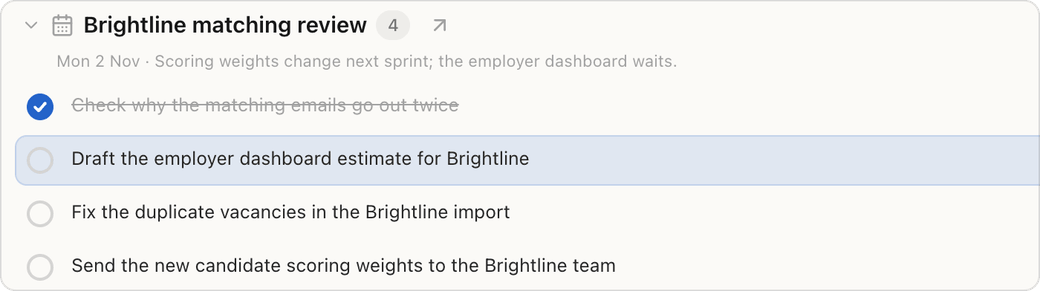
3 Tick a to-do and you see the check. It folds out of the list a moment later. Changed your mind? Press Cmd+Z and it comes back. 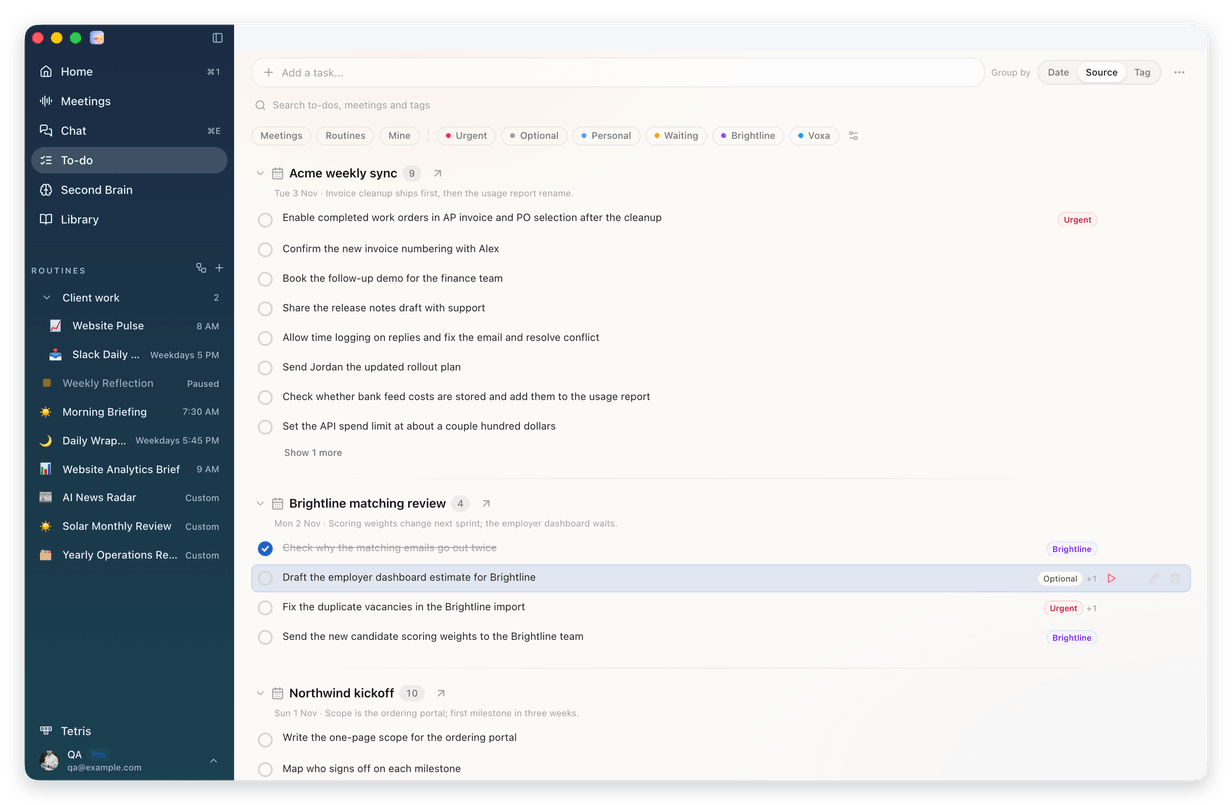
Keys on the To-do page
Open in chat has no key of its own: select the to-do, press Tab until the play button is focused, then press Enter. Files you attach stay on this Mac. |
||||||||||||||
|
02 Context for your to-dos, when you want it The new Context collector adds a short note to your to-dos with what your meetings, email and Slack already say about them. It only reads, it runs every 30 minutes on your Main Mac, and each note is one small AI call. It is off until you turn it on: click ... at the top of the To-do page, then Turn on. It can also give an untagged to-do one or two of your tags. 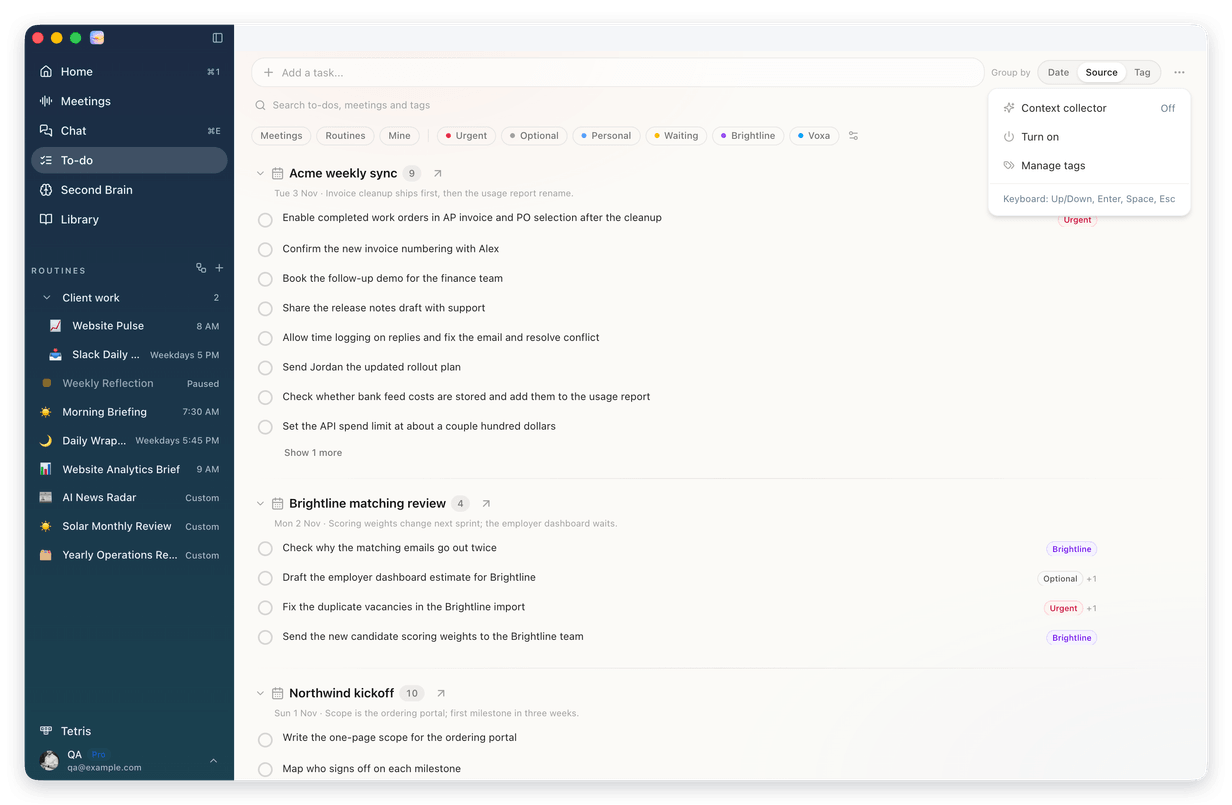
|
||||||||||||||
|
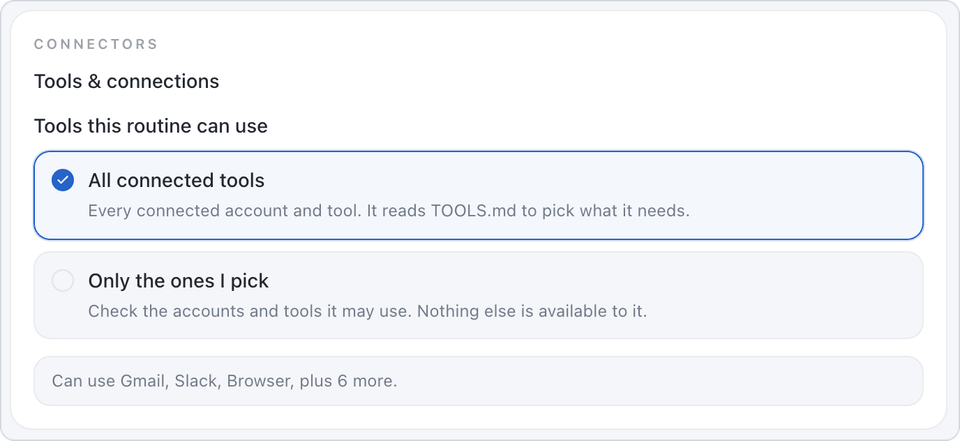
03 Routines can use all your connected tools A routine can now use every account and tool you have connected. Want it to use less? Under Tools this routine can use, pick Only the ones I pick instead of All connected tools. Routines where you already chose tools keep that list. Routines where you chose nothing now get every connected tool too, and that includes sending email and posting to Slack without asking you first. In the routine's Details, Access says Can use all connected tools. Click Pick tools to check the accounts and tools it may use. Nothing else is available to it. 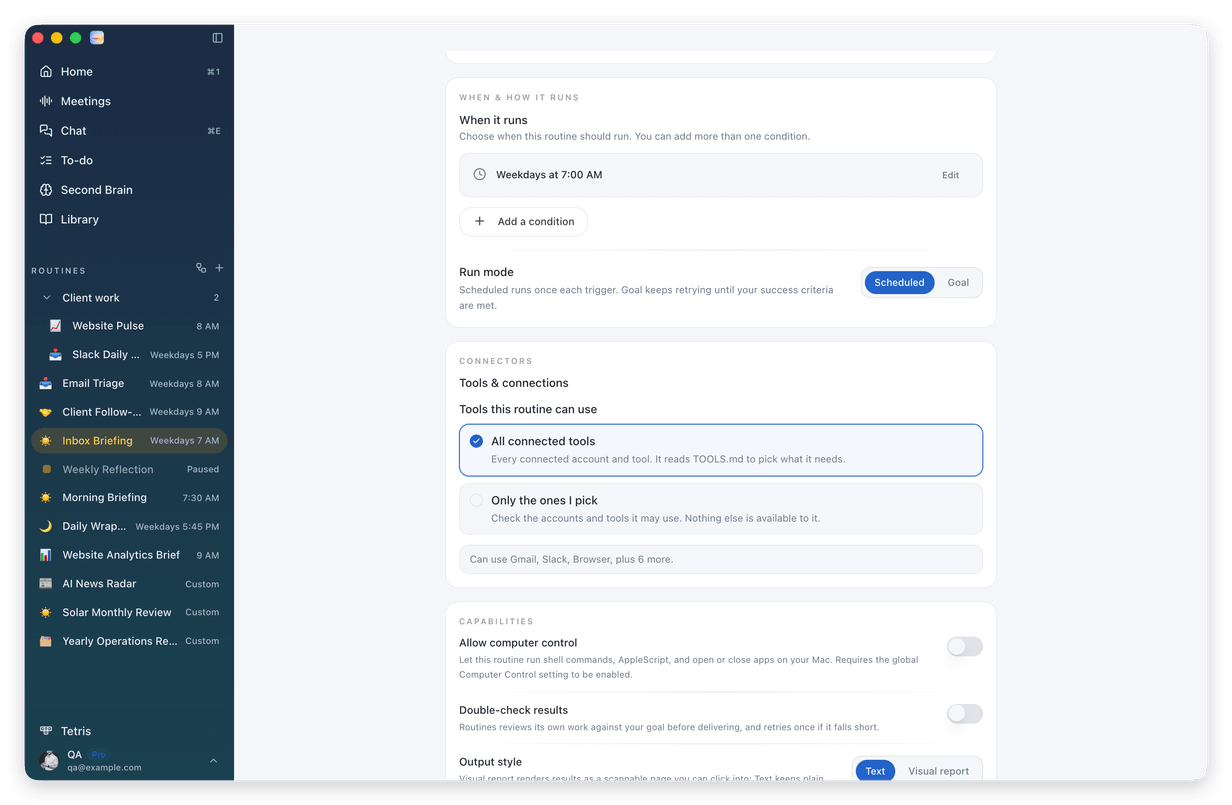
|
||||||||||||||
|
04 A slimmer header, more room for the output Open a routine and its output now starts right under the header. The Latest output band above it is gone. The run status sits in the header line, after the last run time, and Share this output is the link icon in the toolbar. When an output has both a visual and a text form, the Visual and Text switch sits there too. In the same window, the output starts 76 pixels higher. Ask about it in the Ask about this routine... bar under it, or attach a file there. Once you ask, the chat slides in on the right. The panel holds two tabs, Chat and Details. If a run could not reach one of your accounts, a card lets you give it access in one click, or you can dismiss the card. 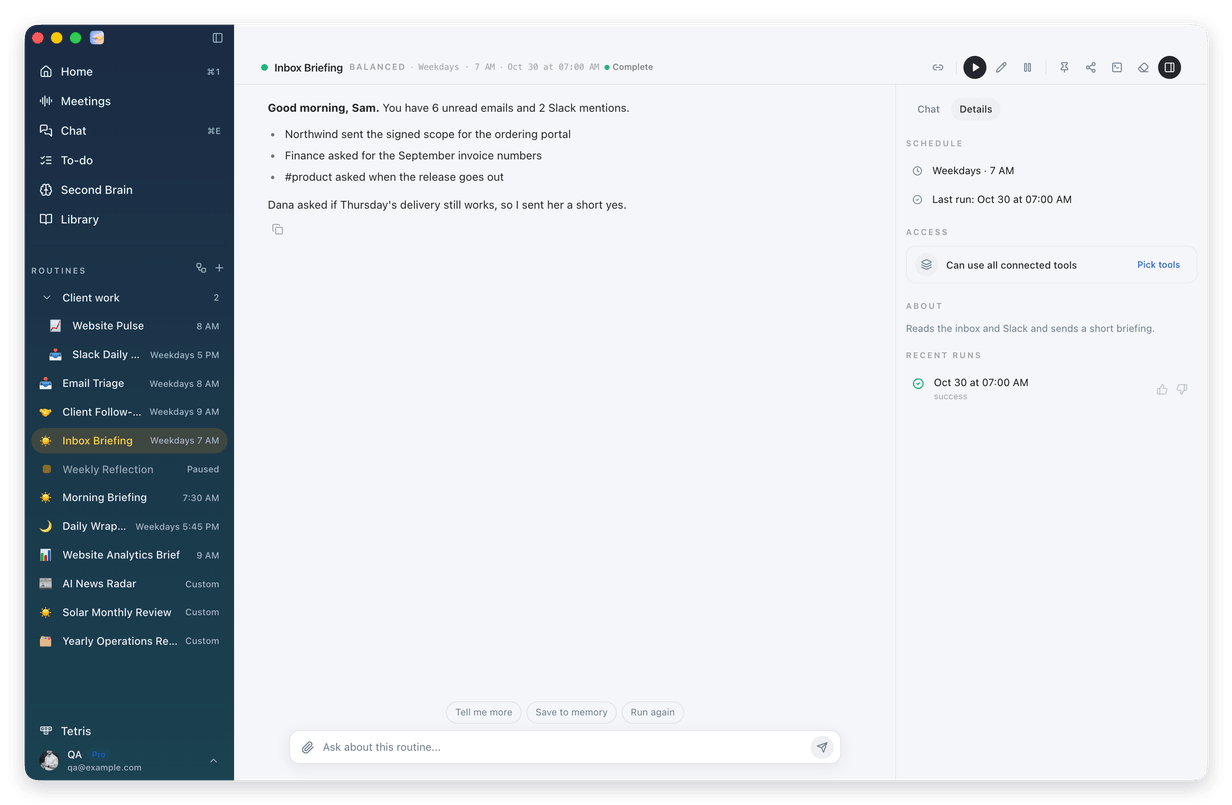
Before 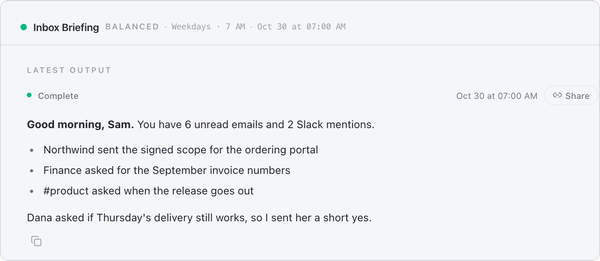
After 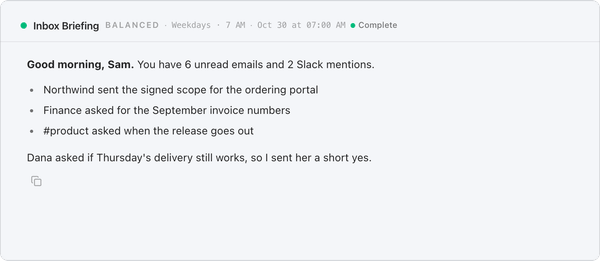
|
||||||||||||||
|
Also new · A shared meeting link carries the meeting notes Routines wrote, never what you typed under My notes. · Your routines and chats can put labels on your Gmail messages, and archive a message with a label that says why. · In the screenshot editor, Cmd+C copies the image, like the Copy button. · A message you send while Routines is still answering shows its images and files while it waits. · Using Claude Code? If it is not signed in, Routines now tells you to run claude auth login in Terminal. |
||||||||||||||
|
How to update 1 Open Routines. A few seconds later it tells you a new version is available. 2 Click Install & Relaunch. Routines updates and restarts on its own. Your to-dos, meetings and settings stay where they are. 3 Don't see it? Open Settings, click About, then Check for updates. Using Routines on more than one Mac? Update each one. Or download the newest version and drag it into your Applications folder:
|
||||||||||||||
This is the web version of the email we sent to Routines users on November 5, 2026, for version 1.21.0. |